
Running Manual and Automated Tests
Mixed Run allows teams to execute manual and automated tests together within a single execution session, combining results into one unified report.
It is designed for real-world QA workflows where releases require validation across both automated pipelines and manual verification.
Key Benefits:
- Execute manual and automated testing in one place
- Unified reporting across execution types
- Real-time visibility into release readiness
- Flexible execution via CI pipelines or local CLI
- Supports exploratory and structured testing flows
- Centralized results for stakeholders and QA teams
In a Mixed Run:
- Manual tests are executed directly in the Testomat.io interface
- Automated tests run via CI or locally using CLI
- All results are placed into a single report
Execution Types
Section titled “Execution Types”When launching a Mixed Run, you must choose how automated tests will be executed.
Mixed Run supports two execution types.
| Execution Type | Automated Tests | Requirements |
|---|---|---|
| Mixed Run on CI | Executed in a CI pipeline | CI profile must be configured |
| Mixed Run without CI | Executed locally via CLI | No CI setup required |
Mixed Run on CI
Section titled “Mixed Run on CI”Automated tests are executed through a configured CI pipeline.
Characteristics:
- automated tests start automatically after the run is launched
- results are reported from CI to Testomat.io
- manual tests are completed in the UI
Typical use cases:
- regression pipelines
- build validation
- automated testing triggered by commits or pull requests
Learn more in the Continuous Integration guide.
Mixed Run without CI
Section titled “Mixed Run without CI”Automated tests are executed locally using the Testomat.io CLI.
Characteristics:
- no CI setup required
- tests run from a local machine or testing environment
- results are reported to Testomat.io via CLI
Typical use cases:
- early automation adoption
- local debugging of automated tests
- hybrid workflows combining manual and automated testing
How to Launch Mixed Runs
Section titled “How to Launch Mixed Runs”Mixed Runs can be started in 2 ways depending on how much configuration is required.
- from the Tests page - for quick execution; ideal when you need to run specific tests or suites quickly, with minimal configuration
- from the Runs page - for fully configured execution; allows selecting test plans, assigning users, setting environments, and other advanced options before launch
Launch Mixed Run from Tests Page
Section titled “Launch Mixed Run from Tests Page”You can start a Mixed Run directly from the Tests page for quick execution of selected tests or suites.
- Run a single suite via ’…’ menu
- Run multiple suites/tests using bulk selection
Both options follow the same launch flow.
Launch a Suite from Tests Page
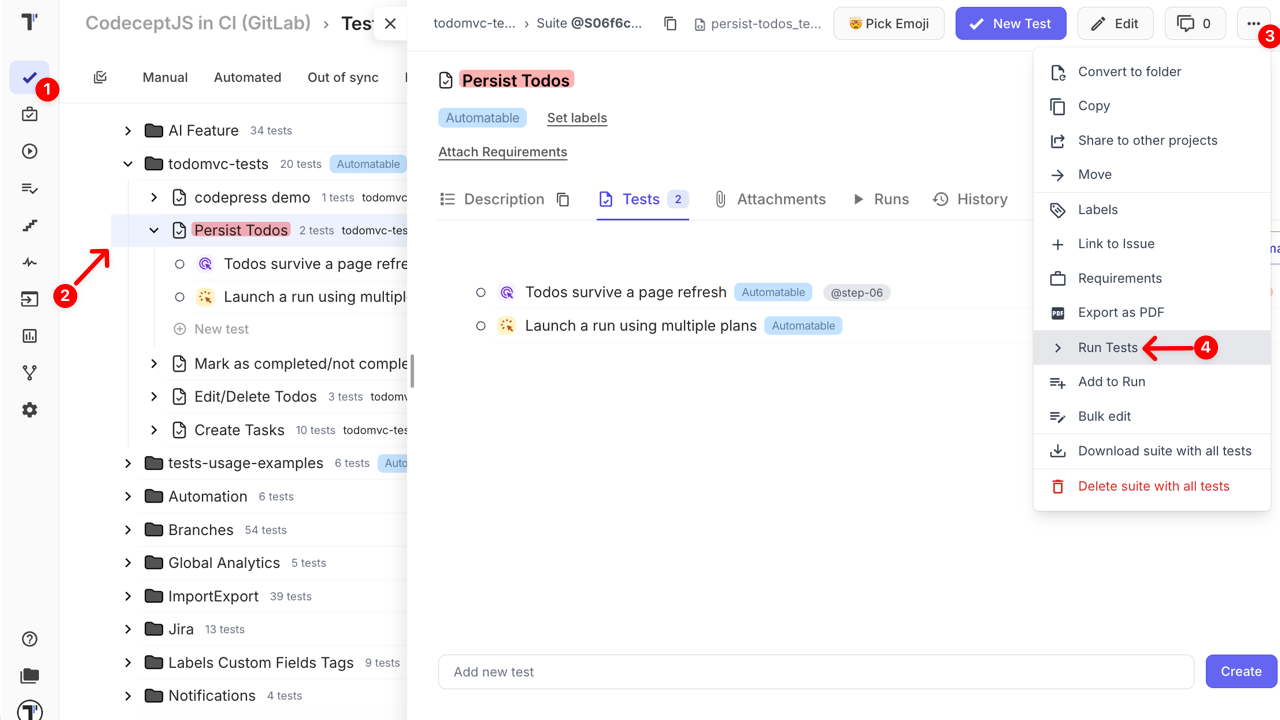
Section titled “Launch a Suite from Tests Page”- Go to the Tests page
- Open a suite with manual and automated tests
- Click the ’…’ menu
- Select the Run Tests option
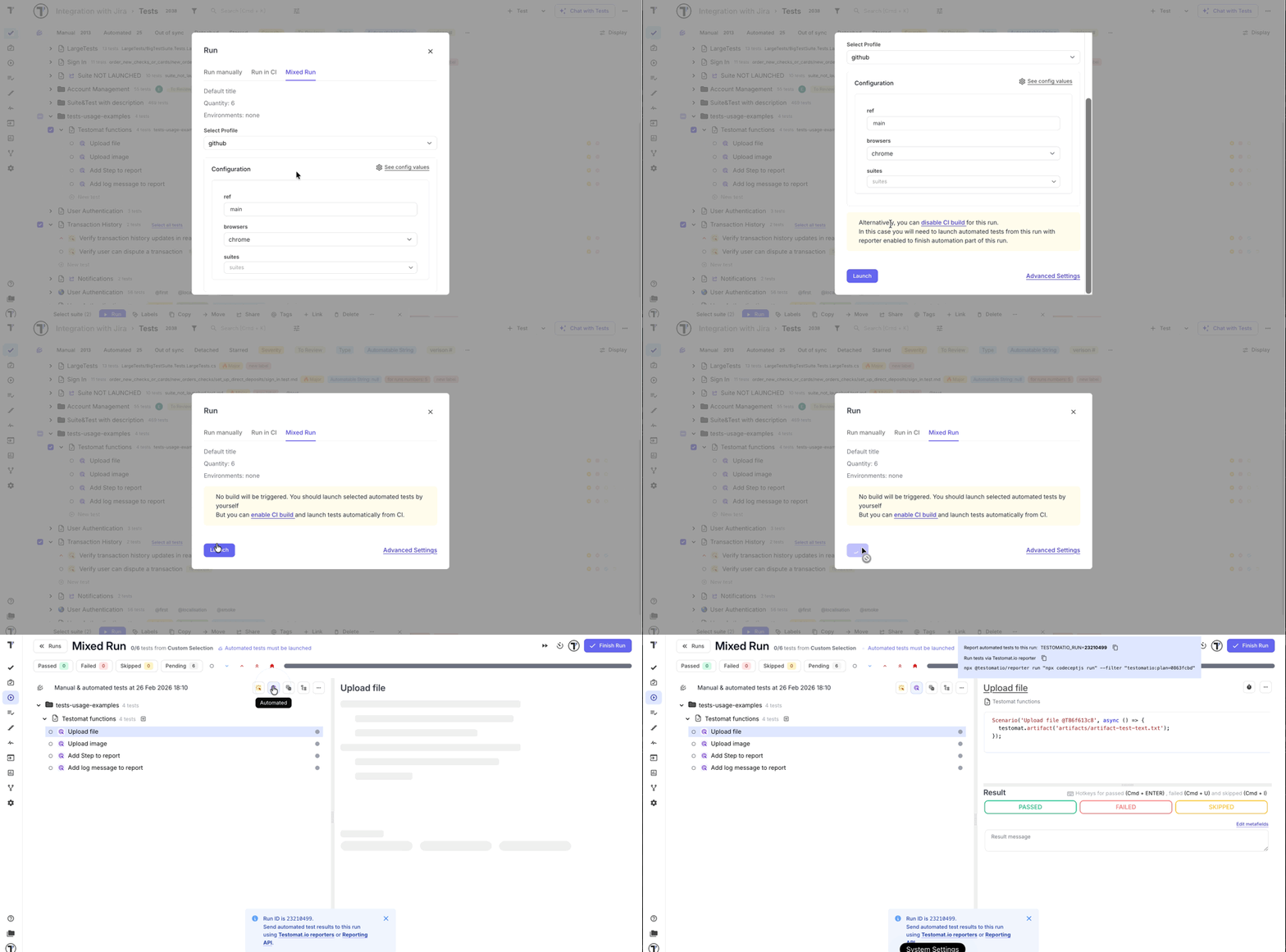
In the Run modal window,
- Open the Mixed Run tab
- Choose execution type:
- On CI → Select CI Profile
- Without CI → disable CI build
- Click the Launch button
Launch Tests Using Bulk Selection
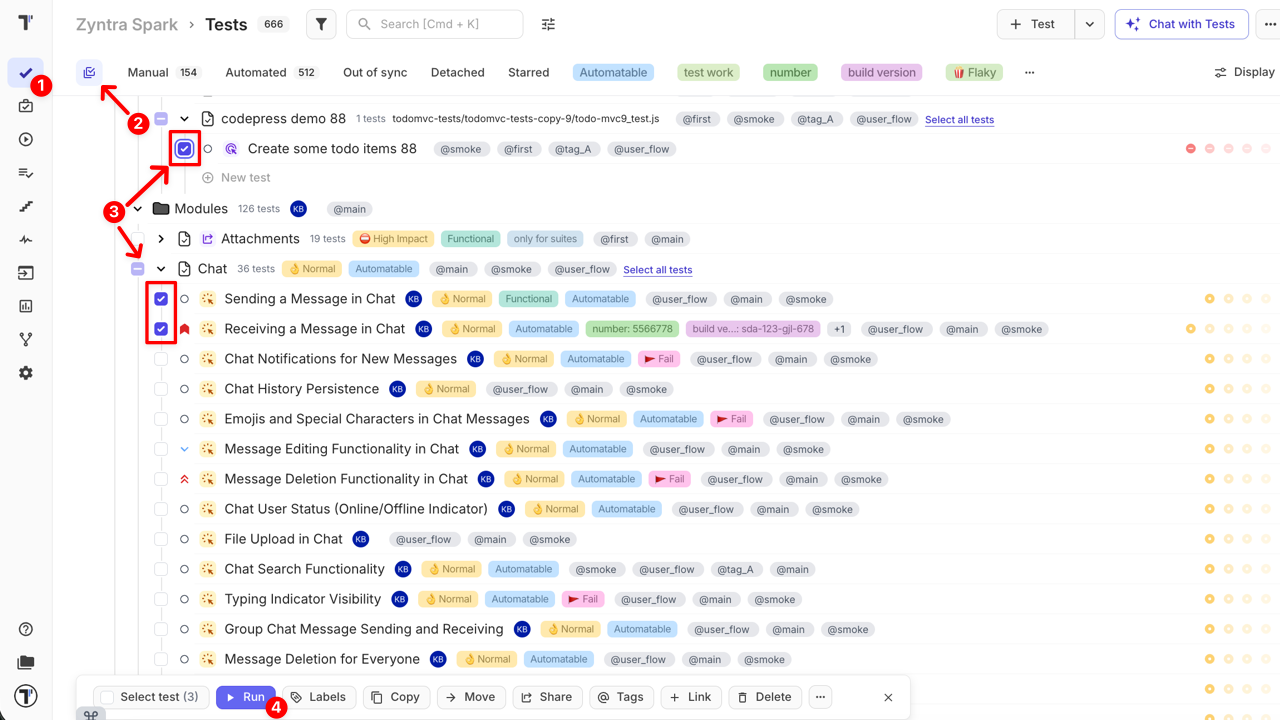
Section titled “Launch Tests Using Bulk Selection”- Go to the Tests page
- Enable the multi-select mode
- Select tests or suites
- Click the Run button
In the Run modal window,
- Open the Mixed Run tab
- Choose execution type:
- On CI → Select CI Profile
- Without CI → disable CI build
- Click the Launch button
Launch Mixed Run from Runs Page
Section titled “Launch Mixed Run from Runs Page”You can create and configure Mixed Runs from the Runs page when more control is required.
Launching a Mixed Run typically consists of three steps:
- Create a new Mixed Run
- Select Execution Type (CI/ without CI)
- Configure Mixed Run
Let’s dive deeper into each step below.
Create a Mixed Run
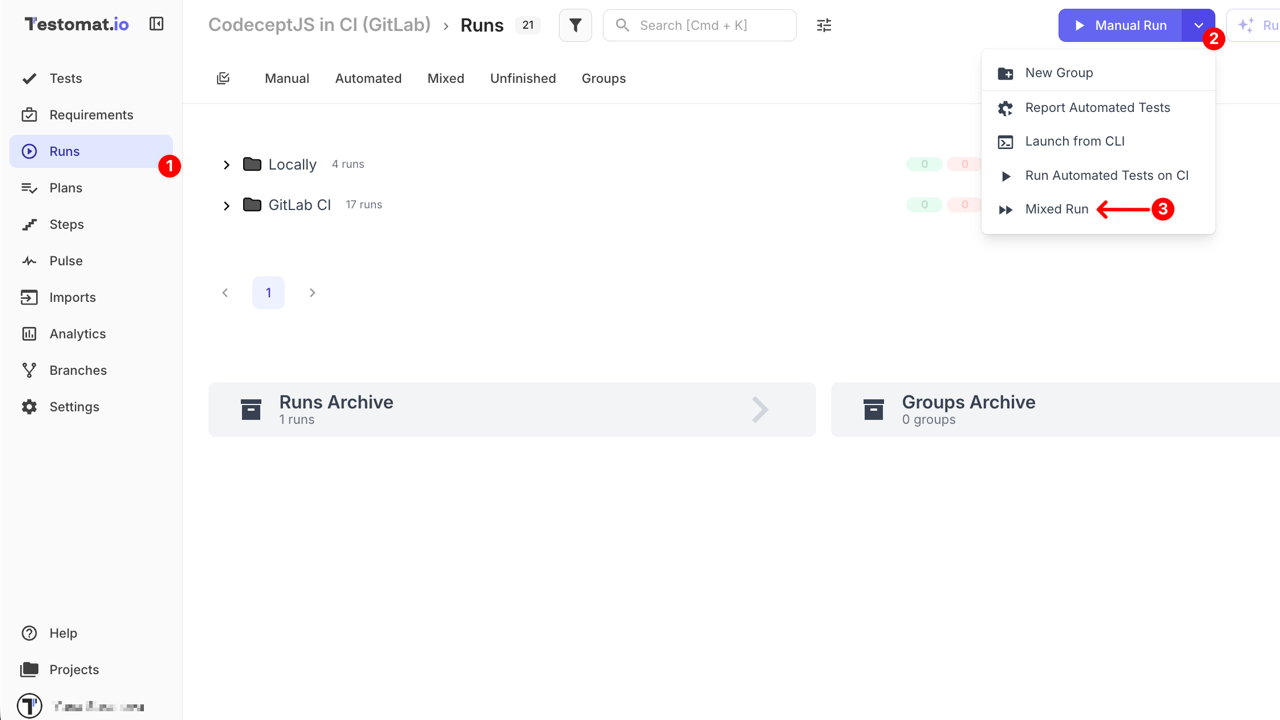
Section titled “Create a Mixed Run”- Open the Runs page
- Click the ’⌄’ button next to the ‘Manual Run’
- Select Mixed Run from dropdown
Select Execution Type
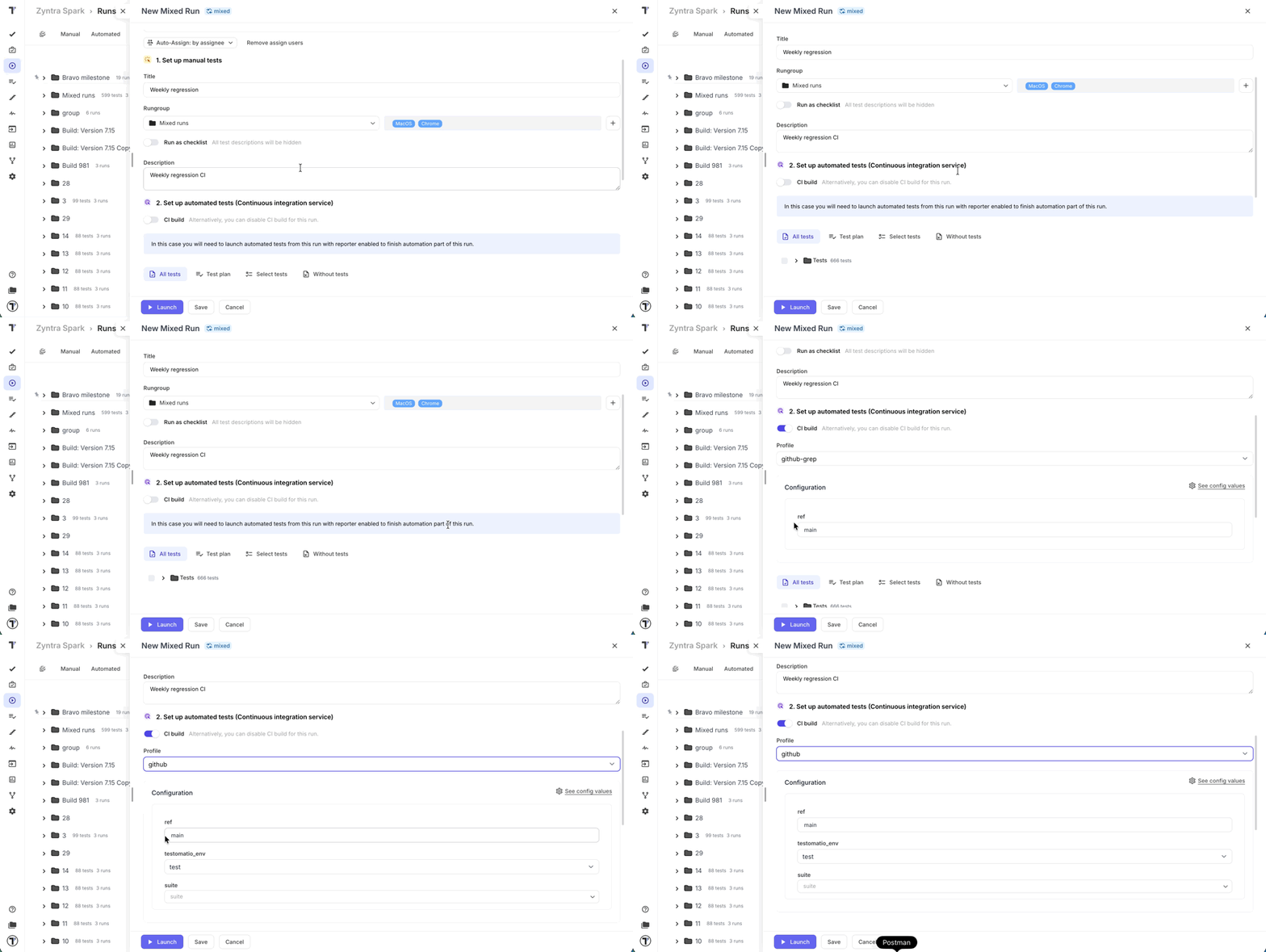
Section titled “Select Execution Type”Choose how automated tests should run:
- Enable CI build — automated tests run via CI pipeline
- Disable CI build — automated tests run locally via CLI
This selection determines how automated test execution will start.
Configure Mixed Run
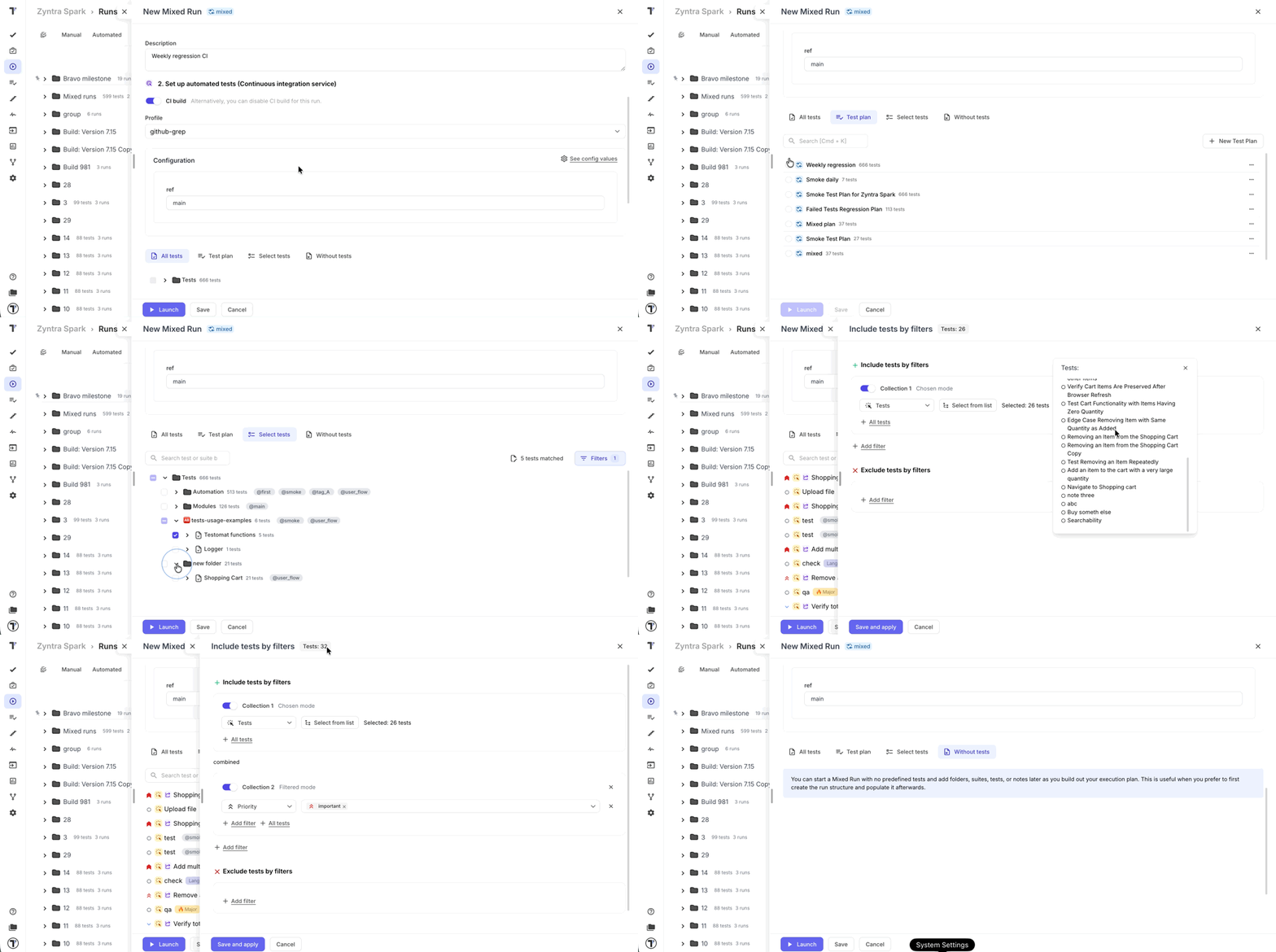
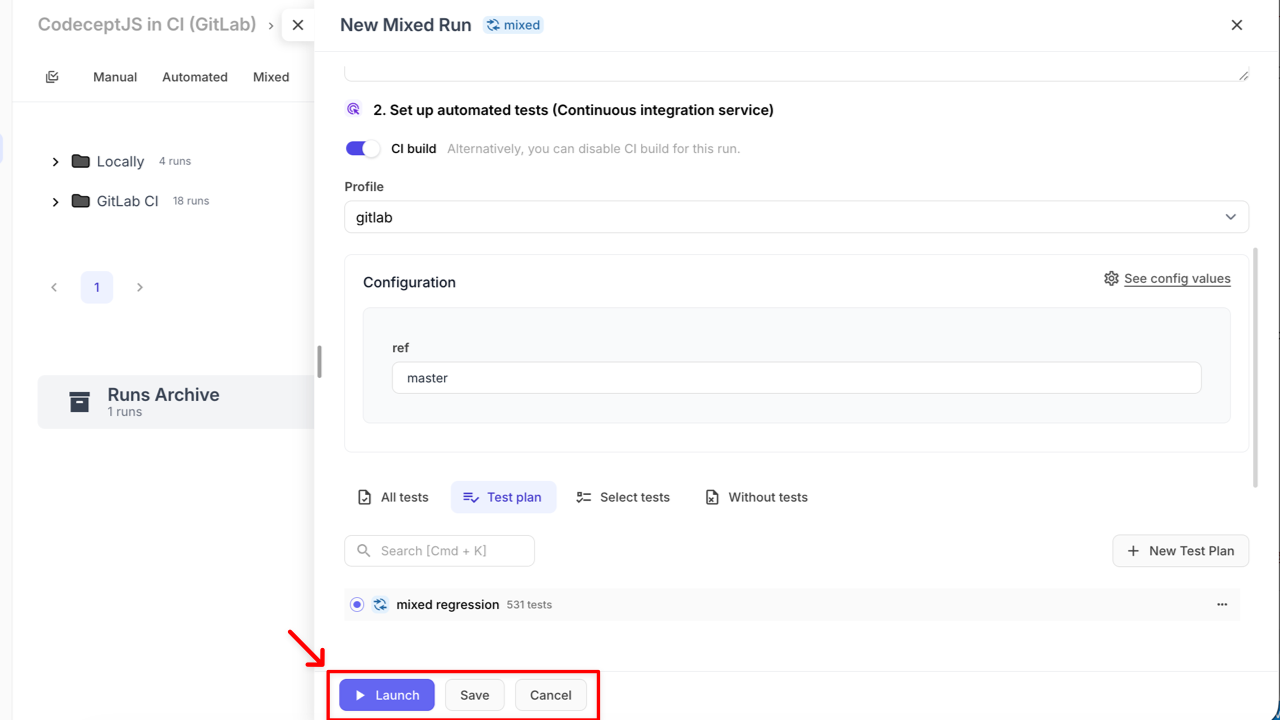
Section titled “Configure Mixed Run”When creating a mixed run from the Runs page, the following options are available for configuration:
Options Overview:
- All tests – launch all manual and automated tests available in the project
- Test plan – select from existing test plans
- Bulk selection is NOT supported, only one plan can be selected
- You can also create a new test plan if needed (Learn more here)
- Select tests – manually select tests from the tree structure, use search, or apply filters to narrow down your selection
- Supports bulk selection
- Filters and collections allow for advanced selection and grouping of tests
- Learn more about working with test collections & filters here
- Without tests – create a mixed run first and populate it later
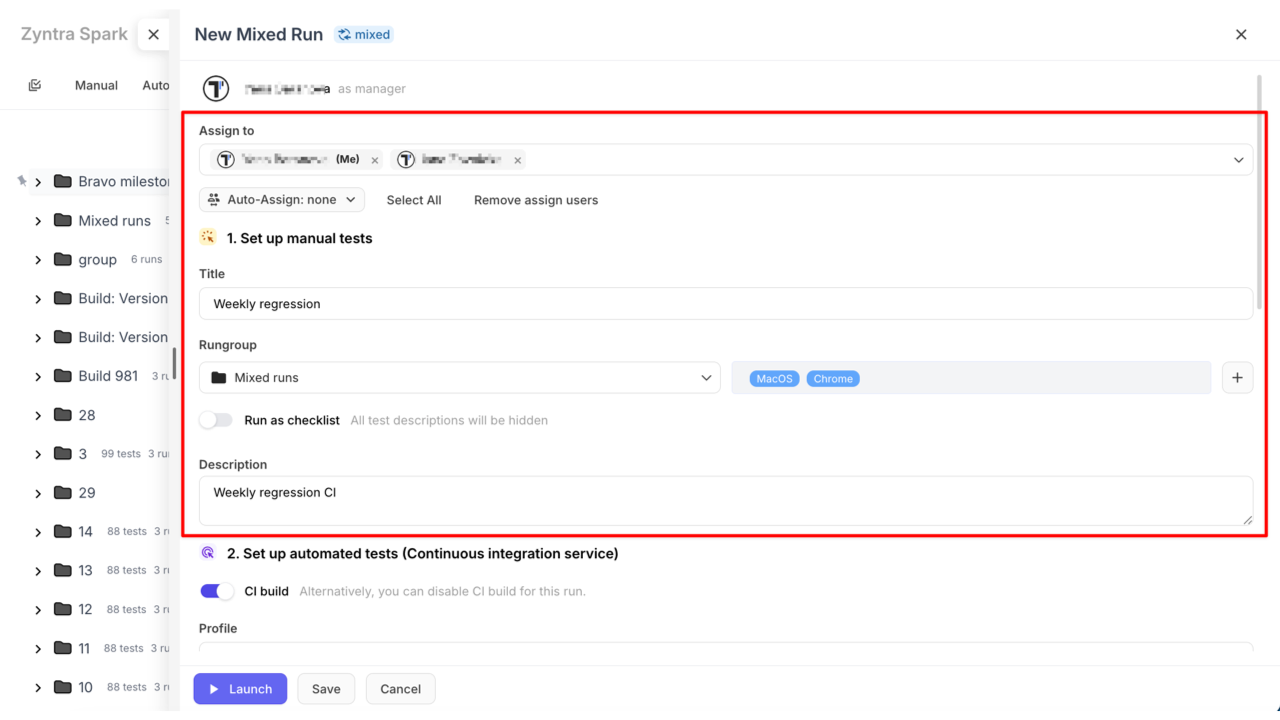
Additional Configurations:
- Assign to – define who will execute the tests (See: How to Assign Users to the Run)
- Title (optional) – give your run a descriptive name
- Rungroup – group the run within a specific RunGroup for better organization (See: How to Run Tests in RunGroups)
- Set environment for execution – choose one or multiple environments for the run (See: How to Run Environments)
- Run as checklist – hides test descriptions for faster execution, ideal for experienced testers (See: How to Run Tests As Checklist)
- Description (optional) – provide context for this run
After configuration:
- Launch – immediately start the run with the configured settings
- Save – store the configured run without launching it, so it can be executed later
- Cancel - exit without saving; all changes will be lost
How to Execute Mixed Run
Section titled “How to Execute Mixed Run”After launching a Mixed Run, manual and automated tests can be executed independently depending on the selected execution type.
Mixed Run without CI
Section titled “Mixed Run without CI”When a Mixed Run is launched and CI build is disabled, follow these steps:
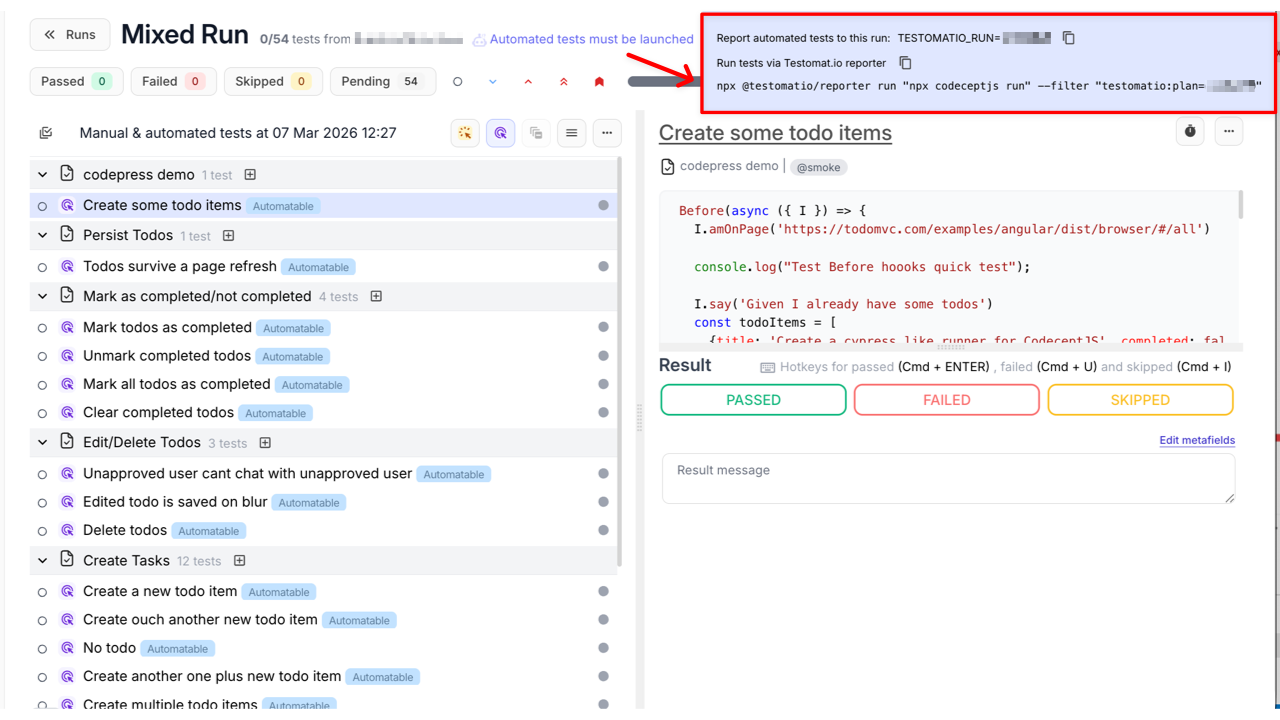
- Copy the command in the launched Mixed Run
- Paste it in your terminal
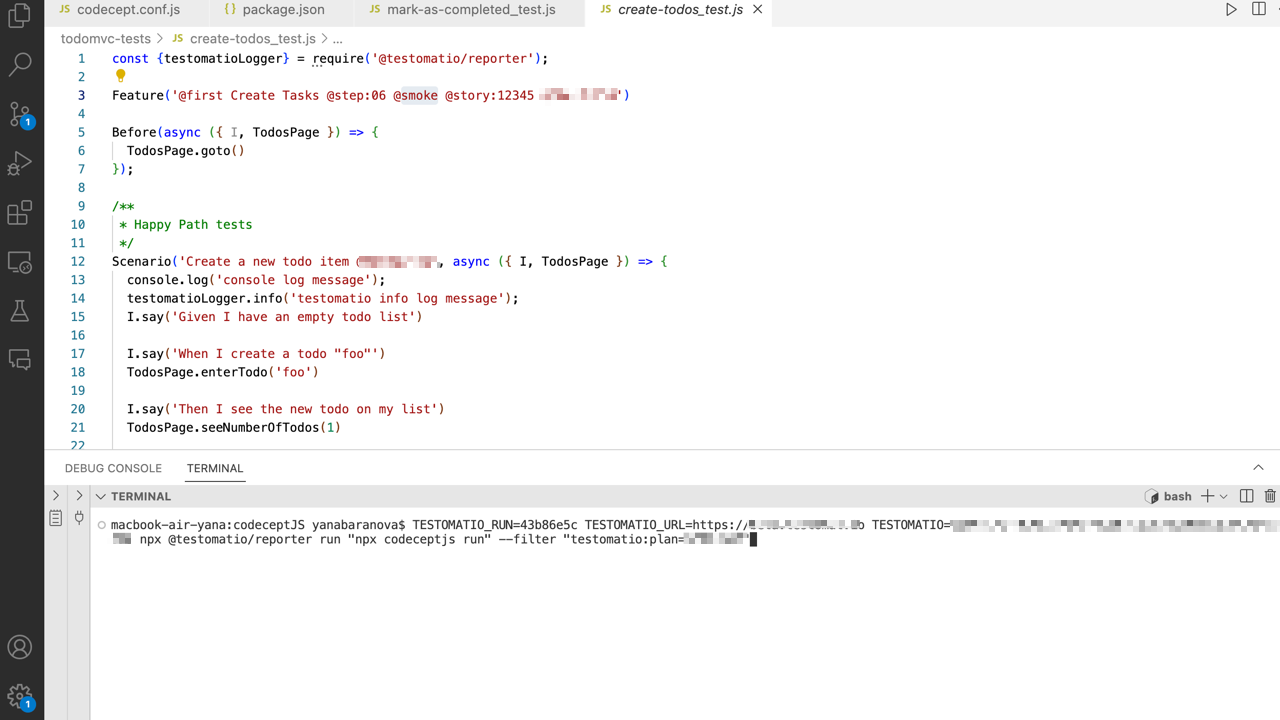
Example command:
TESTOMATIO_RUN={Run_ID} TESTOMATIO={Project Reporting API key} npx @testomatio/reporter run "npx codeceptjs run" --filter "testomatio:plan={Plan_ID}"
The CLI will:
- execute automated tests
- collect results
- send them to Testomat.io
- attach results to the current run
Meanwhile, manual tests can be executed directly in the UI.
- Set up test case results for manual tests
- Update test case results for automated tests or leave them as they are
- Click the Finish Run button
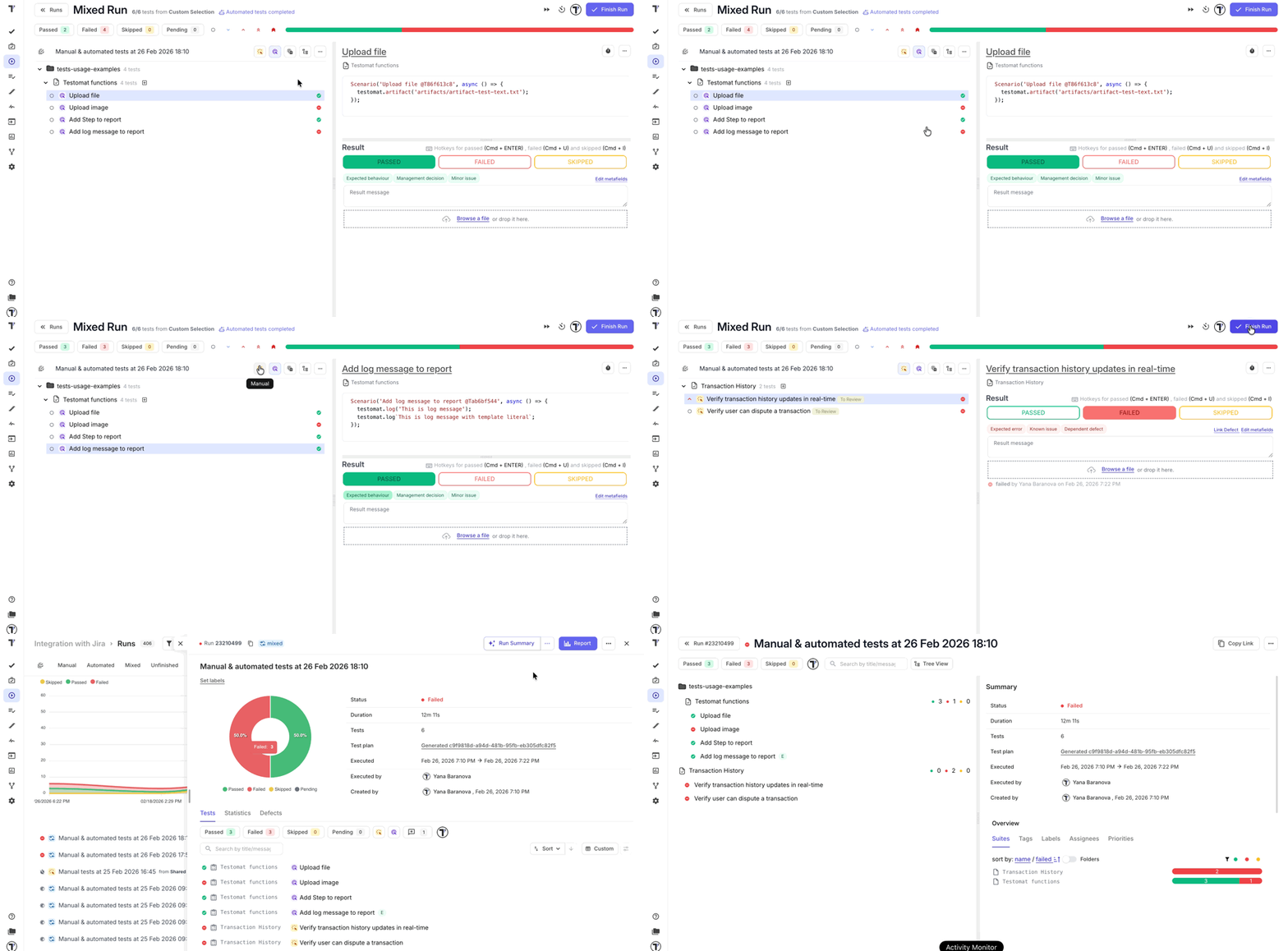
See how to set up test case results here.
Mixed Run on CI
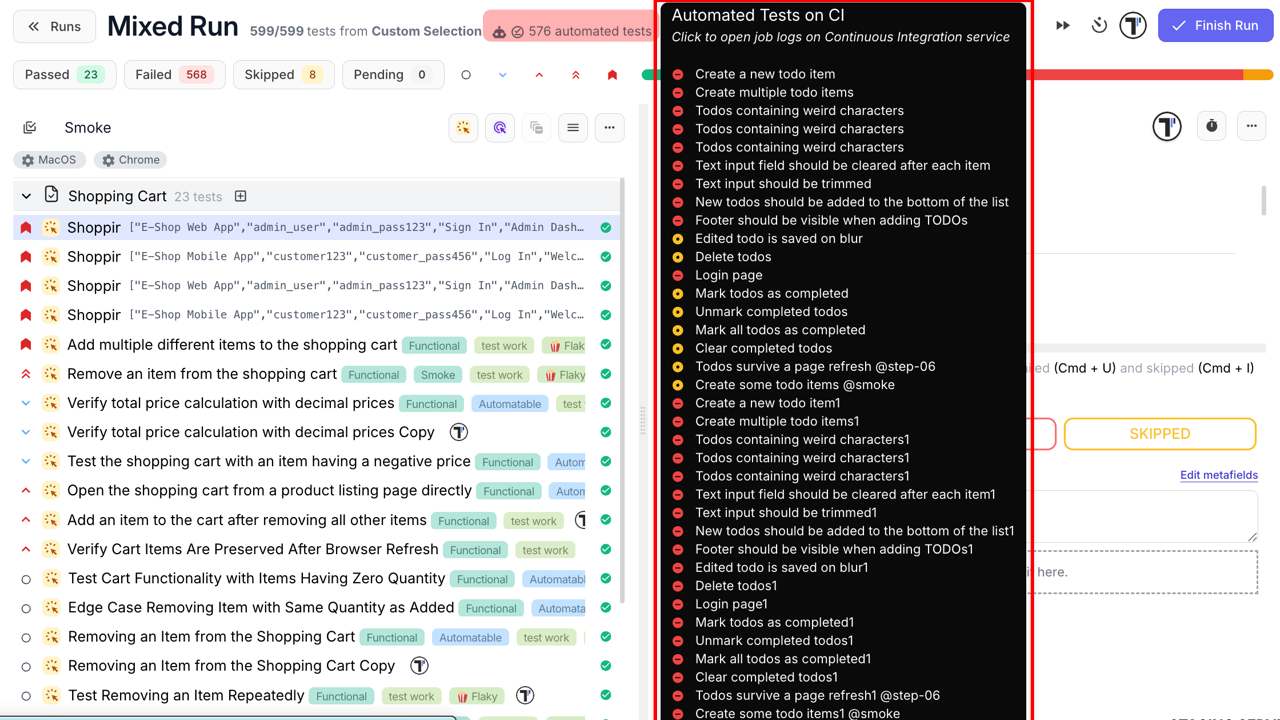
Section titled “Mixed Run on CI”When a Mixed Run is launched and CI build is enabled:
- CI pipeline starts automatically
- Automated tests run in the CI environment
- Test results are reported back to Testomat.io
- manual tests must be executed in the Testomat.io UI in the same way as they are executed without CI
- Finish the run when testing is complete
How to Make Changes in Ongoing Mixed Run
Section titled “How to Make Changes in Ongoing Mixed Run”During testing, new scenarios may appear that need immediate validation. Testomat.io allows you to edit an active Mixed Run without stopping the testing process.
This ensures flexibility, smooth testing workflow, and that no important scenarios are missed.
- Go to the Runs page
- Open the unfinished mixed run you want to edit
- Click the Edit button
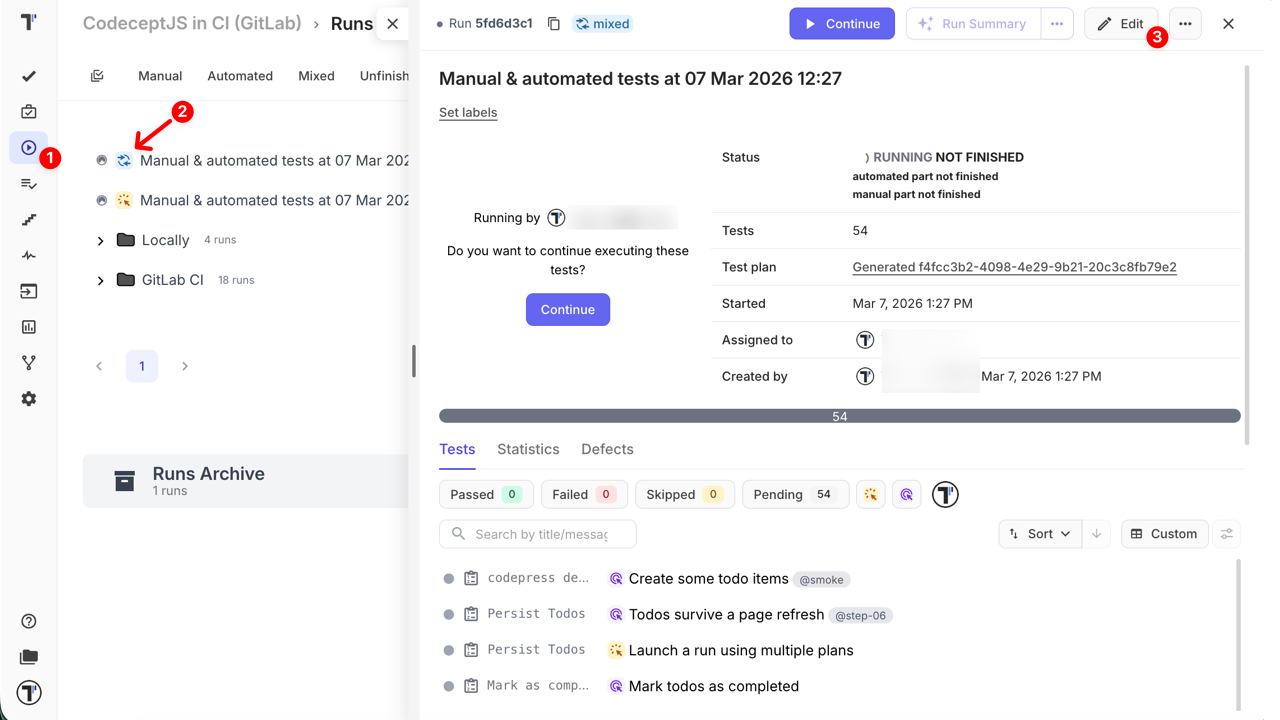
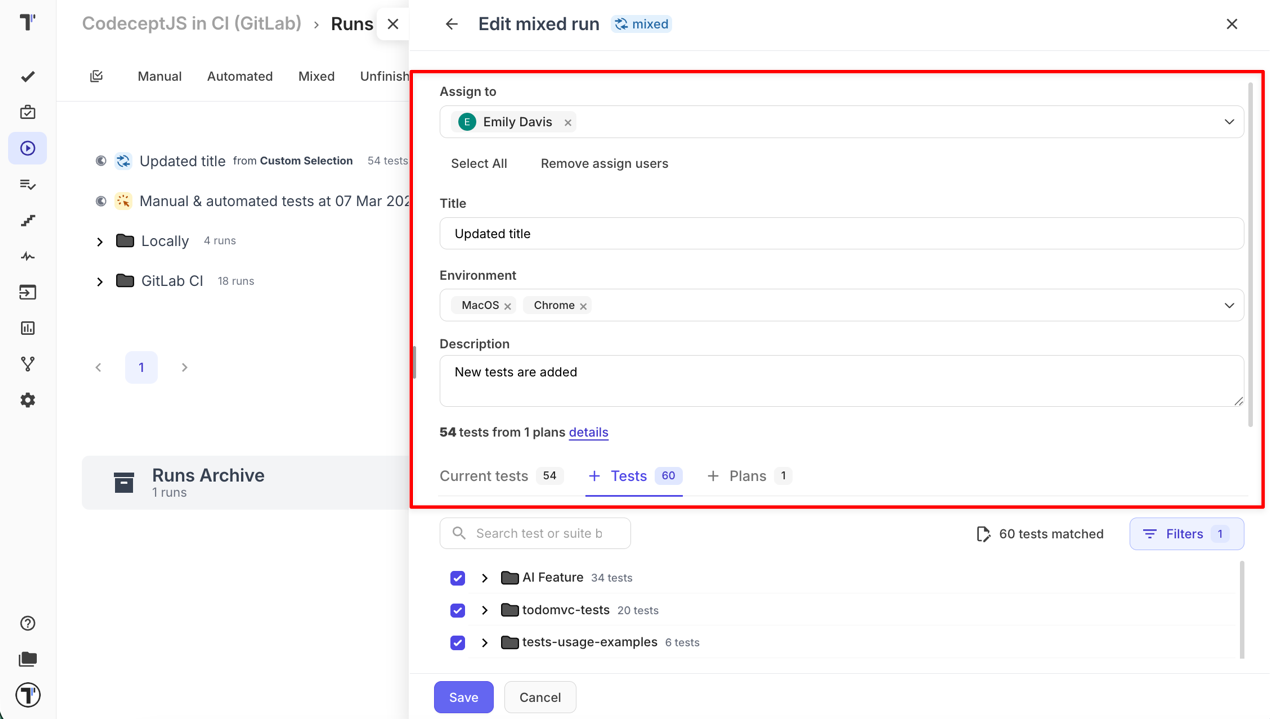
Once the Edit mixed run view is opened, here’s what you can do:
- Assign to - Remove existing users or assign more to the run
- Title - Enter or change the run title
- Environment - Add or remove testing environments
- Description - Add or update the run description
- details link - Check configuration details of the run
- Current tests – Shows all tests currently included in the run. Remove unnecessary tests by clicking the trash icon
- + Tests – Similar to the ‘Select tests’ tab in a new mixed run. You can browse the test tree, use search or filters, or expand suites to select manual and automated tests to add to this run
- + Plans – Select tests from existing test plans. You can include one or multiple plans in the current run
Managing Mixed Runs
Section titled “Managing Mixed Runs”Testomat.io provides several ways to manage and reuse existing runs. Understanding each action ensures efficient test management and reduces the risk of errors in your QA workflow.
Options only for Mixed Runs with CI
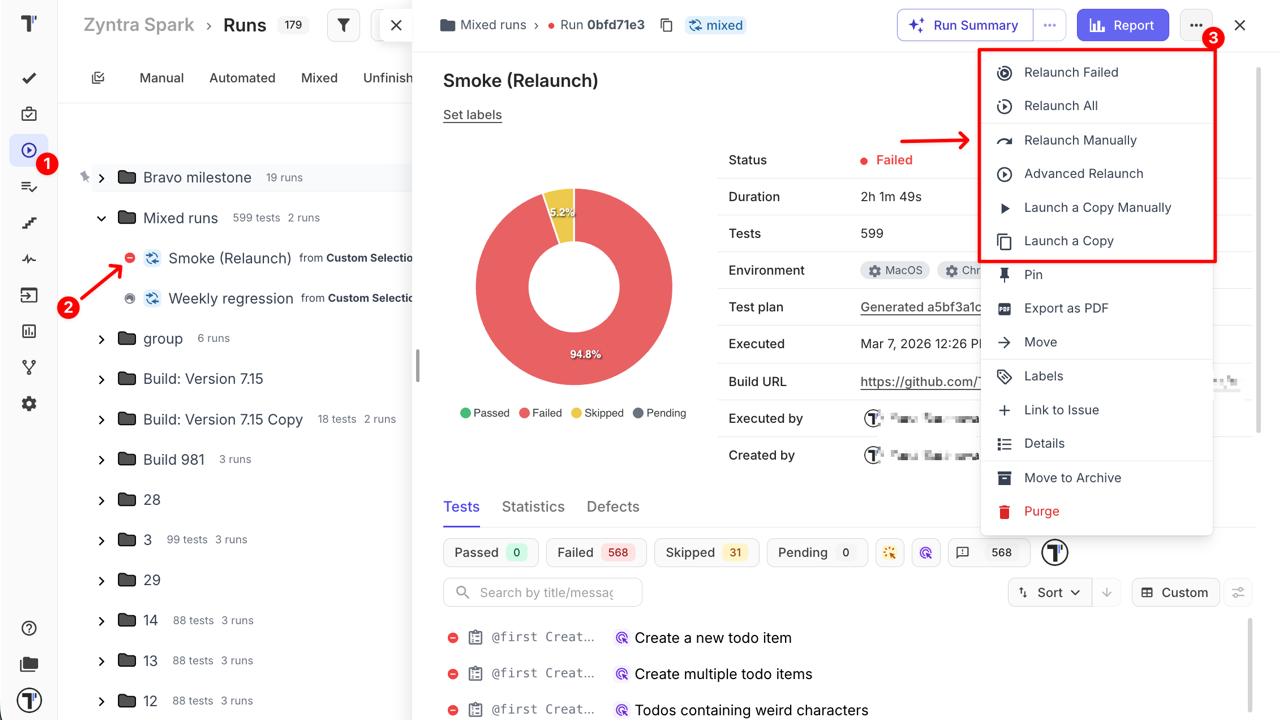
Section titled “Options only for Mixed Runs with CI”When the original run was executed via CI, two extra relaunch options appear:
- Relaunch Failed
- Re-runs only the automated tests that failed in the previous run via CI
- A new CI job is created, but the Mixed Run ID stays the same
- Manual tests are skipped but can be executed again in the Testomat.io UI
- Relaunch All
- Re-runs all automated tests via CI
- Previous results are reset, and a new CI job is created
- Manual tests still need to be executed manually in the UI
These options help teams to:
- repeat regression cycles efficiently
- validate fixes quickly
- re-run only failed automated tests when needed
- reuse existing run configurations
- maintain consistent and flexible QA workflows
Options for all Mixed Runs
Section titled “Options for all Mixed Runs”- Relaunch Manually
Restart the Mixed Run manually. All test cases (both manual and automated) will need to be executed manually in the Testomat.io UI, without triggering CI or CLI execution.
- Advanced Relaunch
Modify parameters before restarting execution. Learn more here about Advanced Relaunch.
- Launch a Copy Manually
Create a copy of an existing mixed run and execute it manually. The copy allows independent execution without affecting the original run.
- Launch a Copy
Automatically create a copy of the mixed run and start it immediately with the same settings as the original.