

Java
Java Integration with Testomat.io
Section titled “Java Integration with Testomat.io”Testomat.io supports Java test automation projects built with popular testing frameworks such as JUnit 5, TestNG. This integration allows teams to import automated tests, synchronize test IDs, track execution results, and consolidate reports from local and CI environments.
In this guide, you’ll learn how to use Testomat.io with Java-based test automation projects.
Supported Frameworks
Section titled “Supported Frameworks”Currently, the following Java testing frameworks are supported:
- JUnit 5
- TestNG
Importing Java Tests
Section titled “Importing Java Tests”You can import your Java tests into Testomat.io on the Imports page.
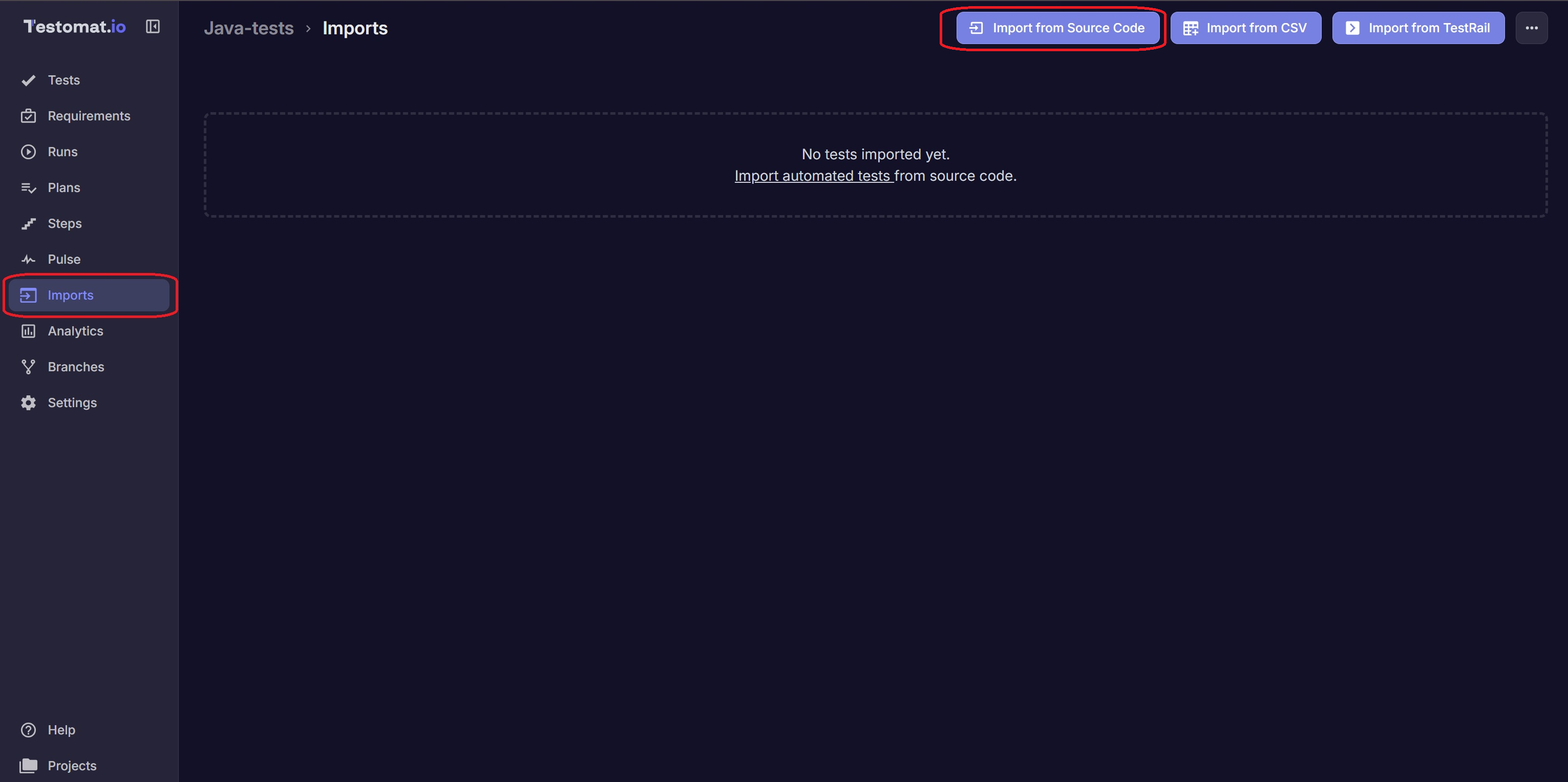
Steps to Import Your Tests
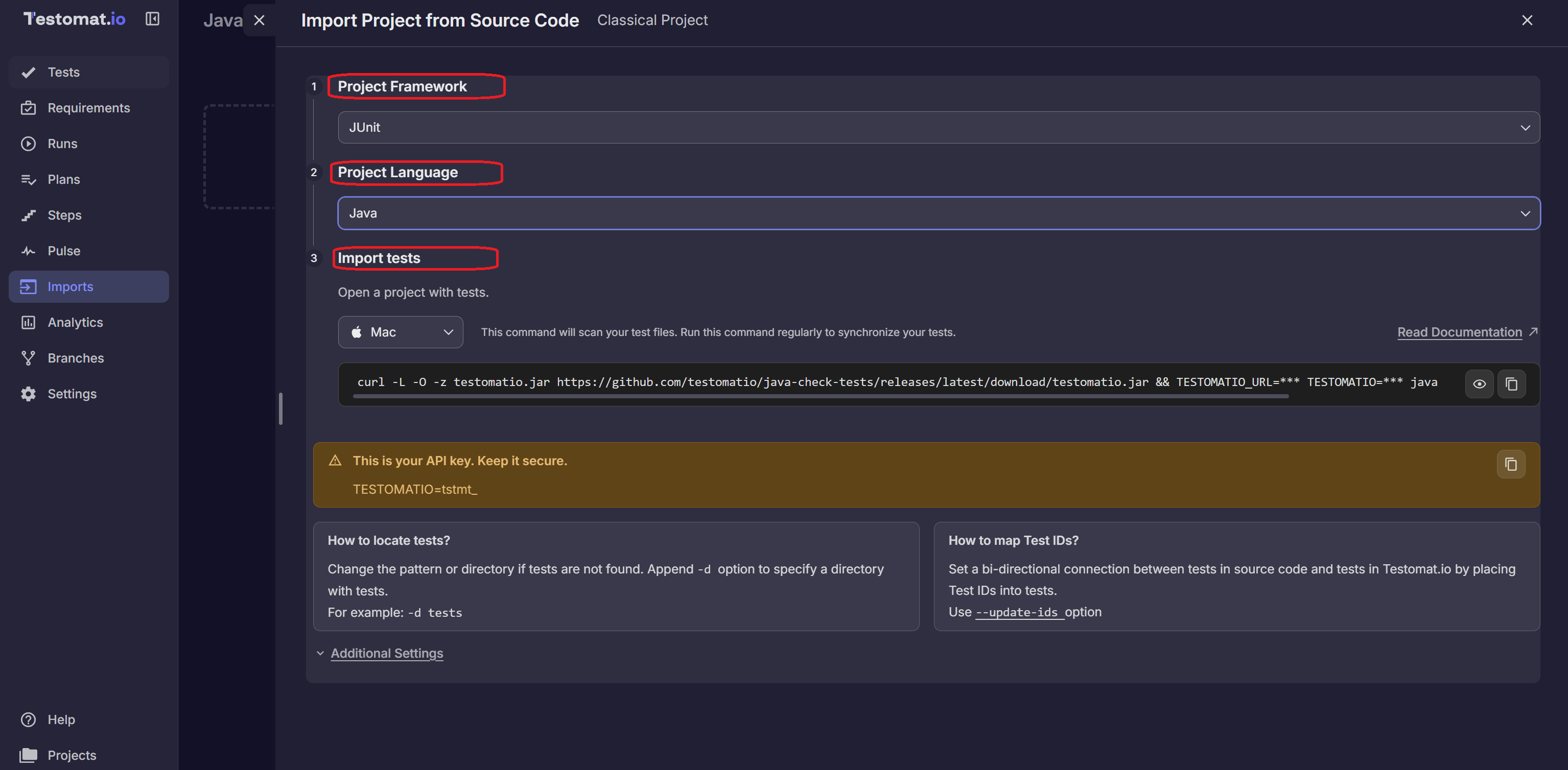
Section titled “Steps to Import Your Tests”- Select Framework: In the Project Framework field, choose
TestNg, JUnit. - Choose Language: Select
Javaas your project language. - Select OS: Choose your operating system (
Mac,Linux, orWindows) under Import tests.
Additional Import Options
Section titled “Additional Import Options”- Auto assign IDs: Automatically assigns unique IDs to each test.
- Purge Old IDs: Removes previously assigned IDs.
- Disable Detached Tests: Disables tests marked as detached.
- Prefer Source Code Structure: Maintains your project’s source code structure in the test hierarchy.
After setting up, copy the generated command and run it in your project’s terminal.
Your tests will then appear on the Tests page in Testomat.io.
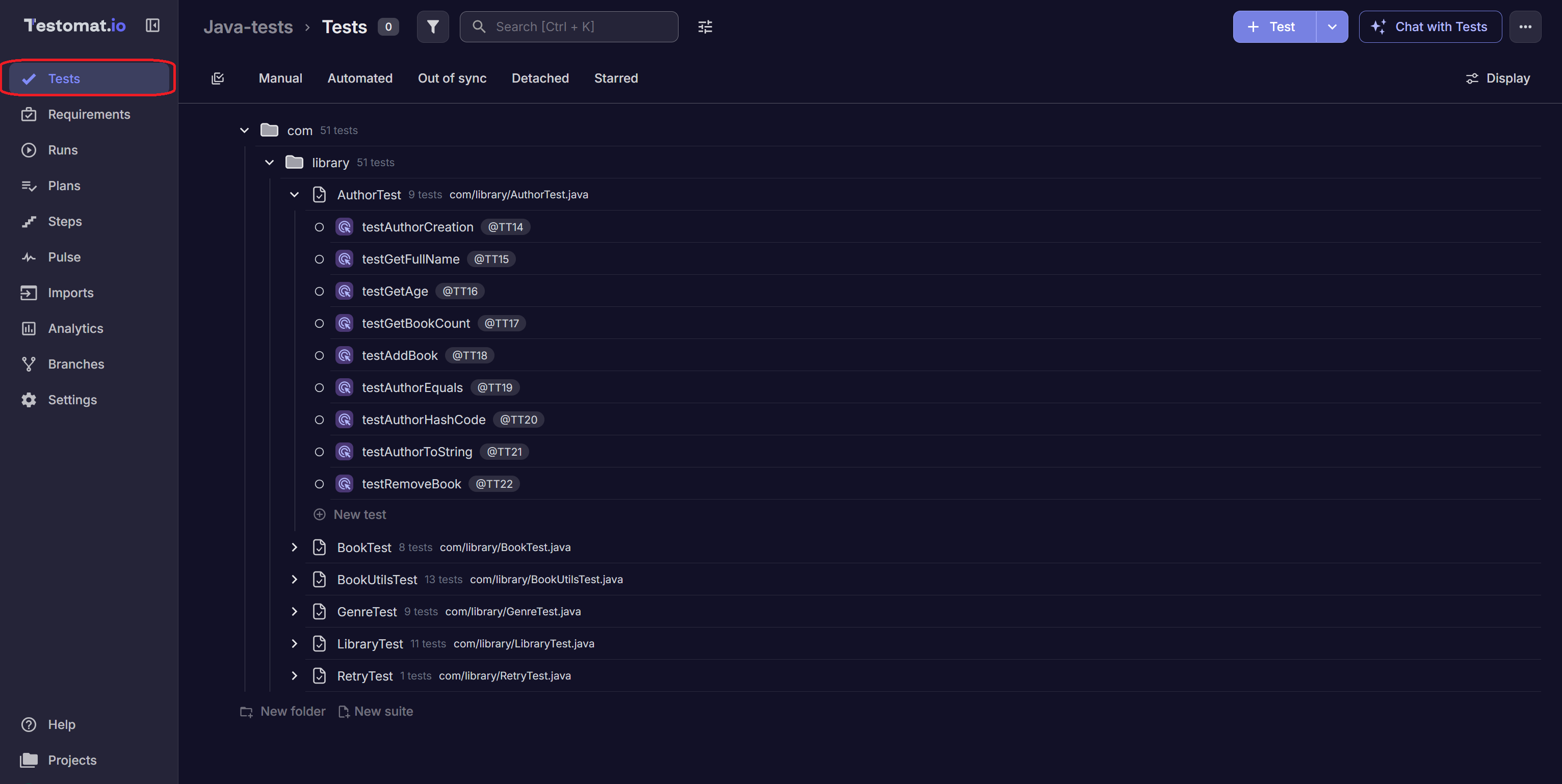
Example Project: Try importing using the Testomat.io Java example project.
For more details, refer to the Import Tests from Source Code documentation.
JUnit Example
Section titled “JUnit Example”Example JUnit 5 test:
@ParameterizedTest(name = "Create user {0}")@ValueSource(strings = {"John", "Kate", "Mike"})void createUser(String userName) {    assertNotNull(userName);}
@Testvoid userShouldBeFine() {    assertEquals("fine", user.getStatus());}
Imported tests appear in Testomat.io and can be linked to automated executions.
TestNG Example
Section titled “TestNG Example”Example TestNG test:
@Test(dataProvider = "users")public void createUser(String userName) {    Assert.assertNotNull(userName);}
@DataProviderpublic Object[][] users() {    return new Object[][]{        {"John"},        {"Kate"},        {"Mike"}    };}
@Testpublic void userShouldBeFine() {    Assert.assertEquals(user.getStatus(), "fine");}
TestNG tests are imported and managed the same way as JUnit tests. Testomat.io displays parameterized executions together with their parameter values.
Auto assigning Test IDs
Section titled “Auto assigning Test IDs”When importing tests, enable Auto assign IDs (--update-ids) to track changes without creating duplicate tests as your project grows.
Before:
@Testvoid userShouldBeFine() { assertEquals("fine", user.getStatus());}After:
@Test@TestId("T12345678")void userShouldBeFine() { assertEquals("fine", user.getStatus());}Test IDs help Testomat.io identify tests even when test names, packages, or source files change.
Reporting Test Steps
Section titled “Reporting Test Steps”Testomat.io can display execution steps inside test results, making it easier to understand what happened during a test run and quickly identify the exact step where a failure occurred.
@Testvoid userShouldBeFine() { Testomatio.step("Check user status", () -> assertEquals("fine", user.getStatus()));}Annotated steps:
import io.testomat.core.annotation.Step;

@Step("Check user status")private void checkUserStatus() {    assertEquals("fine", user.getStatus());}
@Testvoid userShouldBeFine() {    checkUserStatus();}
Using Allure Steps
Section titled “Using Allure Steps”If your project already uses Allure, Testomat.io can automatically import and display Allure steps.
@Testvoid userShouldBeFine() { Allure.step("Check user status", () -> { assertEquals("fine", user.getStatus()); });}Annotated steps are also supported:
import io.qameta.allure.Step;

@Step("Check user status")private void checkUserStatus() {    assertEquals("fine", user.getStatus());}
@Testvoid userShouldBeFine() {    checkUserStatus();}
When Allure integration is enabled step information is synchronized with Testomat.io and displayed as part of the test execution report.
Reporting Test Results
Section titled “Reporting Test Results”Reports provide visibility into test execution results and the performance of your automation workflows.
After importing tests, execution results can be reported back to Testomat.io.
Provide your project API key using the TESTOMATIO environment variable.
Gradle
Section titled “Gradle”TESTOMATIO=<API_KEY> ./gradlew testTESTOMATIO=<API_KEY> mvn testExecution results will automatically be associated with the corresponding tests in Testomat.io.
Artifacts with Testomat.io Reporter and S3
Section titled “Artifacts with Testomat.io Reporter and S3”Artifacts such as logs, screenshots, reports, videos, and other generated files are essential for debugging test failures.
With the Testomat.io reporter, artifacts can be automatically uploaded to an S3 bucket and linked to test results in the Testomat.io dashboard.
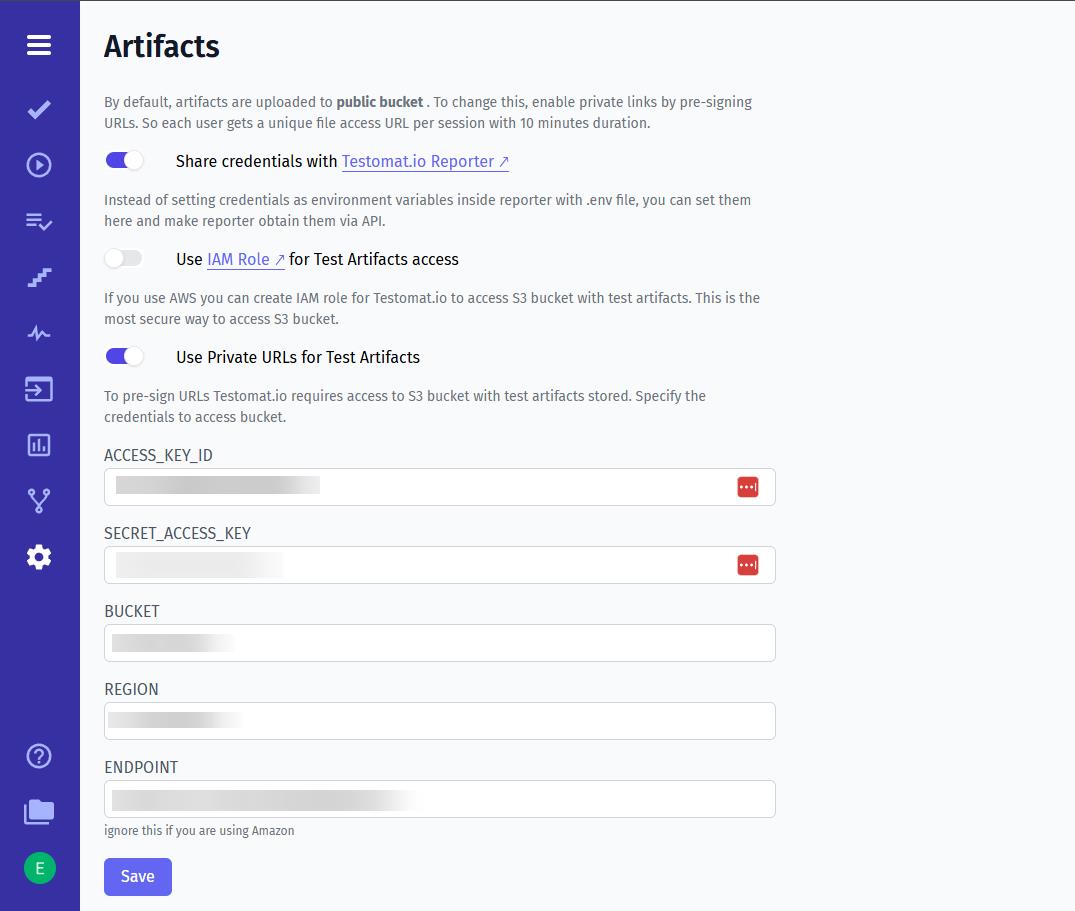
Supported Artifacts
Section titled “Supported Artifacts”Artifacts may include:
- Execution logs
- HTML reports
- Screenshots
- Videos
- Generated files
- Custom attachments
Setting Up Artifacts
Section titled “Setting Up Artifacts”- Configure artifact generation in your test framework or build tool.
- Set up an S3 bucket.
- Configure S3 integration in Testomat.io.
- Run your tests.
- Open a test result in Testomat.io to access uploaded artifacts.
Viewing Attachments
Section titled “Viewing Attachments”View attachments by clicking on a test in a Test Run and selecting the artifact you want to inspect.
Artifacts can be downloaded or viewed directly from the Testomat.io interface.
Reporting Test Attachments
Section titled “Reporting Test Attachments”Testomat.io can display attachments inside test results, making it easier to investigate failures and review logs, screenshots, API responses, and other execution artifacts.
Using Testomat.io Attachments
Section titled “Using Testomat.io Attachments”Java projects can attach files directly to Testomat.io reports.
@Testvoid userShouldBeFine() { Testomatio.artifact("build/logs/test.log");}Attached files are displayed in the test result and can be downloaded or viewed directly from the Testomat.io interface.
Using Step Attachments
Section titled “Using Step Attachments”Attachments can also be linked to a specific test step.
@Testvoid userShouldBeFine() { Testomatio.step("Check user status", () -> { Testomatio.stepArtifact("screenshots/status.png"); assertEquals("fine", user.getStatus()); });}Step attachments are displayed within the corresponding step, making it easier to understand the context of failures and review screenshots, logs, and other files related to a specific action.
Using Allure Attachments
Section titled “Using Allure Attachments”If your project already uses Allure, Testomat.io can automatically import and display Allure attachments.
Allure.addAttachment("Log File", Files.newInputStream(Path.of("logs/test.log")););Annotated attachments are supported as well:
import io.qameta.allure.Attachment;
@Attachment(    value = "Screenshot",    type = "image/png")private byte[] screenshot() {    return Files.readAllBytes(        Path.of("screenshot.png")    );}
@Testvoid userShouldBeFine() {    screenshot();}
When Allure integration is enabled, attachment information is synchronized with Testomat.io and displayed as part of the test execution report.
Parallel Execution Reporting
Section titled “Parallel Execution Reporting”To report parallel test executions to the same Testomat.io run, assign a shared title to all parallel runs and set the TESTOMATIO_SHARED_RUN environment variable.
TESTOMATIO_TITLE="{TITLE}" TESTOMATIO_SHARED_RUN=1 <actual run command>Running Tests with Gradle
Section titled “Running Tests with Gradle”Run all tests:
./gradlew testRun a specific test class:
./gradlew test --tests UserTestsRun a specific test method:
./gradlew test --tests UserTests.userShouldBeFineRunning Tests with Maven
Section titled “Running Tests with Maven”Run all tests:
mvn testRun a specific test class:
mvn -Dtest=UserTests testRun a specific test method:
mvn -Dtest=UserTests#userShouldBeFine testCI Integration
Section titled “CI Integration”GitHub Actions
Section titled “GitHub Actions”- name: Run Tests run: ./gradlew test env: TESTOMATIO: ${{ secrets.TESTOMATIO }}Jenkins
Section titled “Jenkins”withEnv(["TESTOMATIO=${TESTOMATIO}"]) { sh './gradlew test'}GitLab CI
Section titled “GitLab CI”test: script: - ./gradlew test variables: TESTOMATIO: $TESTOMATIOSetting Up the Reporter
Section titled “Setting Up the Reporter”The easiest way to configure reporting for your Java project is to use the Reporter Setup Skill.
The Reporter Setup Skill automatically detects your testing framework and build tool, installs the required dependencies, and generates the configuration needed to report test results to Testomat.io.
To use it:
- Open your Testomat.io project.
- Navigate to Skills.
- Select Reporter Setup.
- Follow the generated instructions for your project.
The skill supports Java projects using JUnit, TestNG as well as both Maven and Gradle build systems.
The Reporter Setup Skill is the recommended way to configure Testomat.io reporting for new projects.
Related Repositories
Section titled “Related Repositories”java-reporter
Section titled “java-reporter”Official Java reporter for Testomat.io. Use it to report test execution results, steps, and artifacts from JUnit and TestNG projects.
java-check-tests
Section titled “java-check-tests”Utility for importing Java tests, synchronizing test IDs, and maintaining test metadata in Testomat.io.