

Set Up Read-Only Access
Welcome!
This tutorial shows you how to give someone outside your team a safe, look-but-don’t-touch view of your testing. That could be a client, an auditor, or a stakeholder who wants to follow progress without the risk of changing anything.
You have two ways to do this, and this tutorial covers both: add the person as a Read-only user, or share a single report or living documentation with them without an account at all.
Which option to pick
Section titled “Which option to pick”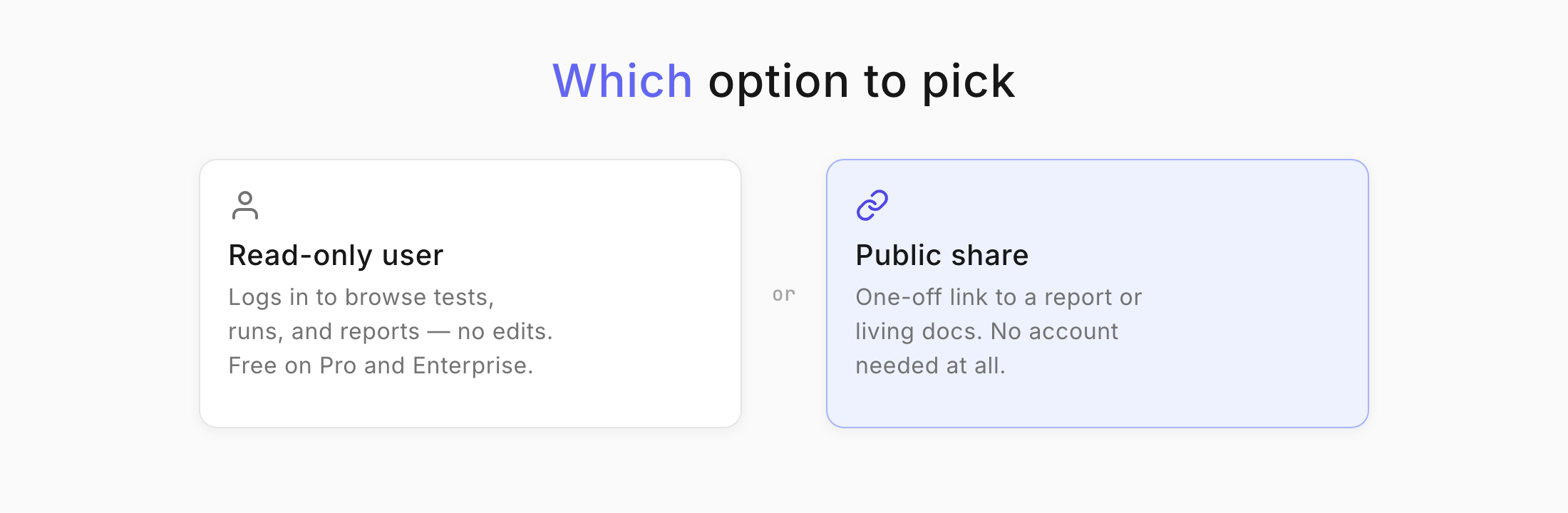
- Read-only user. Best when the person needs ongoing access to browse tests, runs, and reports themselves. They log in but cannot change anything. It is free of charge on Professional and Enterprise plans.
- Public share. Best for a one-off. You send a link to a report or living docs, and they need no Testomat.io account at all.
Invite an external user as Read-only
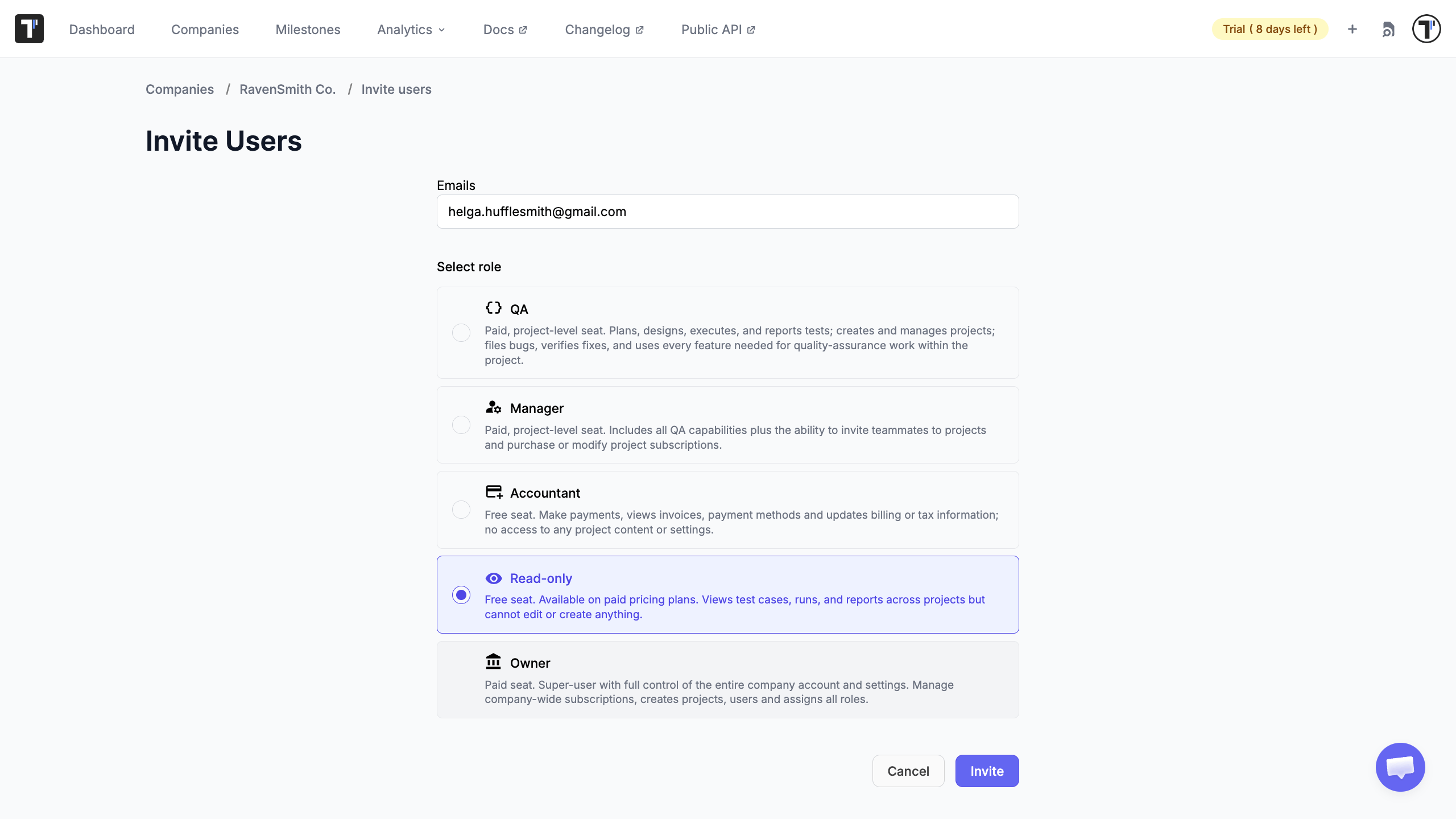
Section titled “Invite an external user as Read-only”Users are managed at the Company level, so you invite them there first.
- Open the Companies page and select your company.
- Invite the user by email.
- Assign the Read-Only role.
Add them to the right project
Section titled “Add them to the right project”A company can hold several projects, so give the person access only to the one they need.
- Open the project you want to share.
- Go to Settings, then Users.
- Click Invite.
- Select the Read-only user and click Send to invite them to the project.
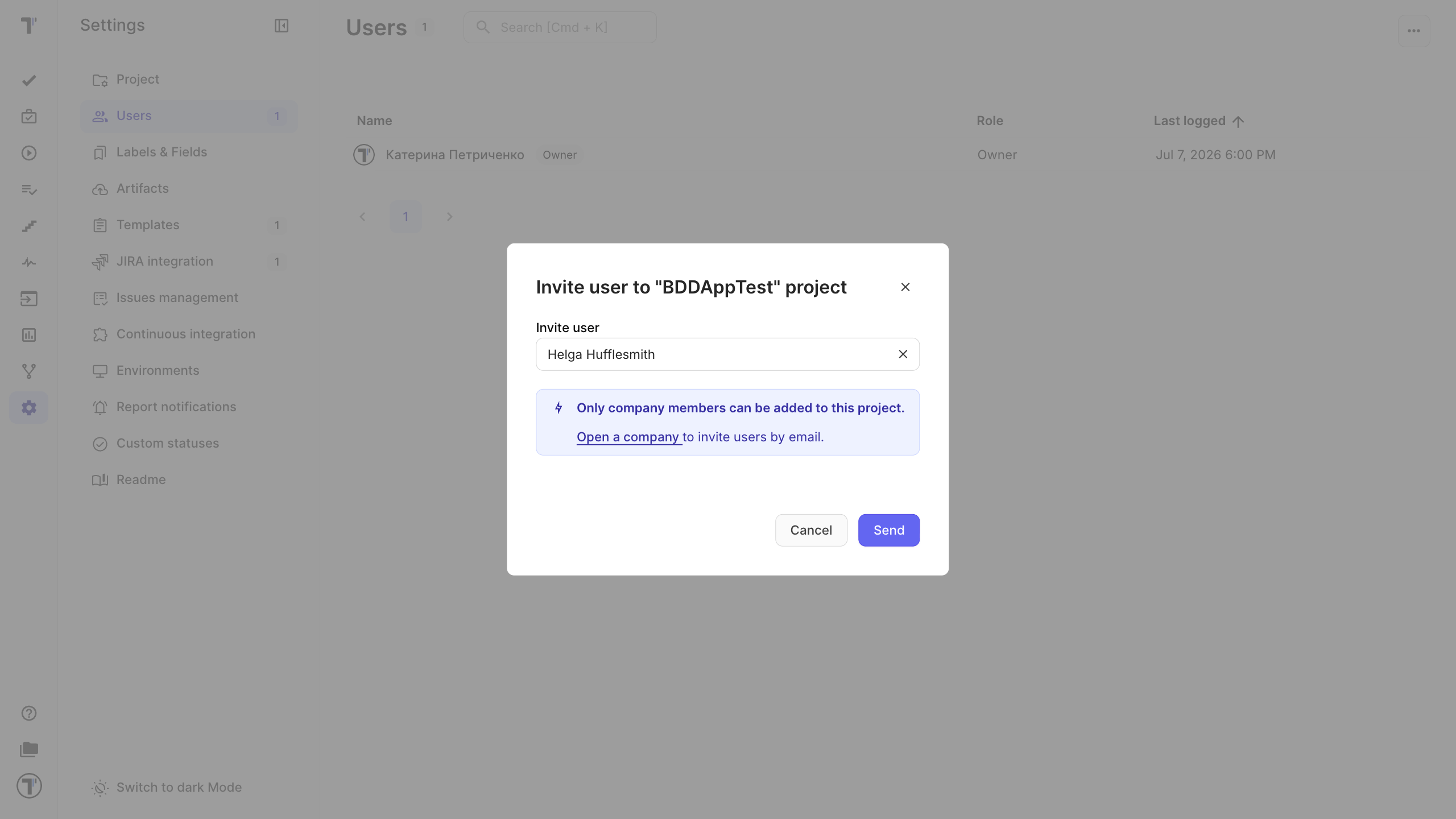
They can now sign in and browse that project, but every edit and run control stays locked for them.
Or share without an account
Section titled “Or share without an account”If the person only needs to see one report or your living docs, skip the account and send a link.
To share a run report:
- Open the run and click Report.
- Click the actions menu (
...). - Choose Share Report by Email to send it to specific people, or Share Report Publicly to create a link.
- For a public link, set an expiration date the default is 7 days, and keep the passcode on for security.
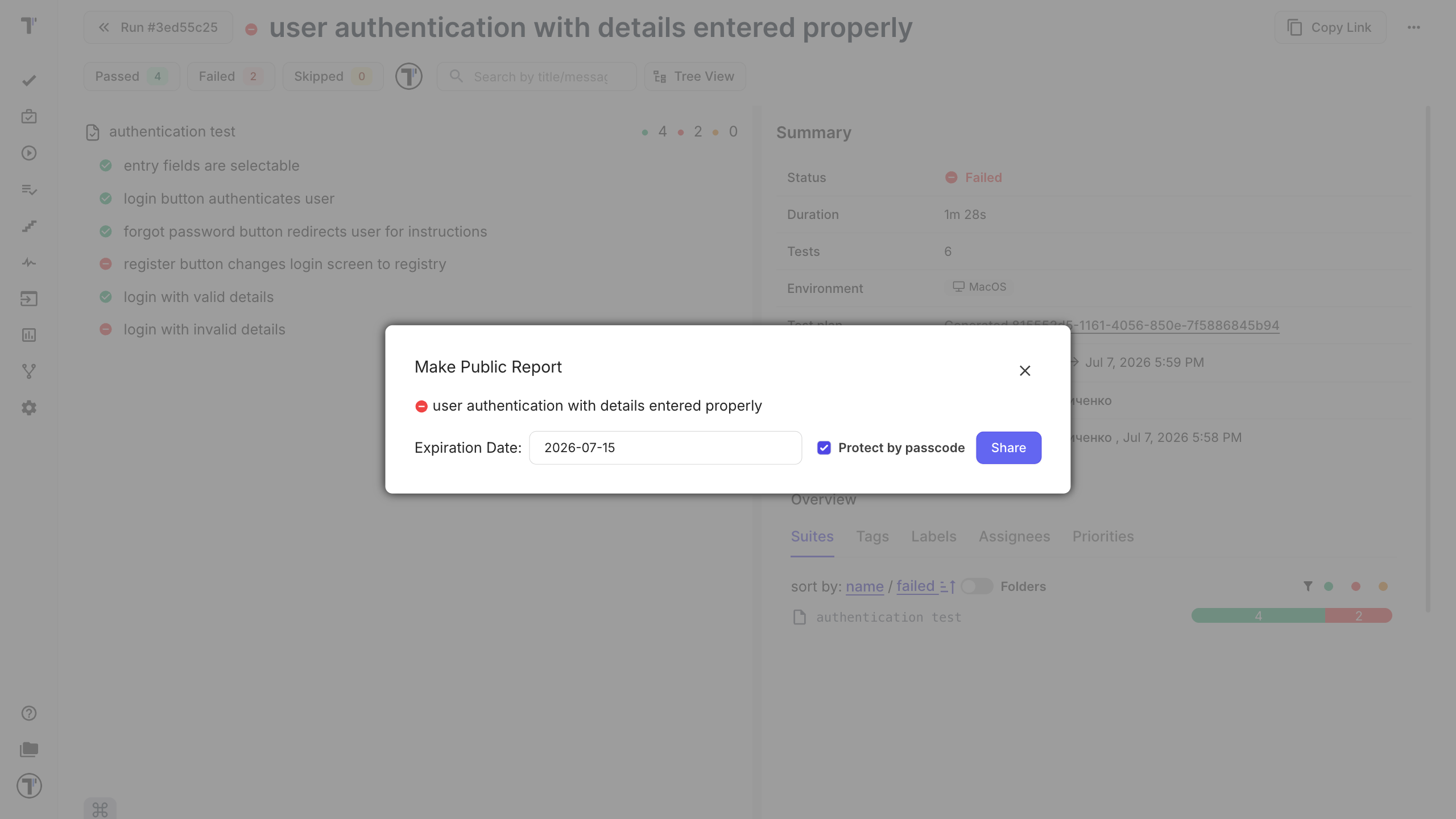
To share living documentation, open it from the project and send its link the same way. This gives stakeholders an always-current view of what your tests cover, with no login.
Next steps
Section titled “Next steps”- Review what each role can do in Users and Access.
- Want stakeholders to follow coverage live? Share your Living Documentation.
- Want to present particular results? Send a run report.