

Sharing Tests and Suites
Share a test, suite, or folder when you want to use the same test in several projects without creating separate copies.
One project remains the source of the shared test. Other projects use it as read-only content, while each project keeps its own test runs and results.
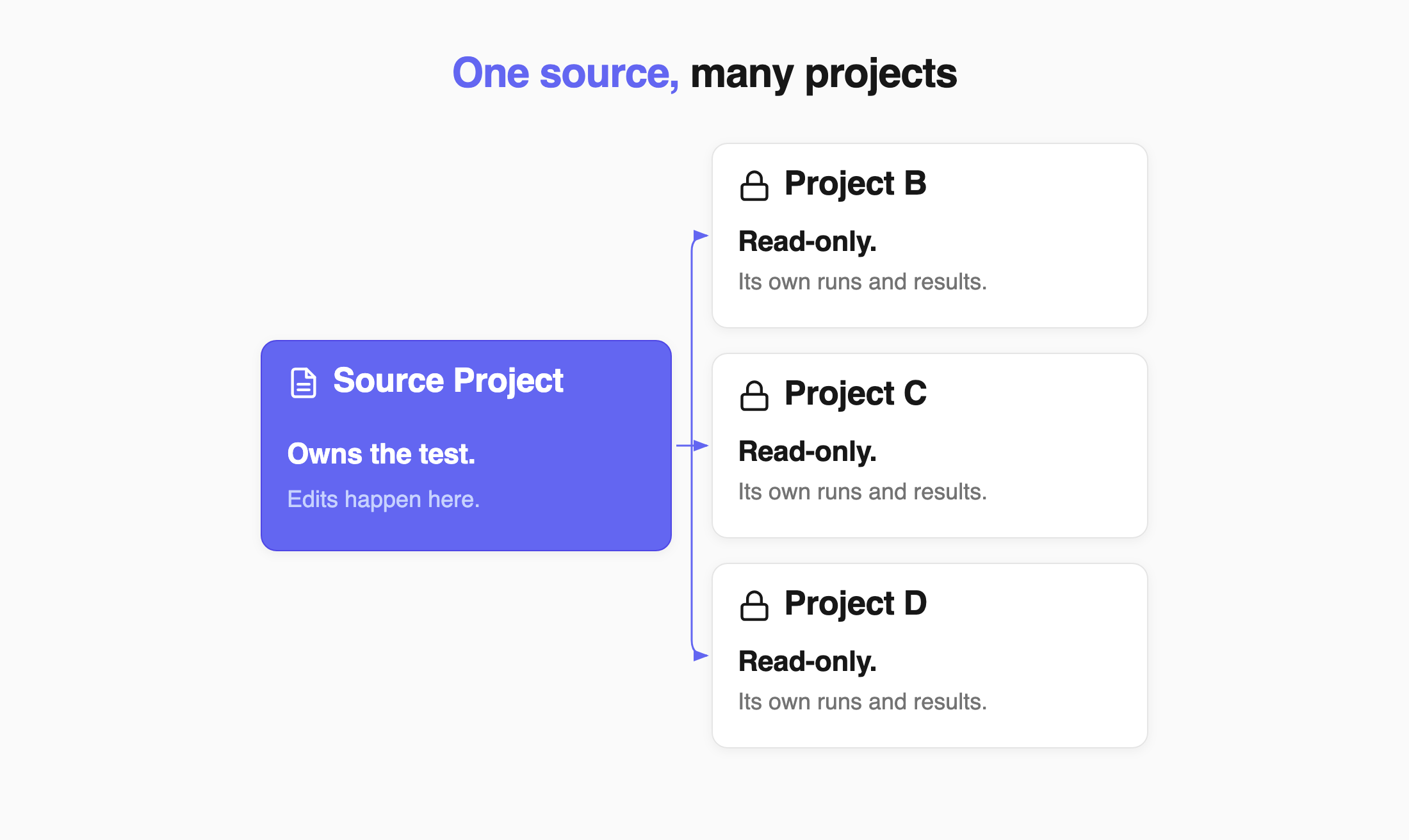
Use Share when the test should stay the same across projects. Use Copying Tests and Suites when each project needs its own version.
Sharing Rules
Section titled “Sharing Rules”A shared test follows a few simple rules:
- The source project owns the test content.
- The test is read-only in other projects.
- Each project keeps its own runs, results, and history.
- You can share the same test with multiple projects.
- Projects must use the same test type: BDD with BDD or Classical with Classical.
Allow Your Team to Share Tests
Section titled “Allow Your Team to Share Tests”By default, only Owners and Managers can share tests and suites. You can allow all project members to use sharing.
- Go to Settings in the sidebar.
- Select Project.
- Toggle the Share to other projects switch on.
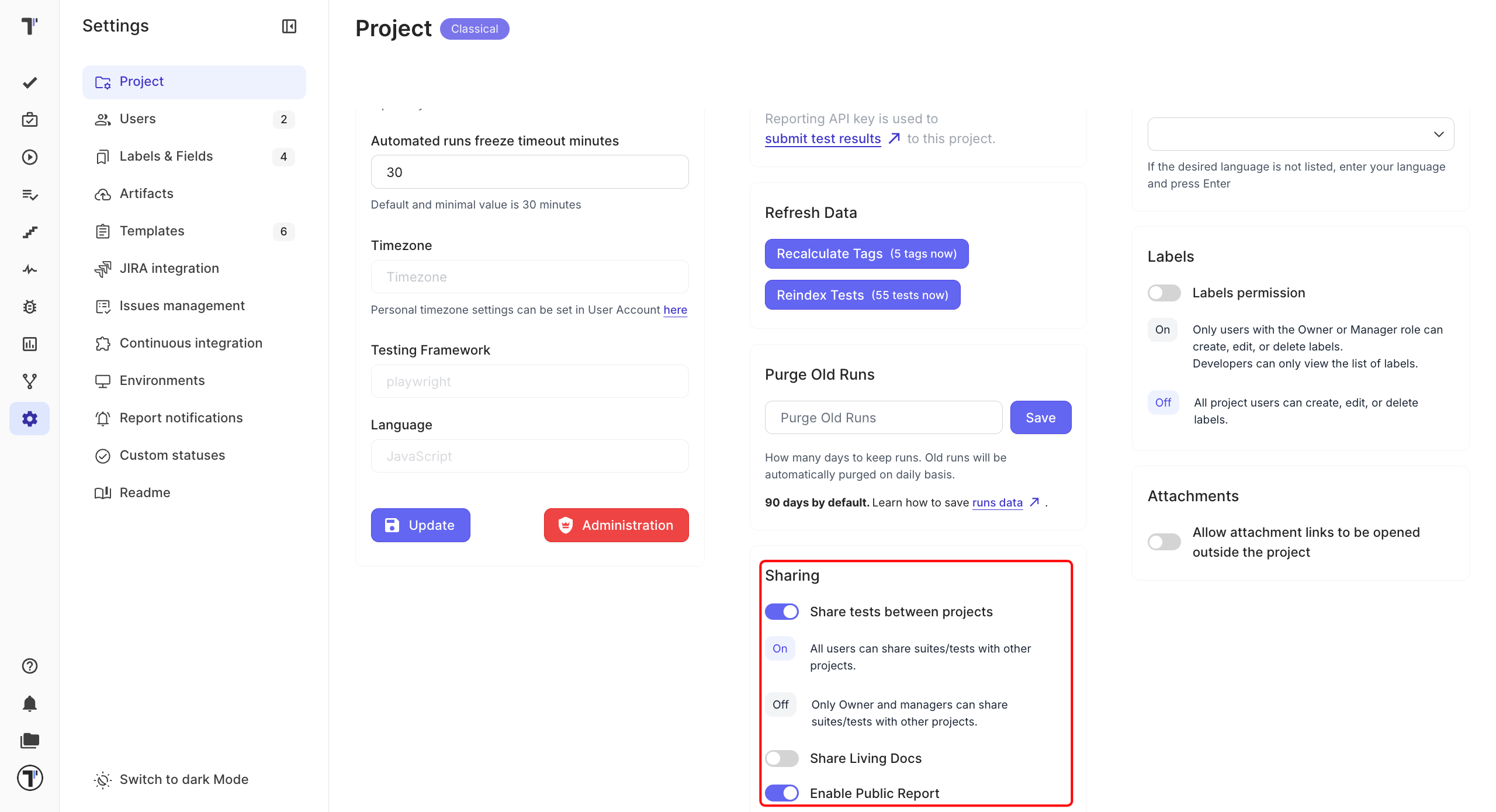
The Sharing block also holds Share Living Docs and Enable Public Report. These are separate features - see Living Documentation and Share Report Publicly.
| Setting | Who can share |
|---|---|
| On | All project members |
| Off | Owners and Managers |
Only Owners and Managers can change this setting.
Shared Test Data
Section titled “Shared Test Data”When you share a test, its test content becomes available in the target project. Run-related information stays in the project where it was created.
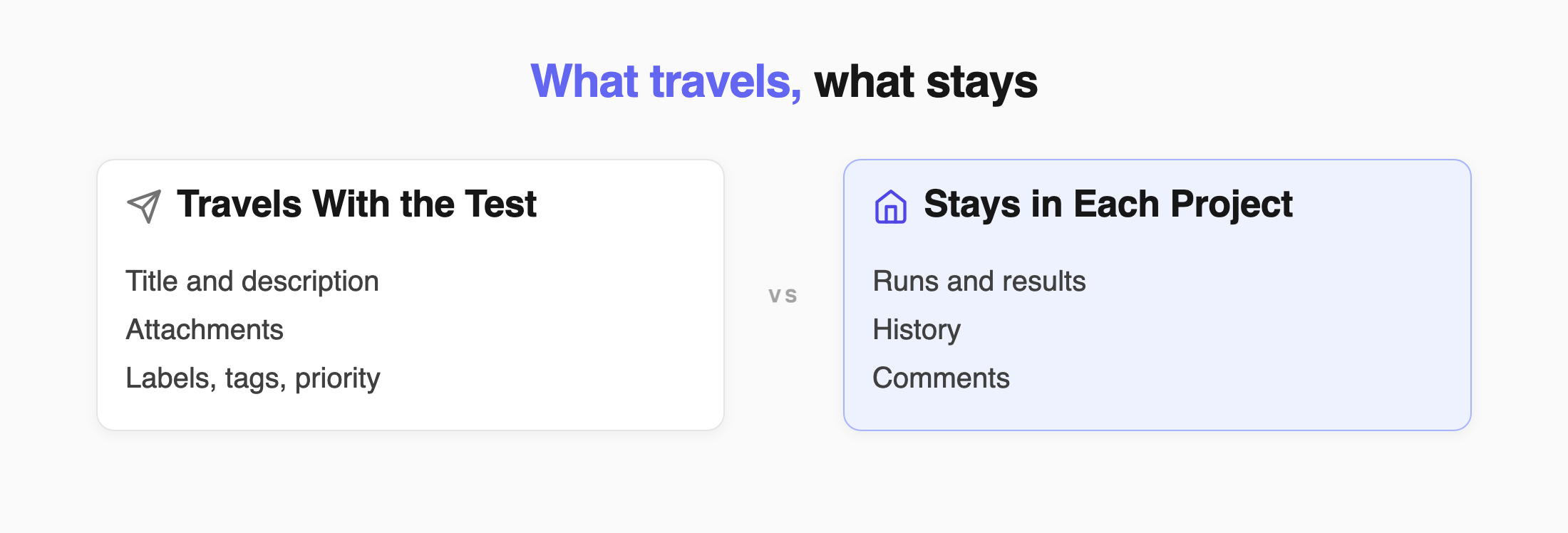
| Data | Shared? |
|---|---|
| Title and description | Yes |
| Attachments | Yes |
| Labels and custom labels | Yes |
| Tags | Yes |
| Priority | Yes |
| Linked issues | Yes, when the integration is available |
| Assignee | Yes, when the user exists in the target project |
| Test author | Yes, when the user exists in the target project |
| Runs and results | No |
| History | No |
| Requirements | No |
| Comments | No |
Synchronized Fields
Section titled “Synchronized Fields”After the first share, changes to title, description, and tags are synchronized from the source project to all linked projects.
New tests added to a shared suite are also available in linked projects.
Other shared fields are not updated after the initial share.
Share a Test, Suite, or Folder
Section titled “Share a Test, Suite, or Folder”- Go to the Tests page in the source project.
- Open the test, suite, or folder you want to share.
- Click (
...). - Select Share to other projects.
- Choose Other project for one project or Bulk selection project for several projects.
- Select the target project or projects.
- Click Share.
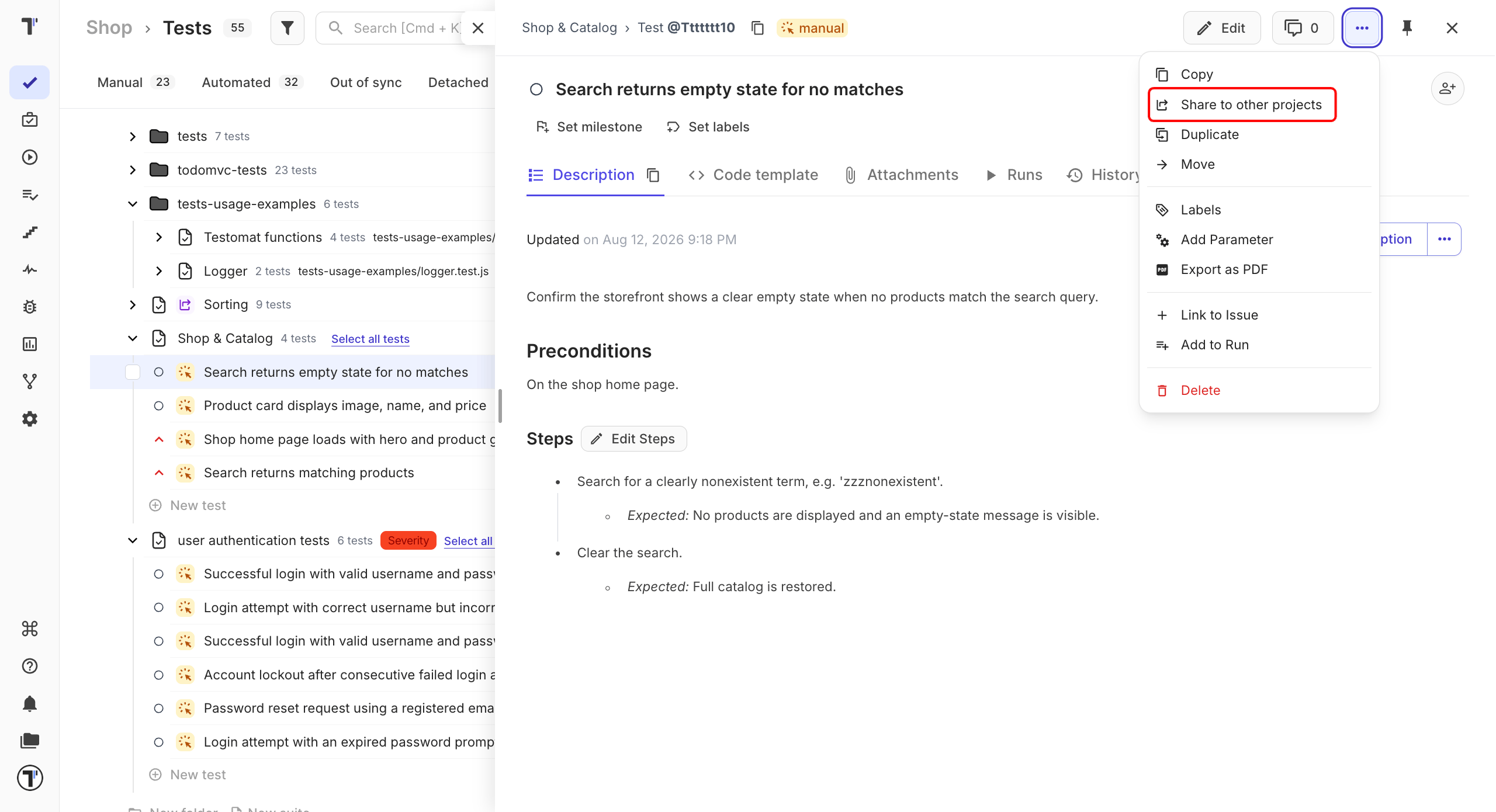
The shared item appears in the selected projects as read-only.
Share Several Items
Section titled “Share Several Items”Use bulk sharing when you want to share multiple tests, suites, or folders at once.
- Go to the Tests page.
- Select the items you want to share.
- Click Share in the toolbar.
- Select the target projects.
- Select the destination.
- Click Share.
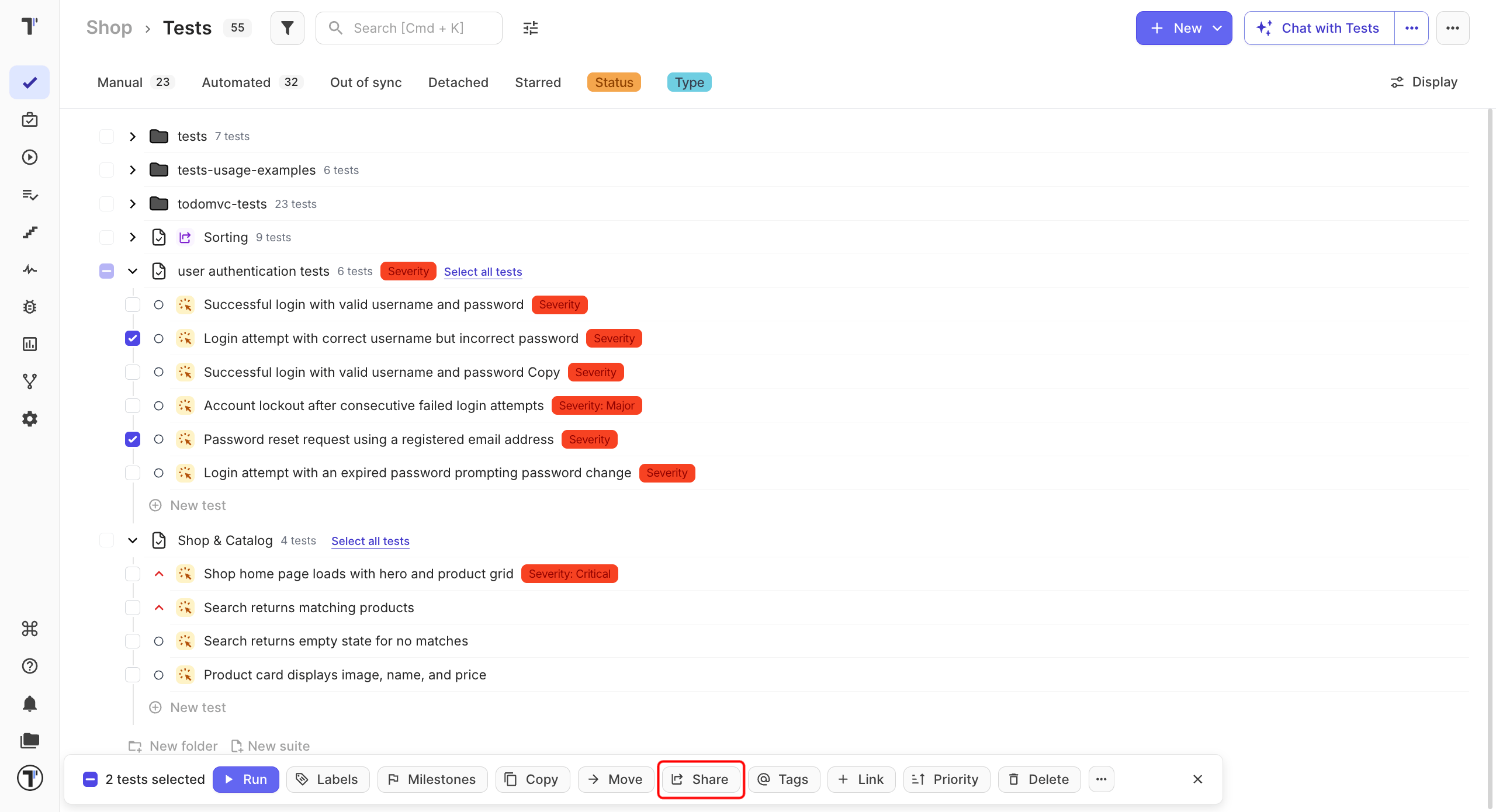
All selected items are shared using the same settings.
Share an Item With More Projects
Section titled “Share an Item With More Projects”You can share an item that is already shared with additional projects. The original source project remains the owner. The new project connects directly to that original source.
This means sharing does not create a chain between projects. All linked projects use the same source.
Run Shared Tests
Section titled “Run Shared Tests”Sharing the test content does not share its run history. When you run a shared test in another project, Testomat.io creates a run in that project. Its logs, status, and results stay there.
This lets different projects use the same test while keeping their own testing history.
Unlink a Shared Test
Section titled “Unlink a Shared Test”Unlink a test when you want to make it independent from the source project.
- Open the shared test, suite, or folder in the target project.
- Click (
...). - Select Unlink share.
After unlinking:
- the item no longer receives updates from the source
- it becomes editable in the current project
- it works as a local test, suite, or folder
- the unlink action is recorded in History