

Move Tests
Move a test, suite, or folder when you want to change its place in the project tree.
Moving does not create a copy. The same item simply appears in its new location.
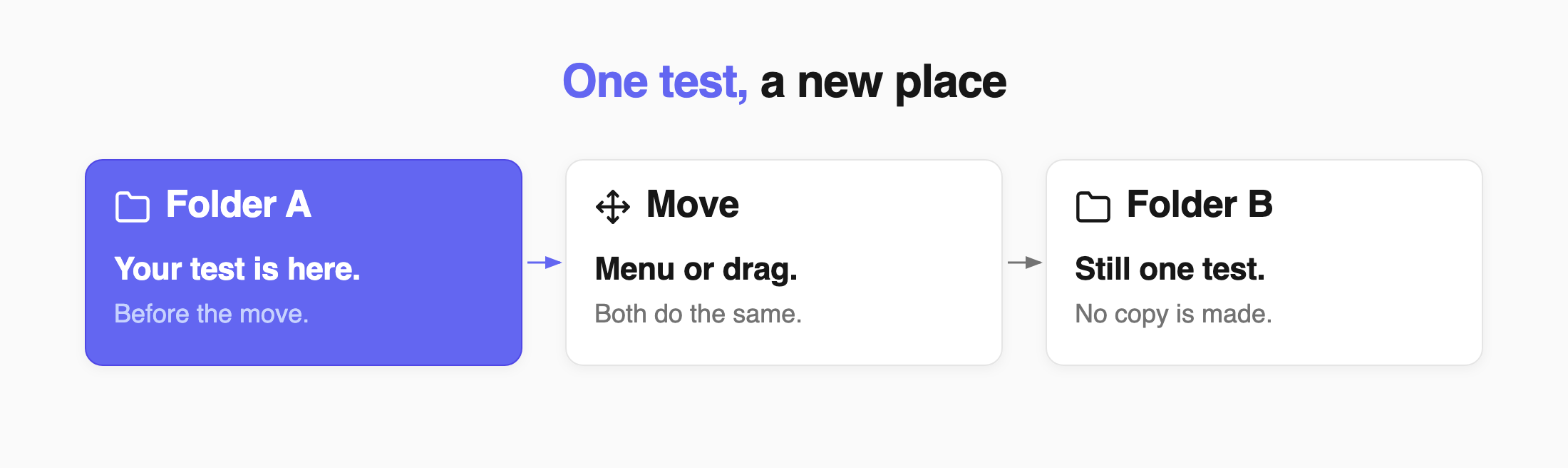
You can move items using the Move menu or by dragging and dropping them.
Ways to Move an Item
Section titled “Ways to Move an Item”Use the Move Menu
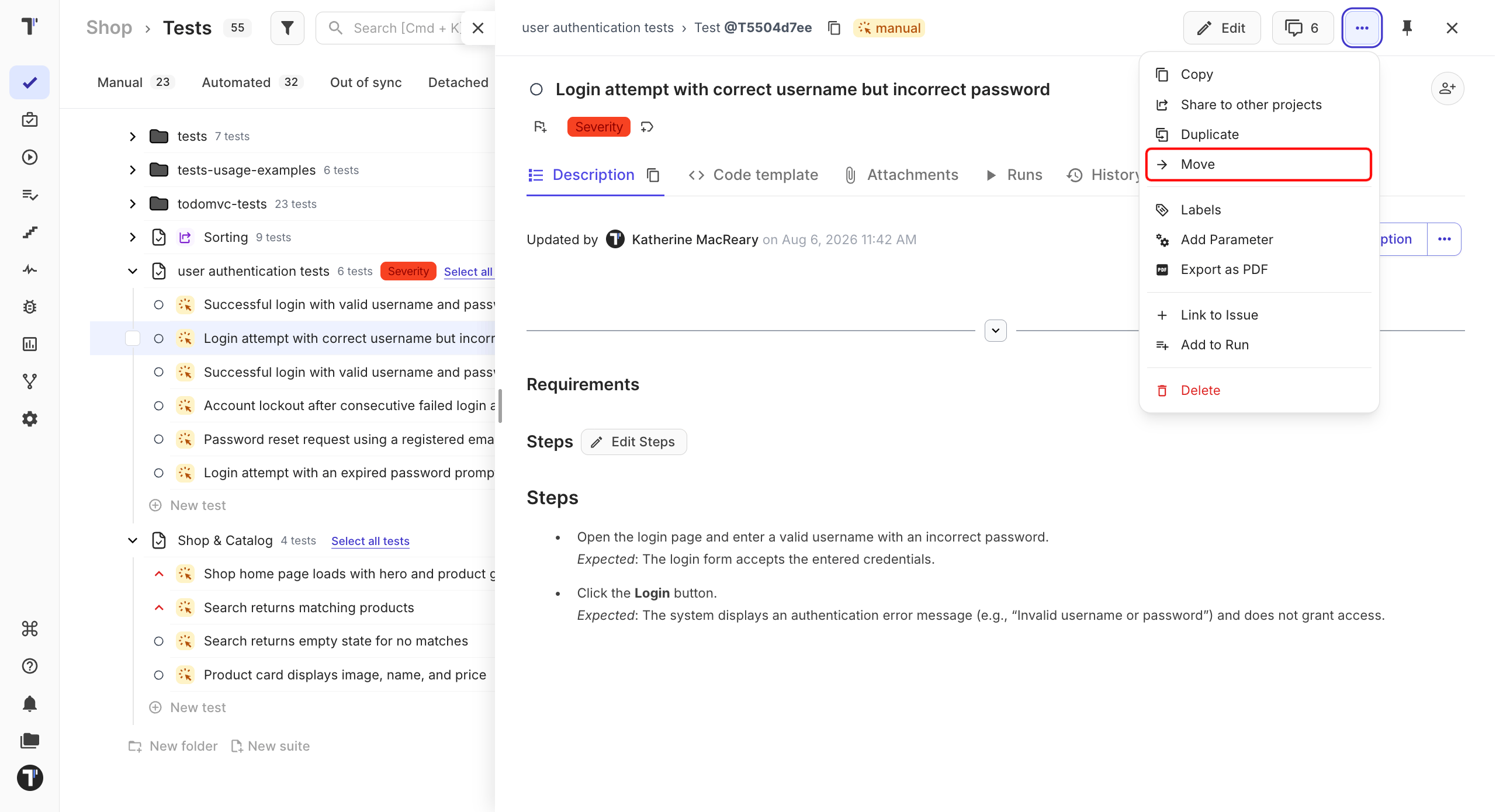
Section titled “Use the Move Menu”Use the menu when you already know where you want to place the item.
- Go to the Tests page.
- Select the test, suite, or folder you want to move.
- Click the (
...) menu in the top-right corner. - Click Move.
- Select the destination folder and click Move again.
Drag and Drop
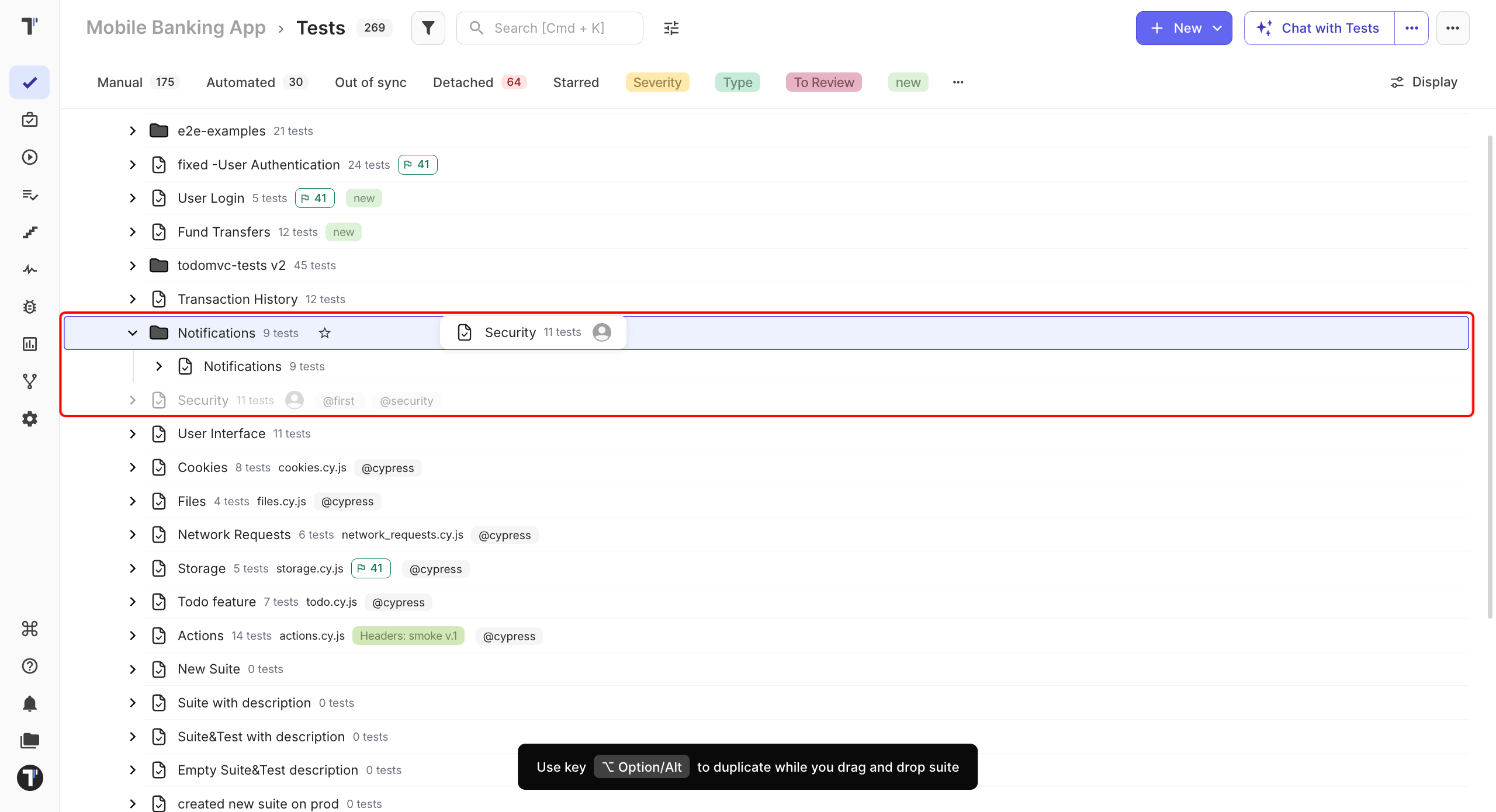
Section titled “Drag and Drop”Use drag and drop when you want to place an item directly in the project tree.
- Go to the Tests page.
- Open the folder or suite where you want to move the item.
- Hover over the test, suite, or folder until the drag handle appears.
- Drag the item to its new location.
- Drop it when the destination is highlighted.
Move Several Items
Section titled “Move Several Items”- Select the items you want to move.
- Drag one of the selected items.
- Drop the selection in the new location.
All selected items move together and keep their order.
Copy While Dragging
Section titled “Copy While Dragging”If you want to create a copy instead of moving the original, hold Alt on Windows or Option on Mac while dropping the item. This creates a copy inside the current project.