

Copying Tests and Suites
Copy tests, suites, and folders when you want to reuse existing test cases without changing the originals.
You can copy an item to another folder in the same project or to a different project. You can also duplicate a test directly in the same suite.
The new item is independent from the original. Changes you make to one do not affect the other.
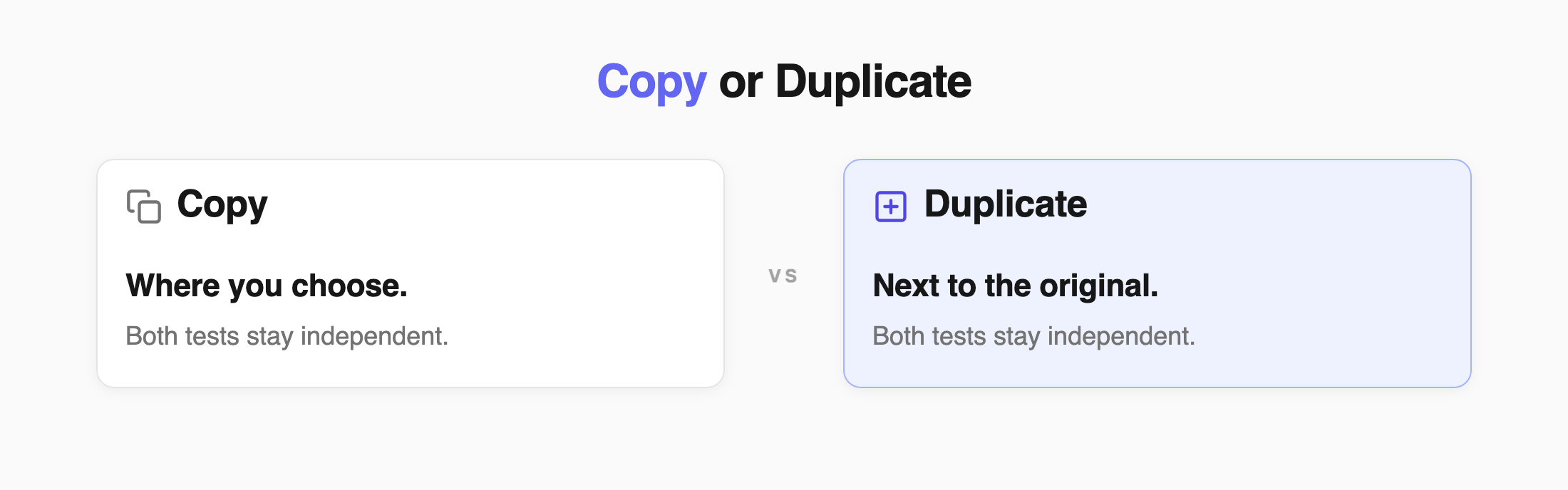
Copy or Duplicate
Section titled “Copy or Duplicate”Choose the option that matches what you want to do:
| Feature | What it does |
|---|---|
| Copy | Creates a new test, suite, or folder in the location you choose. |
| Duplicate | Creates a new test in the same suite as the original. |
| Move | Moves the original item to another location. |
| Share | Makes the same test available in another project while keeping one original. |
Use Share instead of Copy when several projects need to use the same test and you want changes to the original to stay connected.
Copy a Test, Suite, or Folder
Section titled “Copy a Test, Suite, or Folder”A new test can land in the same suite, in another folder, or in another project. The original never moves.
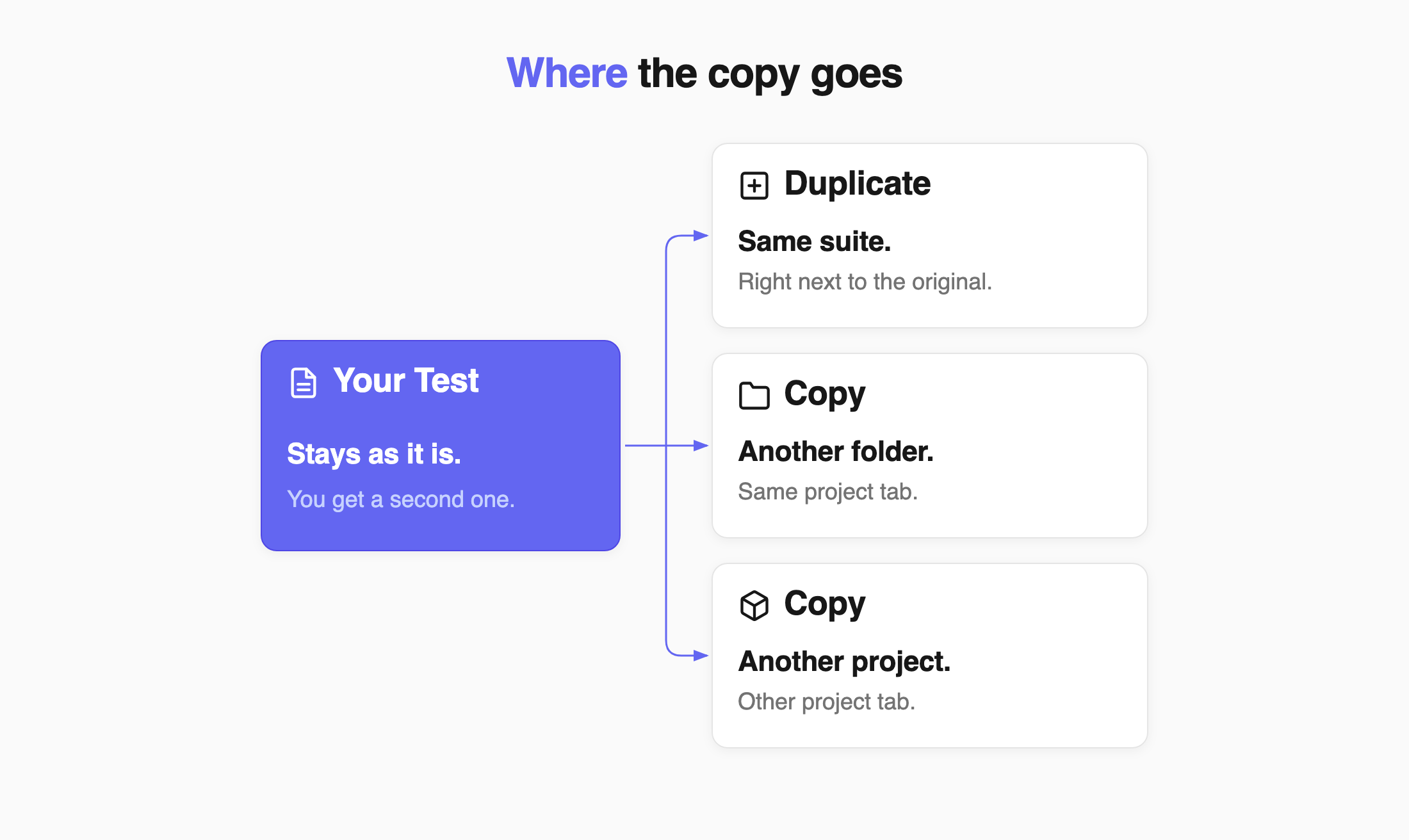
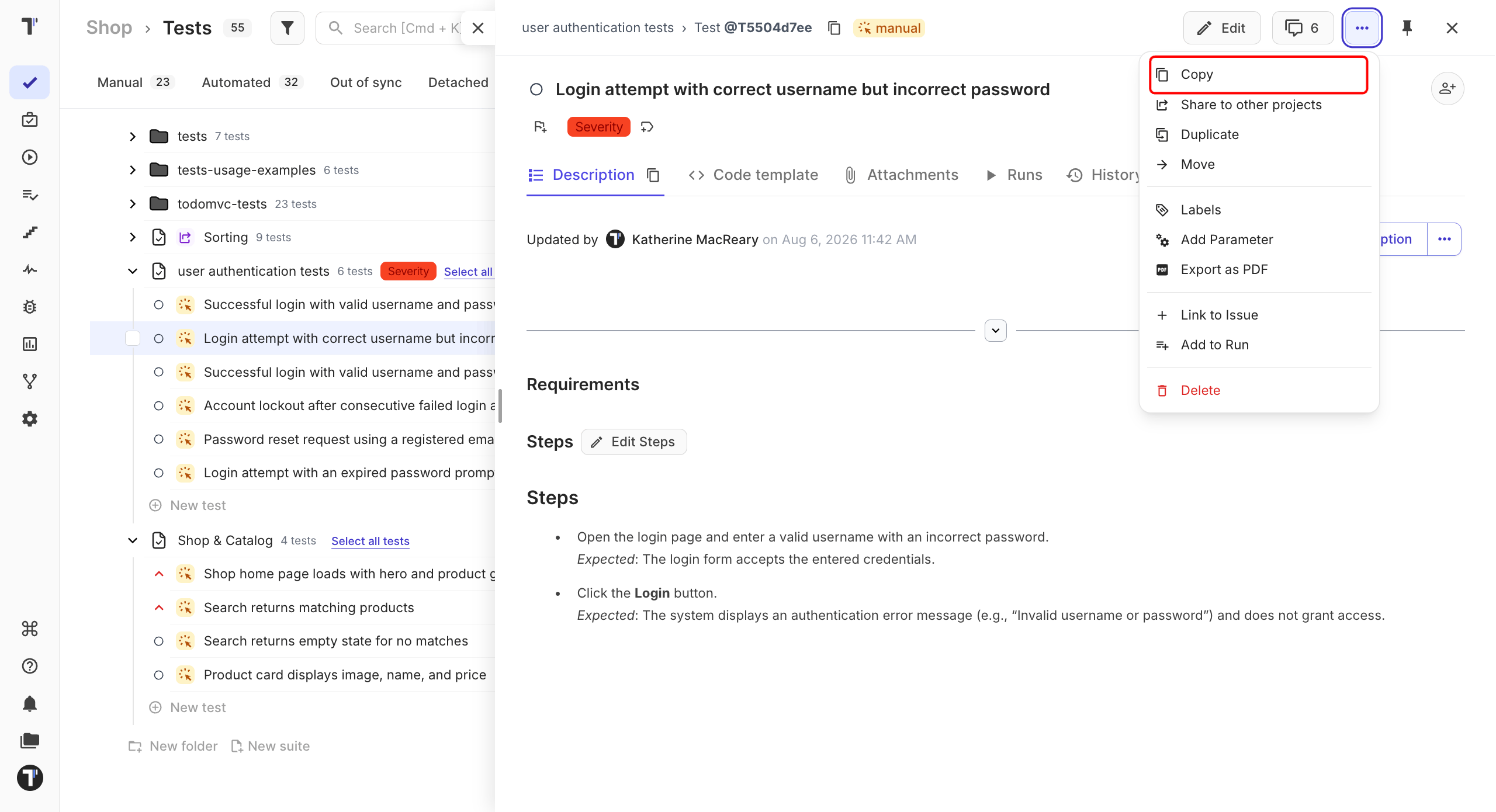
All copy actions start from the same menu.
- Go to the Tests page.
- Open the test, suite, or folder you want to copy.
- Click the ⋯ menu in the top-right corner.
- Click Copy.
The Copy window opens with two tabs — Same project and Other project.
Copy Within the Same Project
Section titled “Copy Within the Same Project”- Stay on the Same project tab.
- Select the destination folder. Use Search by title to find it faster.
- Click Copy.
The copy appears in the selected folder. The original stays where it was.
Copy to Another Project
Section titled “Copy to Another Project”- Open the Other project tab.
- Select the destination project.
- Select the destination folder.
- Click Copy.
Choose What to Copy
Section titled “Choose What to Copy”By default, Testomat.io copies the test content without its additional data. To include more:
- In the Copy window, click the gear icon in the bottom-left corner.
- Under More options, select what you want to include.
- Click Copy.
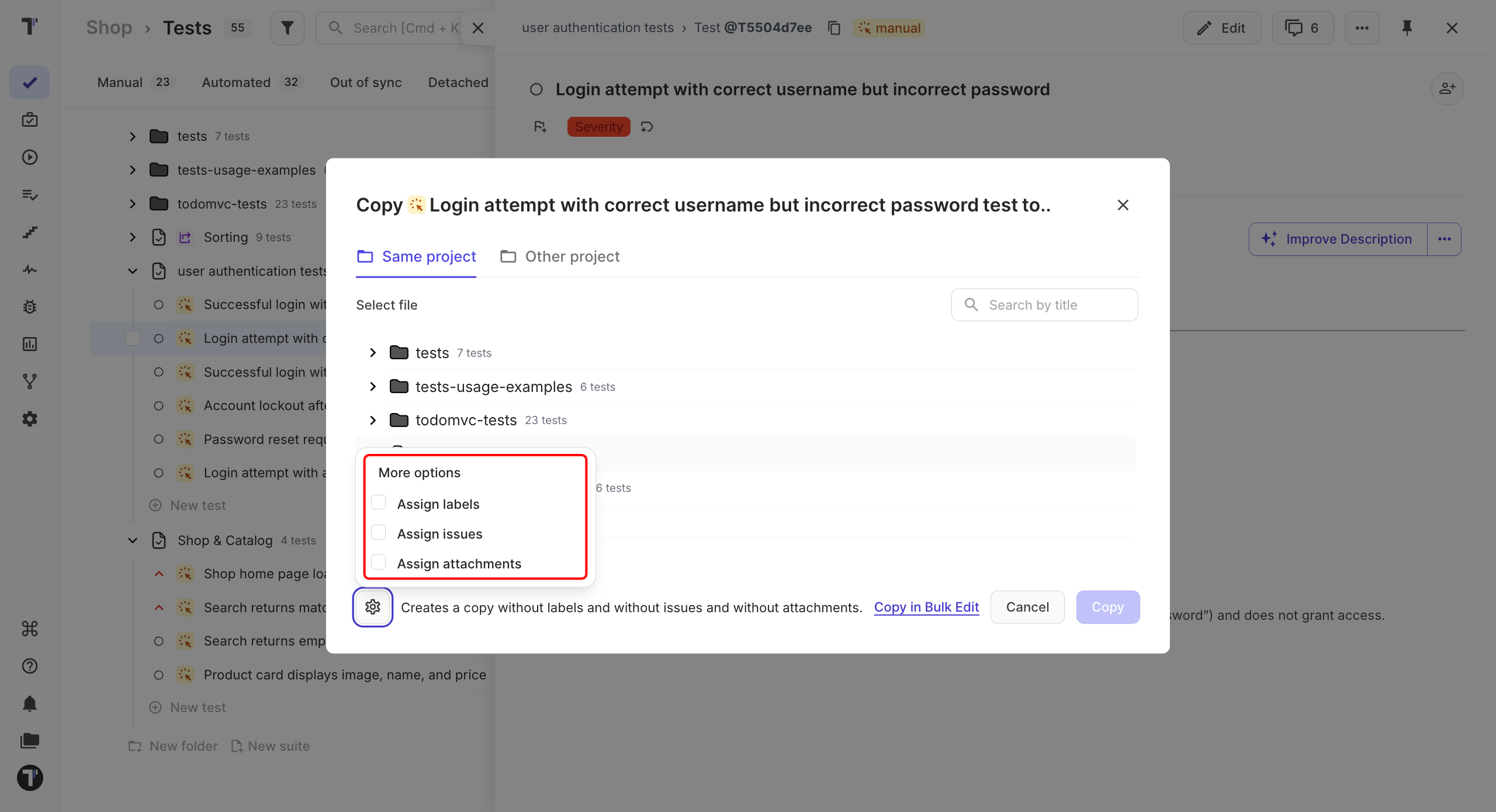
| Option | What it copies |
|---|---|
| Assign labels | Labels and custom labels. |
| Assign issues | Issues linked to the tests, suites, or folders. |
| Assign attachments | Files attached to the tests, suites, or folders. |
You can select any combination of these options. The line next to the gear icon always describes the result, for example Creates a copy without labels and without issues and without attachments.
Leave the options empty when you are creating a clean starting point for a new feature. Include attachments and labels when you want to reuse the existing test setup.
To copy several items with the same options, click Copy in Bulk Edit.
Linked issues are copied only when the destination project uses an active integration with the same issue management system and the same project or configuration. Otherwise, the issues are skipped.
Duplicate a Test
Section titled “Duplicate a Test”Use Duplicate when you need another version of a test in the same suite. The duplicate keeps the test content, steps, and parameters.
- Open the test.
- Click the ⋯ menu in the top-right corner.
- Click Duplicate.
- Select what you want to include — the same options as for copying.
- Click Duplicate.
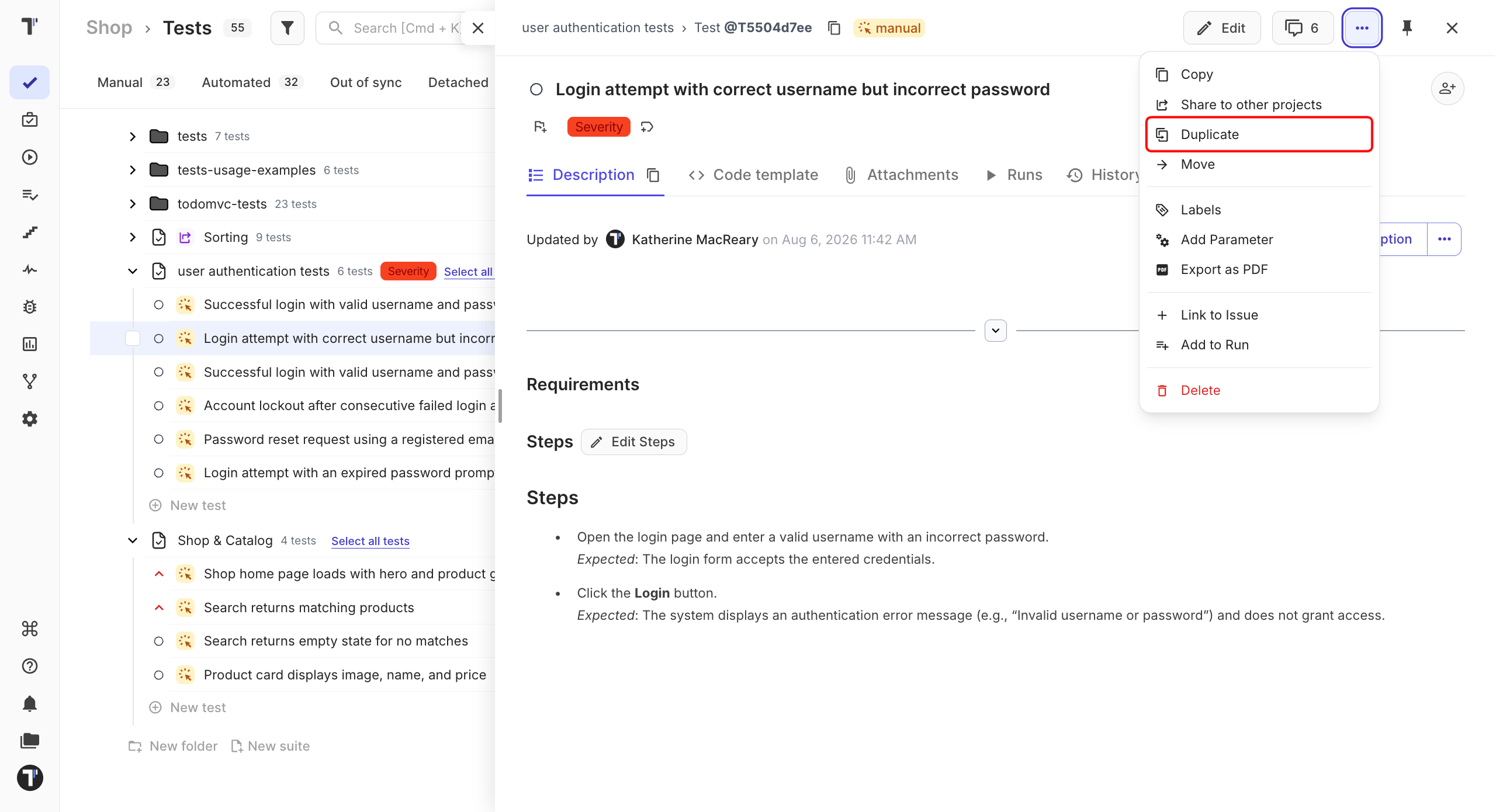
The new test appears in the same suite and gets a Copy badge. Rename it when you are ready.