

Undetaching Tests
When an import no longer finds an automated test in your source code, Testomat.io marks the test as Detached.
The test stays in your project. If the test is still needed, you can Undetach it and remove the Detached state.
Understand Test States
Section titled “Understand Test States”Each test has a state that shows how it is used:
| State | What it means |
|---|---|
| Manual | The test is run manually and is not connected to automation code. |
| Automated | The test is connected to automation code imported into Testomat.io. |
| Detached | The test was imported before, but the latest import did not find it in the source code. |
For example, a change in your automation project can cause an imported test to become Detached. The test is still there, so you can decide what to do with it.
Undetach All Detached Tests
Section titled “Undetach All Detached Tests”If an import detached many tests, you can restore them all at once.
- Go to the Tests page.
- Open the Detached tab.
- Click Undetach tests in the banner.
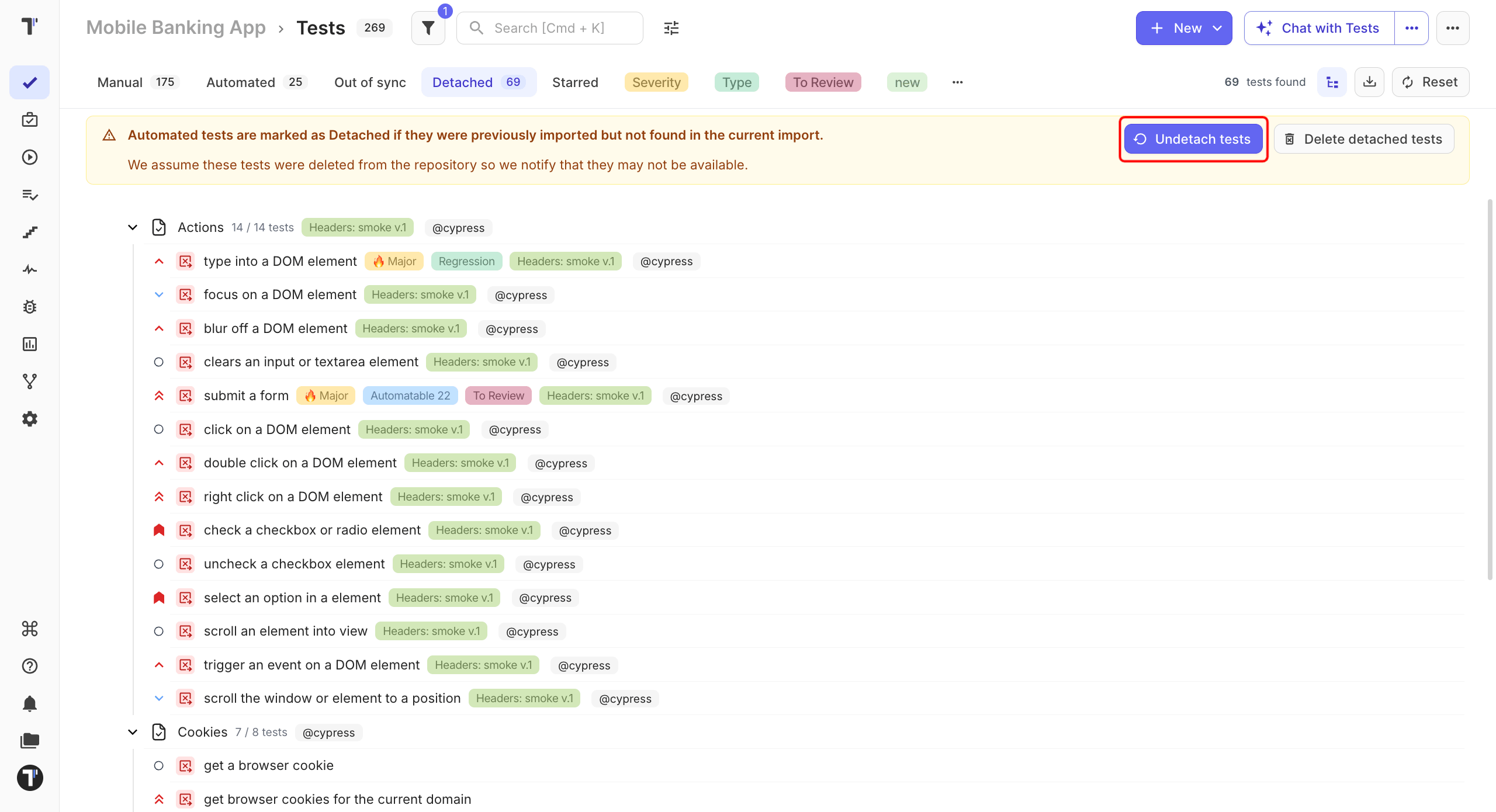
Testomat.io removes the Detached state from all detached tests in the project.
The banner also offers Delete detached tests. Use it only when the tests are gone from your source code for good - it removes them instead of restoring them.
Undetach a Suite
Section titled “Undetach a Suite”If only one suite needs to be restored:
- Open the suite with detached tests.
- Click the (
...) menu in the top-right corner. - Click Clear “Detached” state.
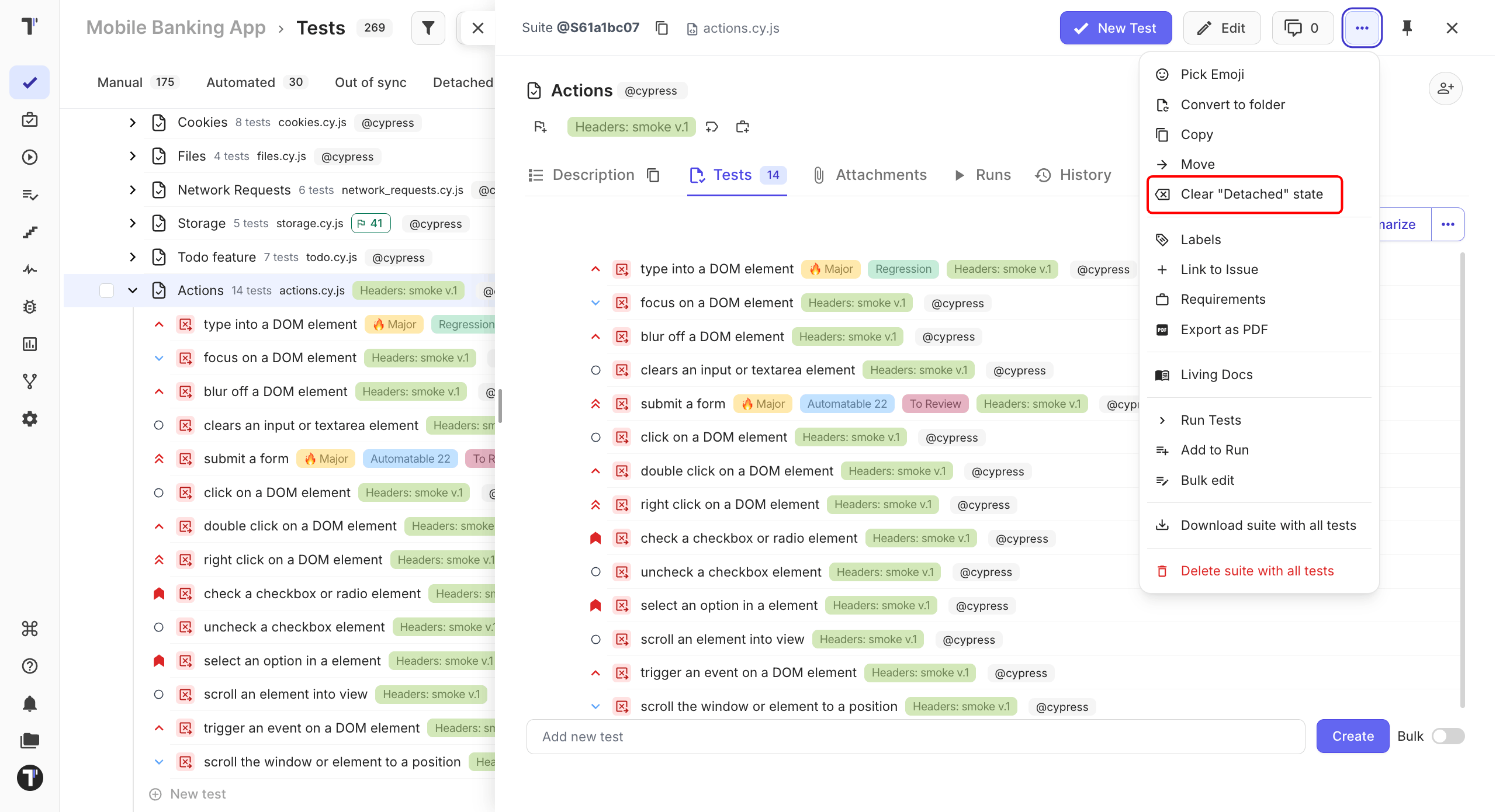
All detached tests in the suite are restored.
Undetach a Single Test
Section titled “Undetach a Single Test”To restore just one test:
- Open the detached test.
- Click the (
...) menu in the top-right corner. - Click Clear “Detached” state.
The Detached state is removed from the test.