

Linear
Connect your Linear team to a Testomat.io project to create issues from failing tests, link the ones you already have, and turn Linear issues into requirements.
Create a Personal Access Token
Section titled “Create a Personal Access Token”Testomat.io connects to Linear with a personal API key. Linear calls it an API key; in Testomat.io the same key goes into the Personal Access Token field.
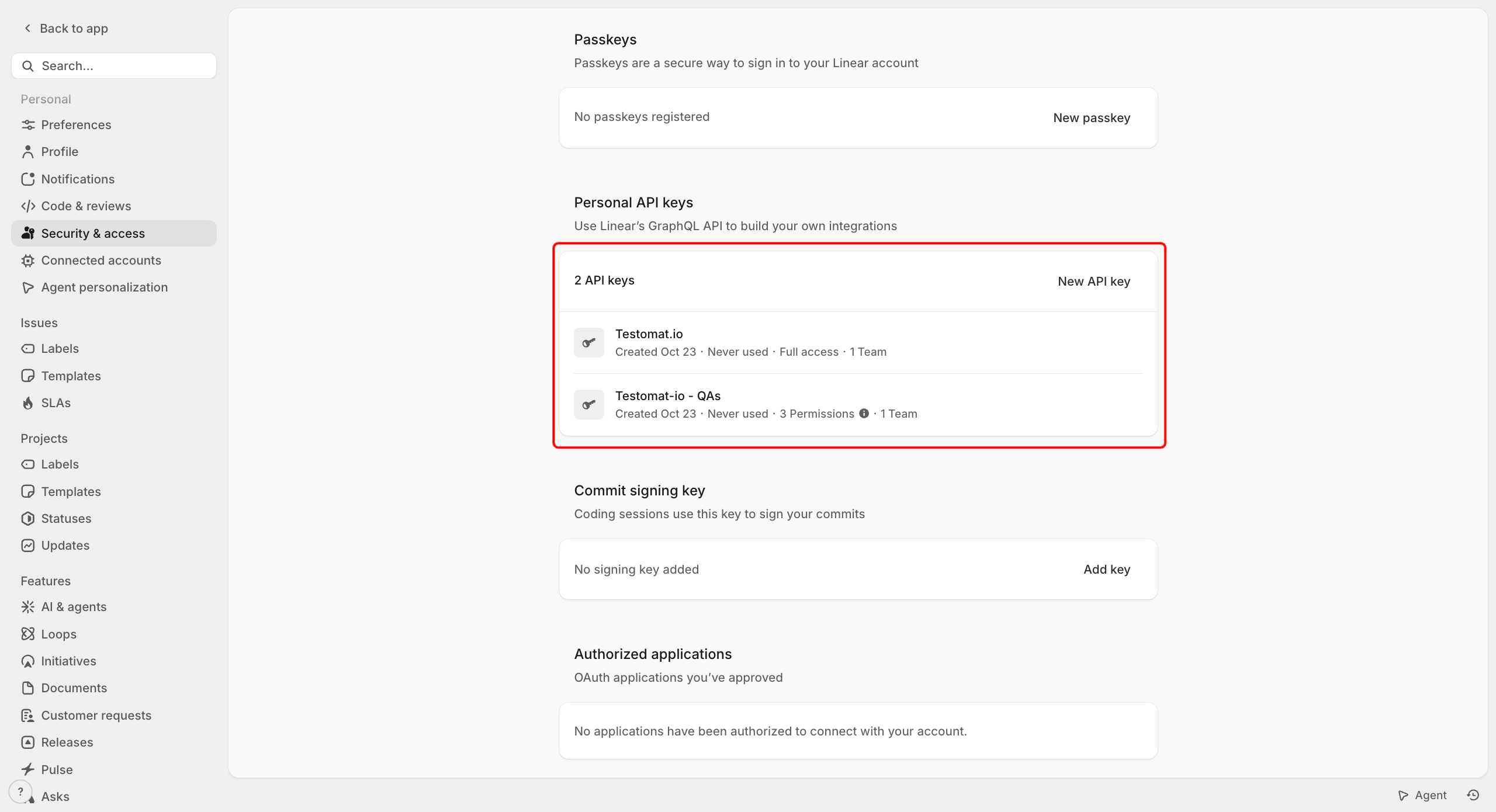
- In Linear, open Settings and go to Security & access.
- Under Personal API keys, click New API key.
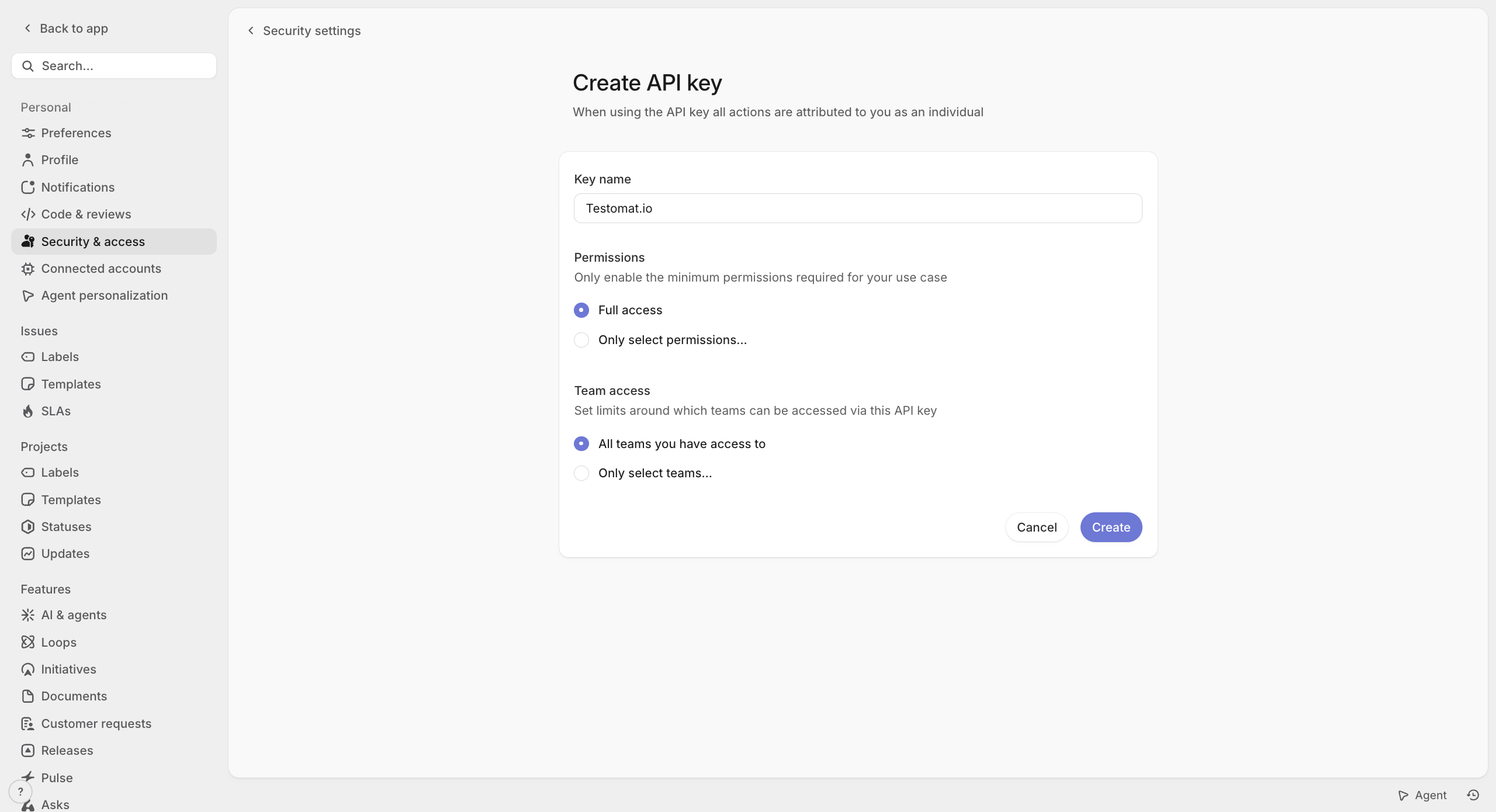
- Enter a Key name, for example
Testomat.io. - Choose the Permissions and Team access the key gets.
- Click Create.
- Click the copy icon next to the key.
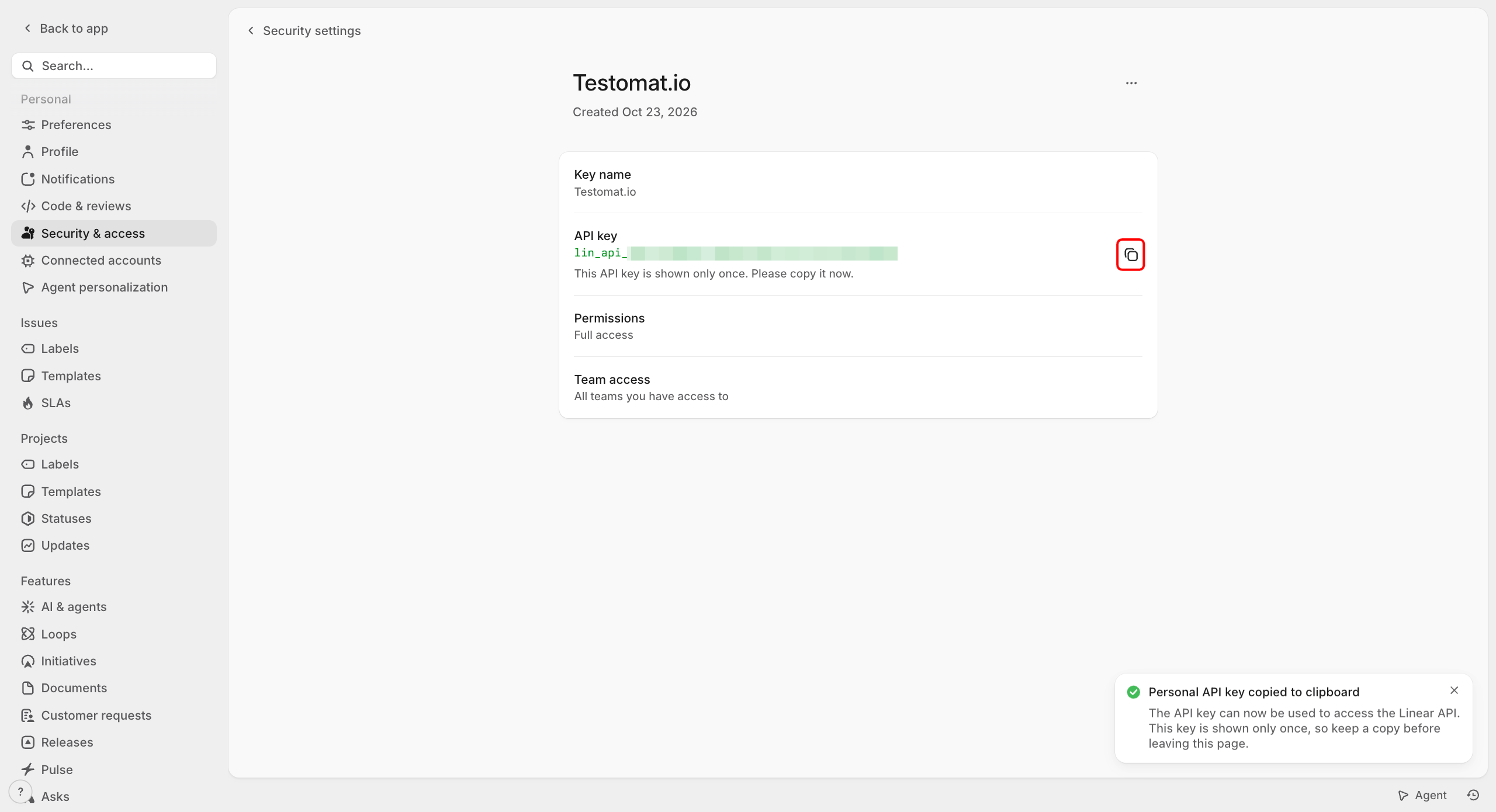
Copy the key before you leave the page - Linear shows it only once.
Connect Linear
Section titled “Connect Linear”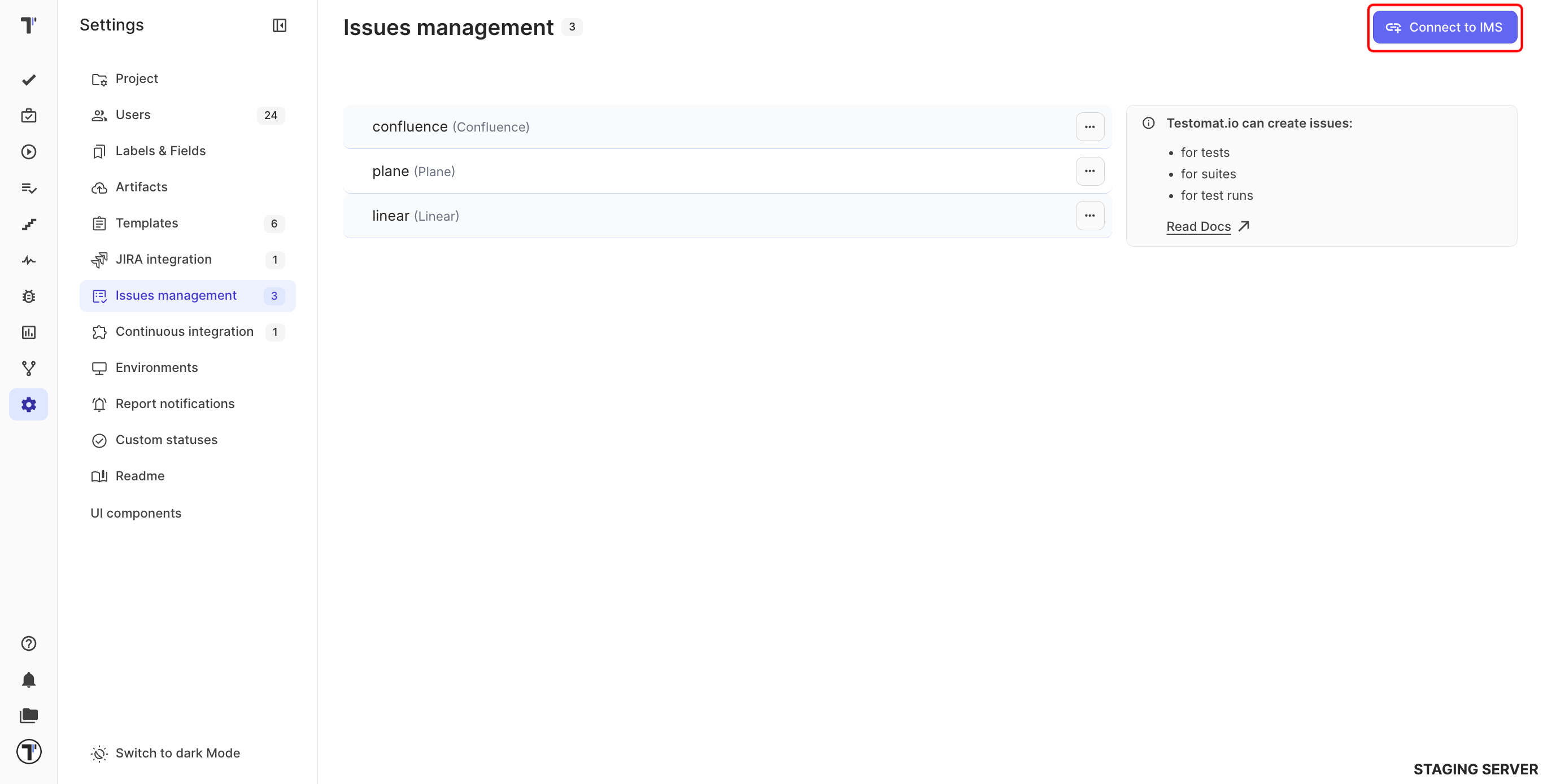
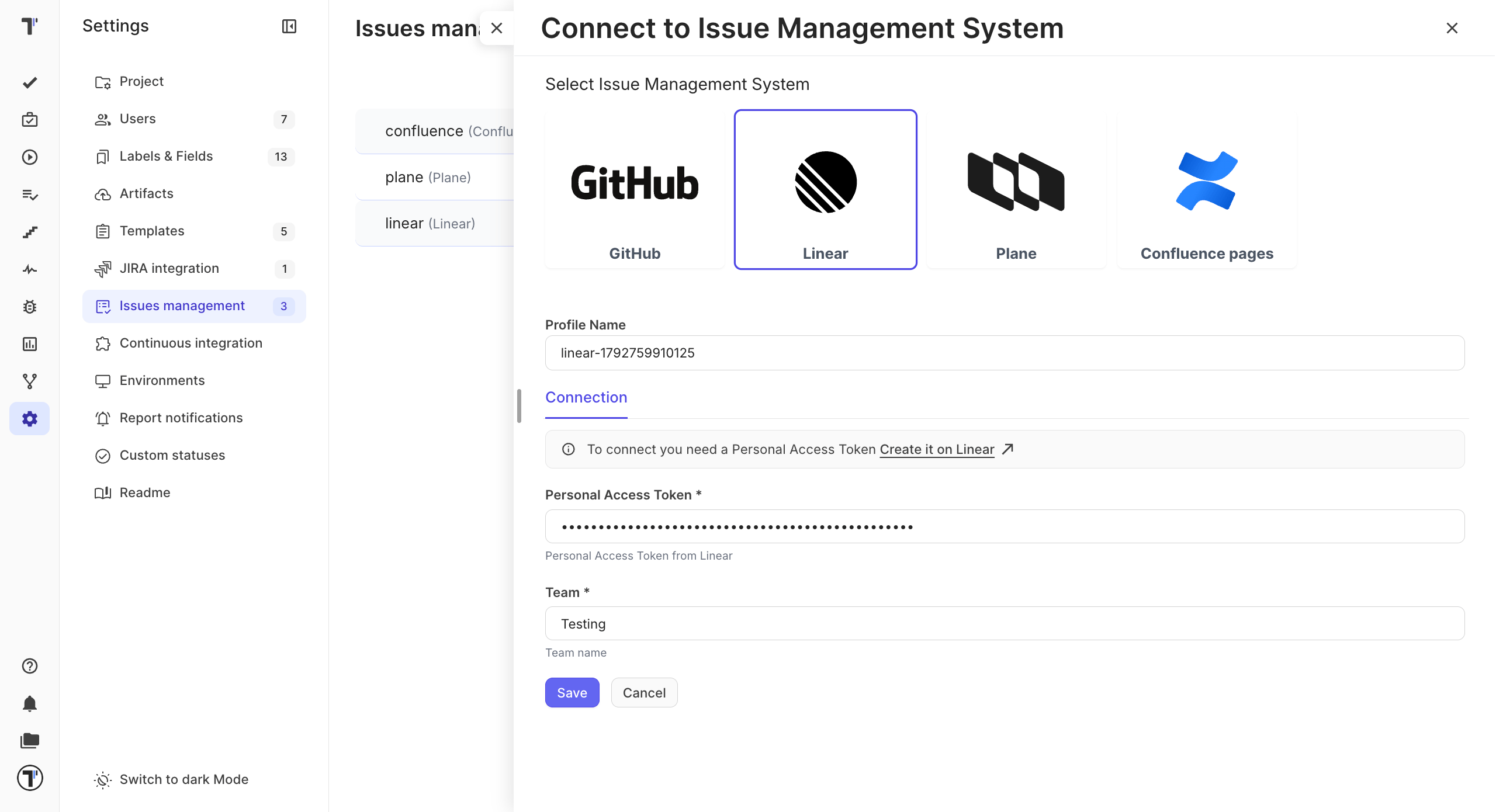
- In Testomat.io, open Settings and go to Issues management.
- Click Connect to IMS.
- Select Linear.
- Change the Profile Name if you want a different one.
- Paste your key into Personal Access Token. The Create it on Linear link above the field opens the page where you make one.
- Enter your team name in Team.
- Click Save.
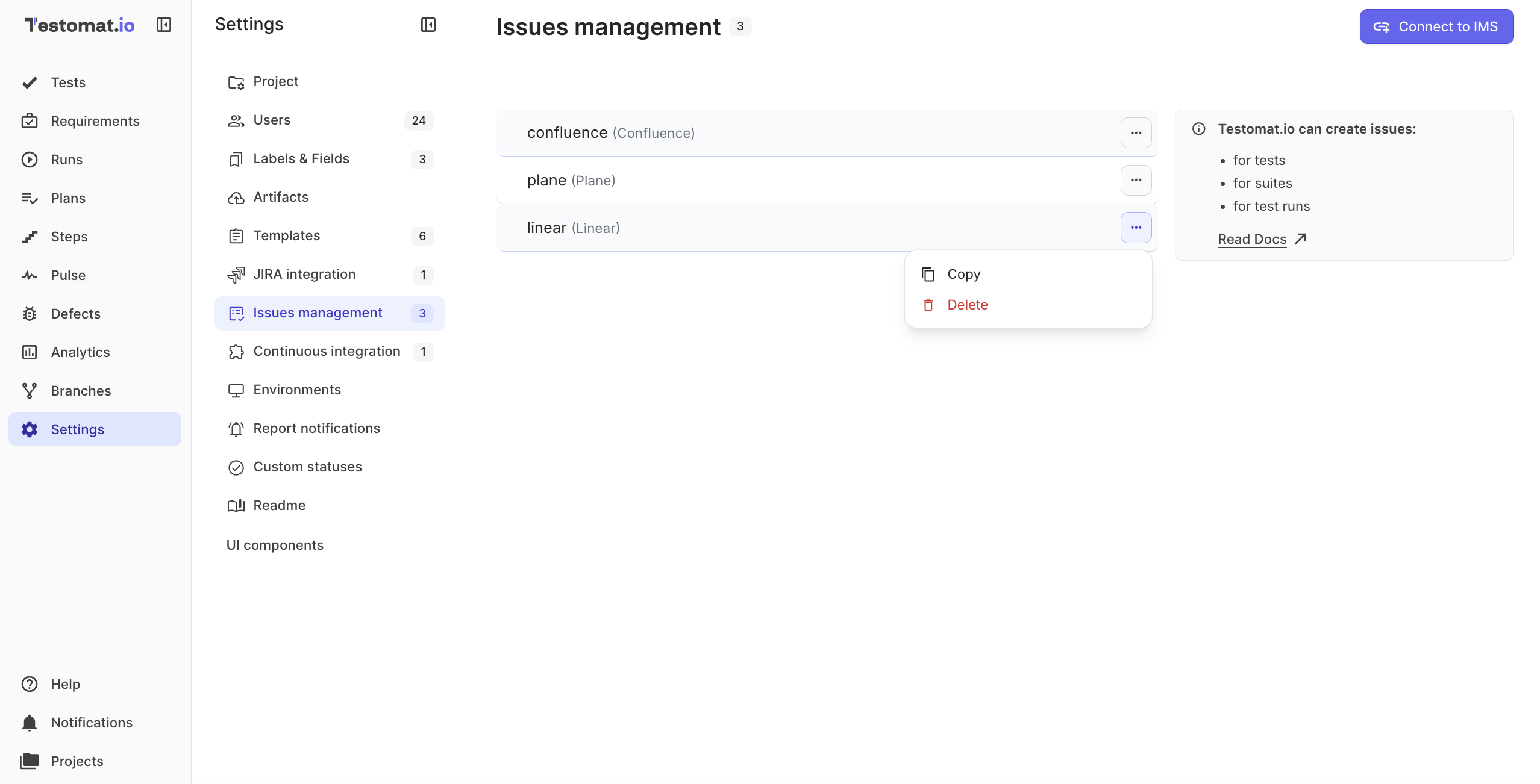
The new profile appears on the Issues management page, next to any other systems you use. To copy or delete it later, click the ⋯ button next to the profile.
Create a Linear Issue
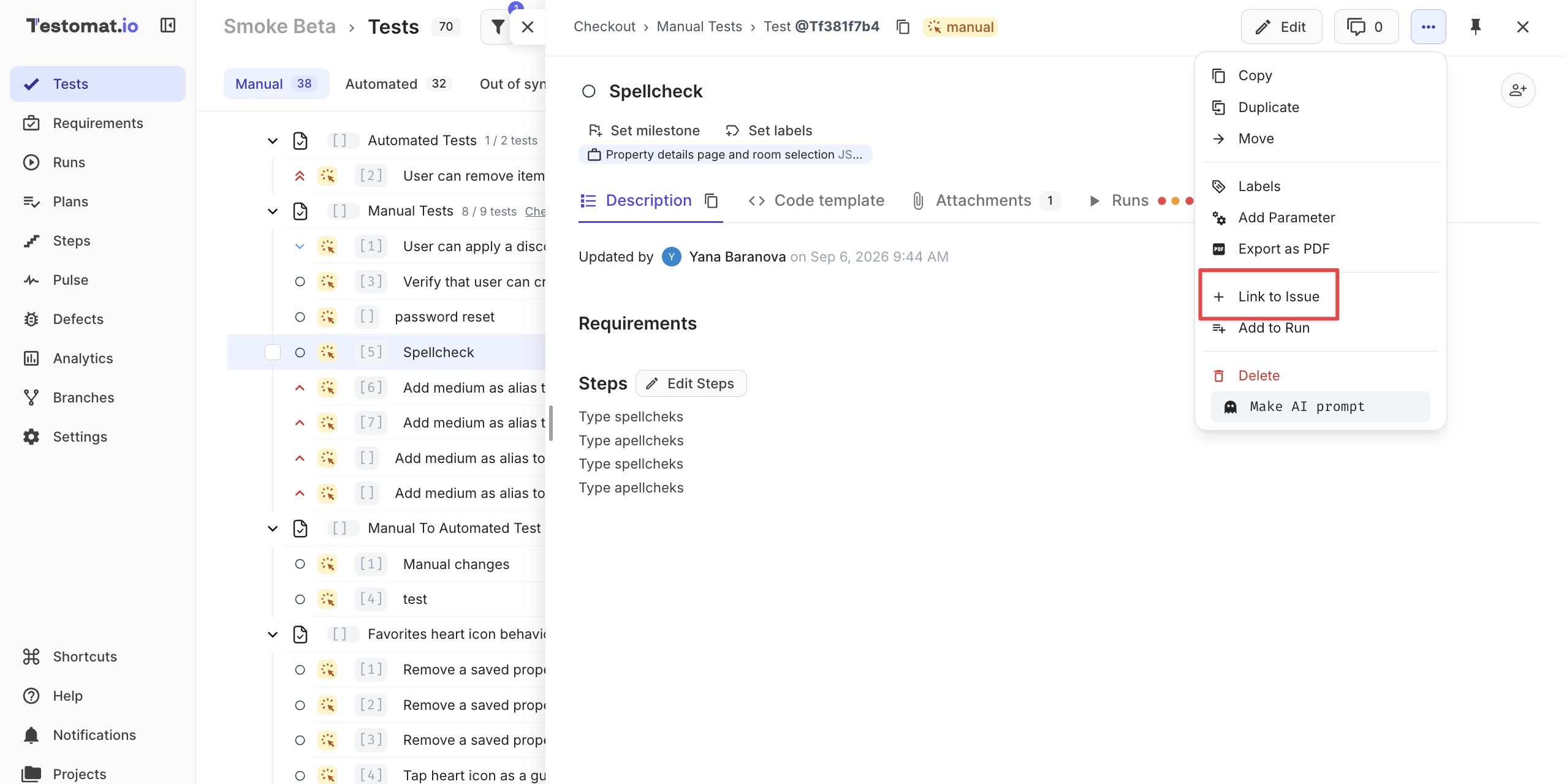
Section titled “Create a Linear Issue”- Open a test, suite, or run, click the ⋯ button in the top-right corner, and select Link to Issue.
- On the Create new issue tab, pick your Linear profile.
- Enter the title and description.
- Click Show Optional Fields to fill in more Linear fields.
- Click Create Issue.
| Field | What it sets |
|---|---|
| Status | The workflow state of the issue. |
| Priority | How urgent the issue is. |
| Assignee | Who works on it. |
| Labels | Linear labels. |
| Project and Project milestone | Where the issue belongs in your Linear projects. |
| Cycle | The cycle the issue is planned for. |
| Estimate | The estimate, in your team’s scale. |
| Due date | When it should be done. |
| Parent issue | A parent issue, by URL or ID. |
The lists show only the values of your connected team. If your team doesn’t use estimates, the Estimate field is turned off.
Link an Existing Issue
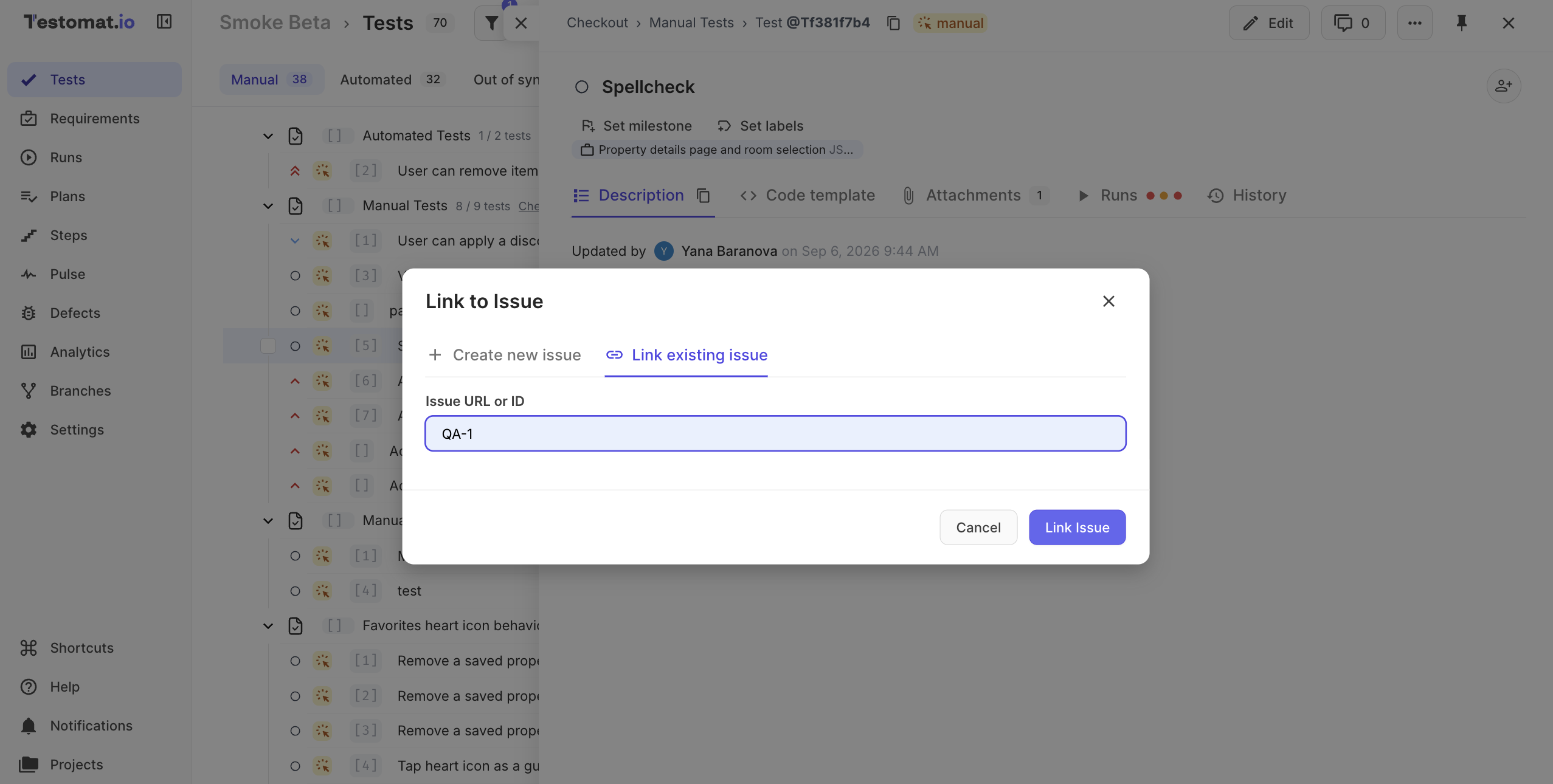
Section titled “Link an Existing Issue”- Open a test, suite, or run, click the ⋯ button in the top-right corner, and select Link to Issue.
- Open the Link existing issue tab.
- Paste the Linear issue URL or its key, such as
QA-1, into Issue URL or ID. - Click Link Issue.
Raise a Defect
Section titled “Raise a Defect”- In a manual run, open a failed test and click Raise Defect.
- Pick your Linear profile.
- Click Show Optional Fields to set Linear fields.
- Create the defect.
To link a defect that already exists, open Link existing defect and paste the key. With Tracker set to Detect automatically, Testomat.io recognizes a Linear key on its own.
Track Linear Defects
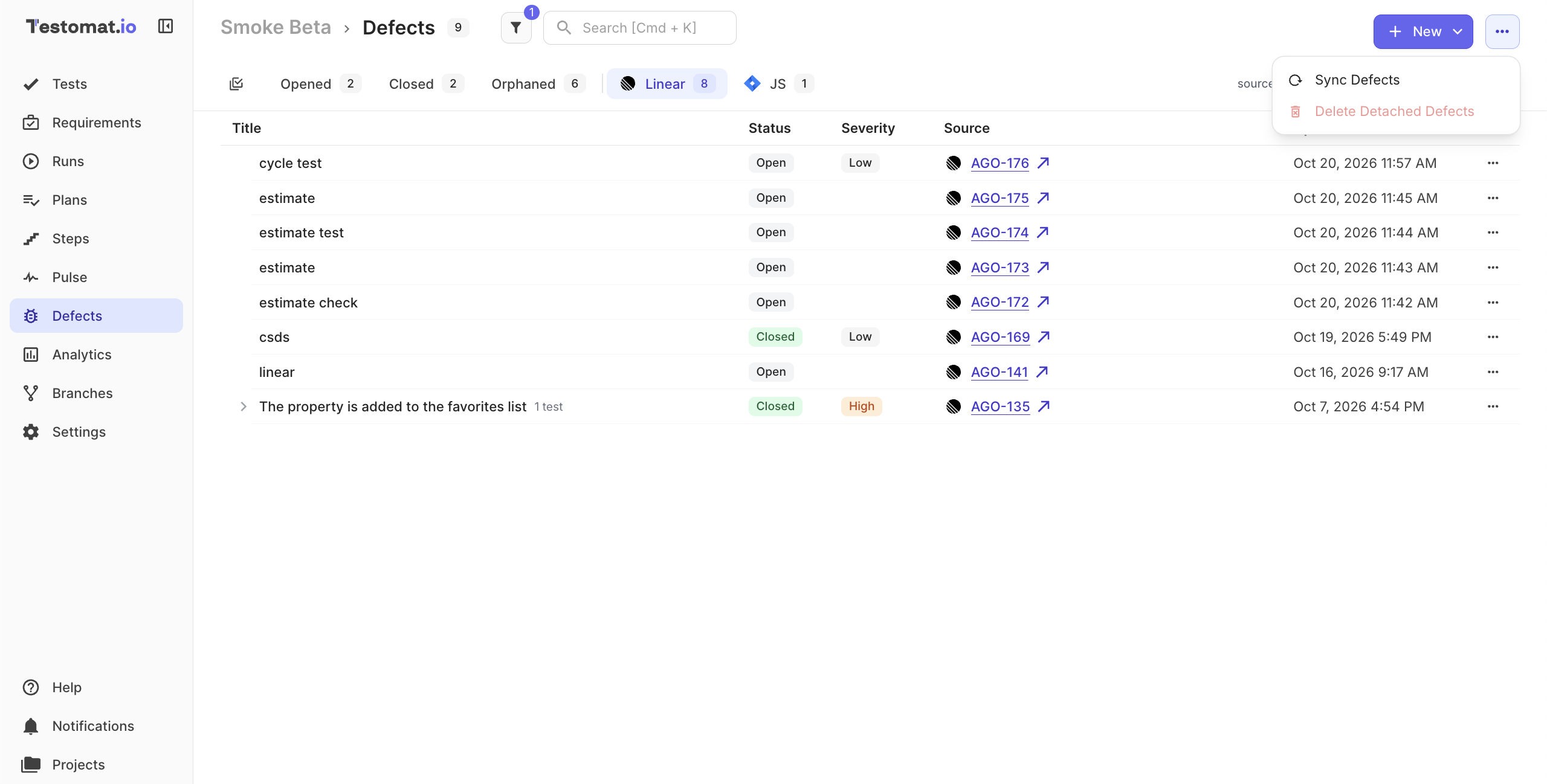
Section titled “Track Linear Defects”Defects raised in Linear show up on the Defects page. Open the Linear tab to see only them, with their status, severity, and a link to each issue in Linear.
To pull the latest changes from Linear right away, click the ⋯ button in the top-right corner and select Sync Defects.
See Testomat.io Items in Linear
Section titled “See Testomat.io Items in Linear”Every linked test, suite, run, plan, requirement, or defect appears on the Linear issue as an attachment, not a comment. The issue discussion stays clean, and your team opens the testing context in one click.
Use Linear Issues as Requirements
Section titled “Use Linear Issues as Requirements”Add a Linear issue as a requirement to plan tests from it. Testomat.io imports the title and the description. See Linear as a Requirement Source.
Linear requirements refresh once a day. To pull the latest version right away, open the requirement, click the ⋯ menu, and select Refresh Requirement.