

Mentions and notifications
A mention invites the teammate to a comment. The teammates are notified right away. Mentions work inside a comment on a test or a suite.
Mention a teammate
Section titled “Mention a teammate”- Open the Comments tab on the test or the suite.
- Type
@in the comment field. - Start typing a name to filter the list.
- Select the teammate you need.
- Enter the rest of your comment and click Comment.
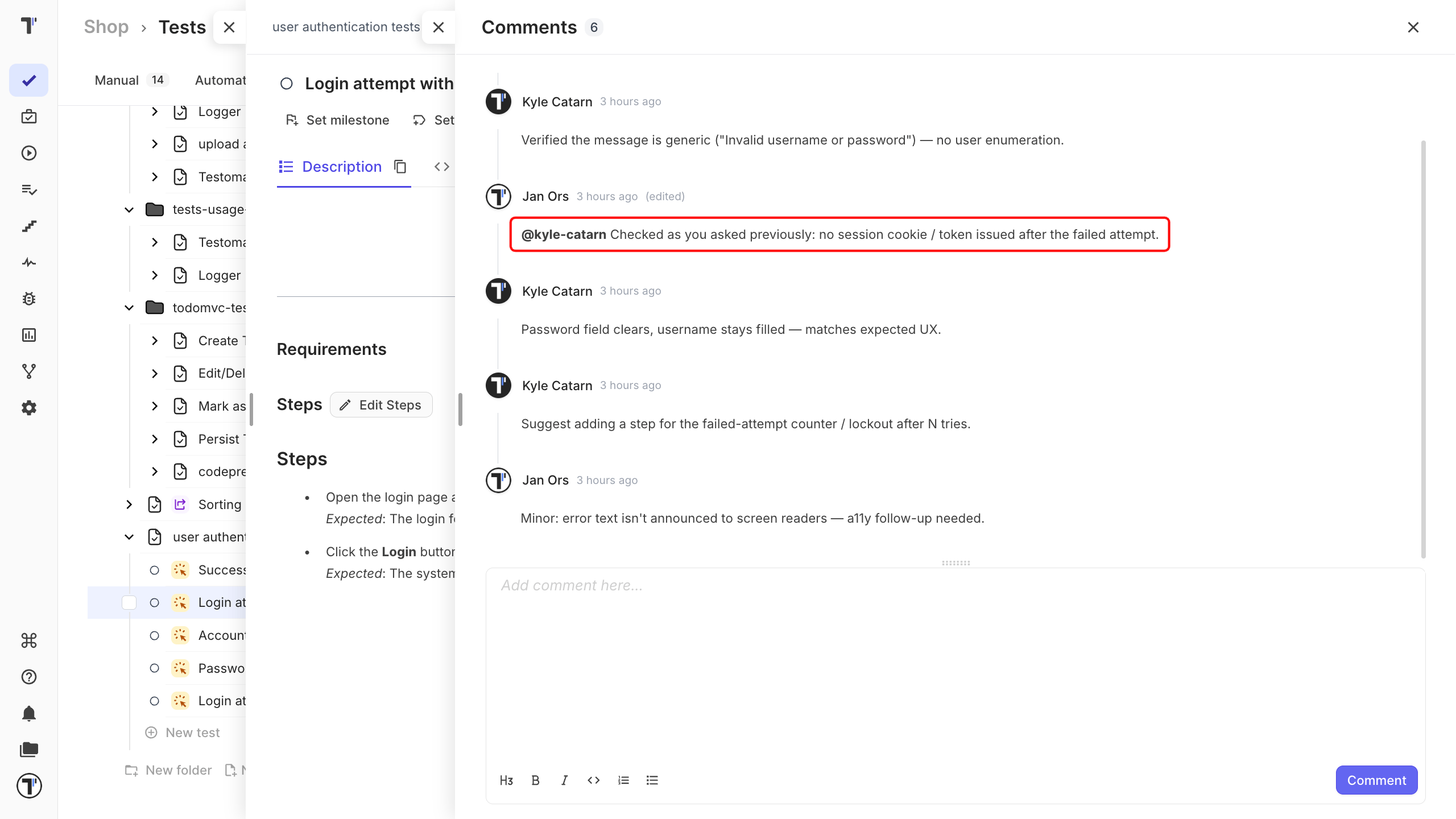
The person you mentioned is notified at once.
To delete, edit or remove the comment see Comments.
Thread notifications
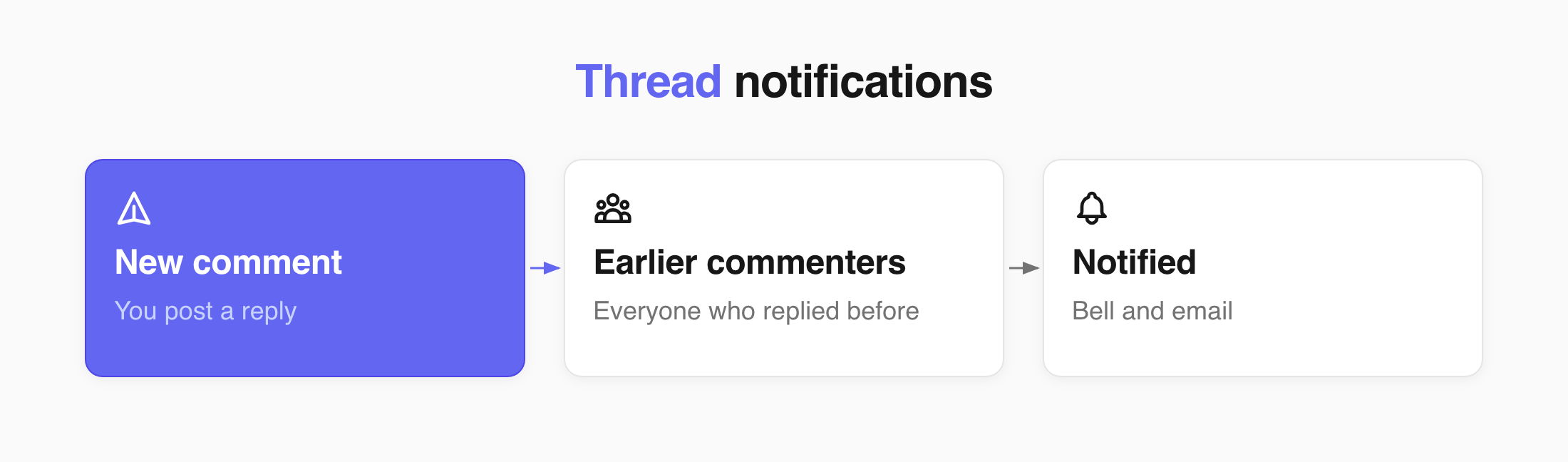
Section titled “Thread notifications”A thread keeps everyone already involved in the loop. When you post a comment on a test or suite, everyone who has commented it before is notified.
The notifications bell
Section titled “The notifications bell”You can see the new notification on the left in the side bar. A red dot appears on the notification bell when you receive a new comment or mention.
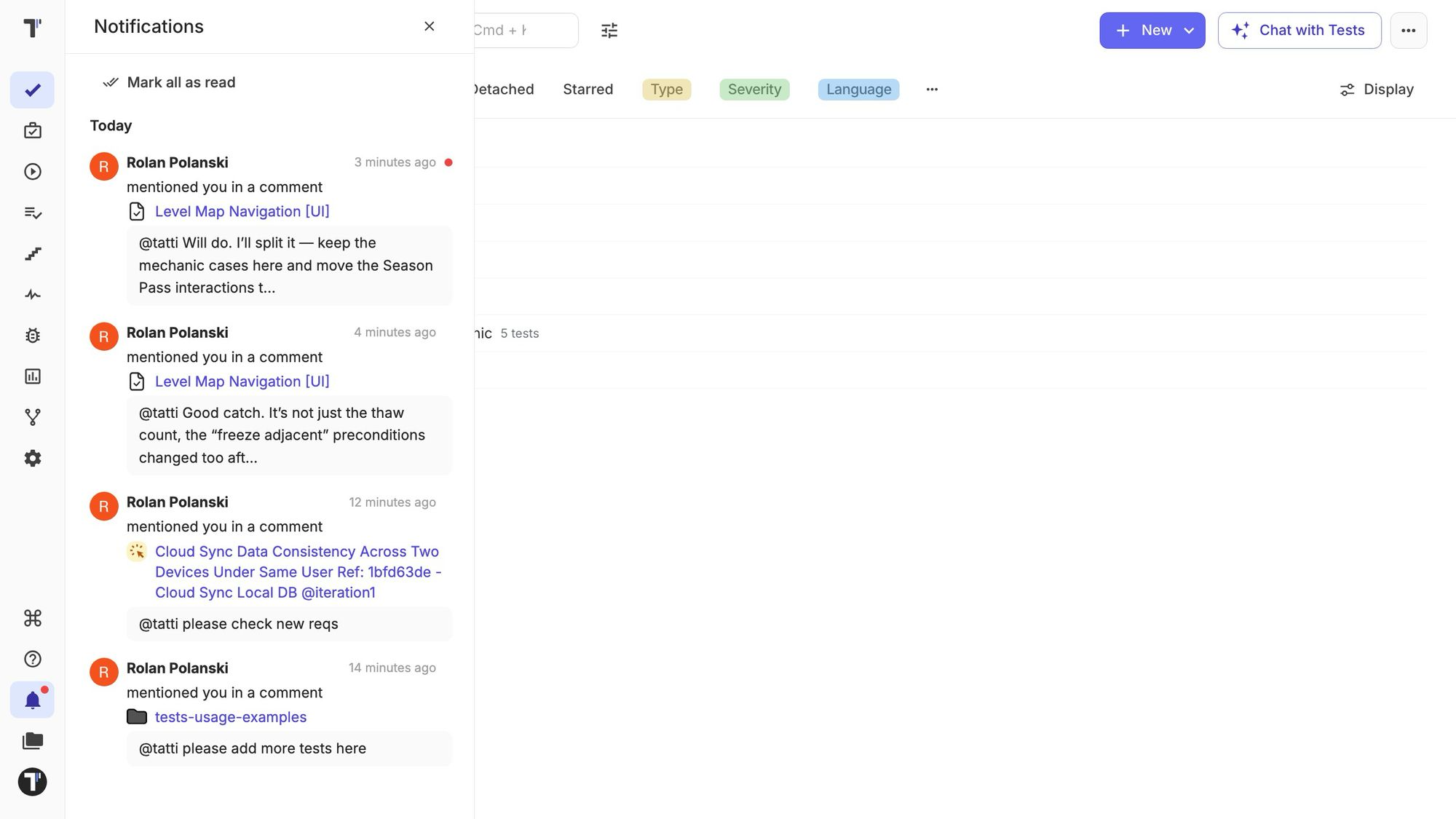
Each notification shows who wrote it, a preview of the comment, and the test/suite it is about. Click it to mark it read and open the thread.
Email notifications
Section titled “Email notifications”Email notifications are on by default for everyone.
You can set the email notifications in your account settings. For this you need to mark the Email notifications for mentions and threads checkbox.