

Dynamic Parameters
Use dynamic parameters to run the same test with different values. Add a parameter table to the test and use its headers in your test steps. Each row in the table becomes a separate test iteration. For example, one test can use several usernames:
| Username | Password |
|---|---|
| user1 | pass1 |
| user2 | pass2 |
| user3 | pass3 |
The test runs three times, using the values from each row.
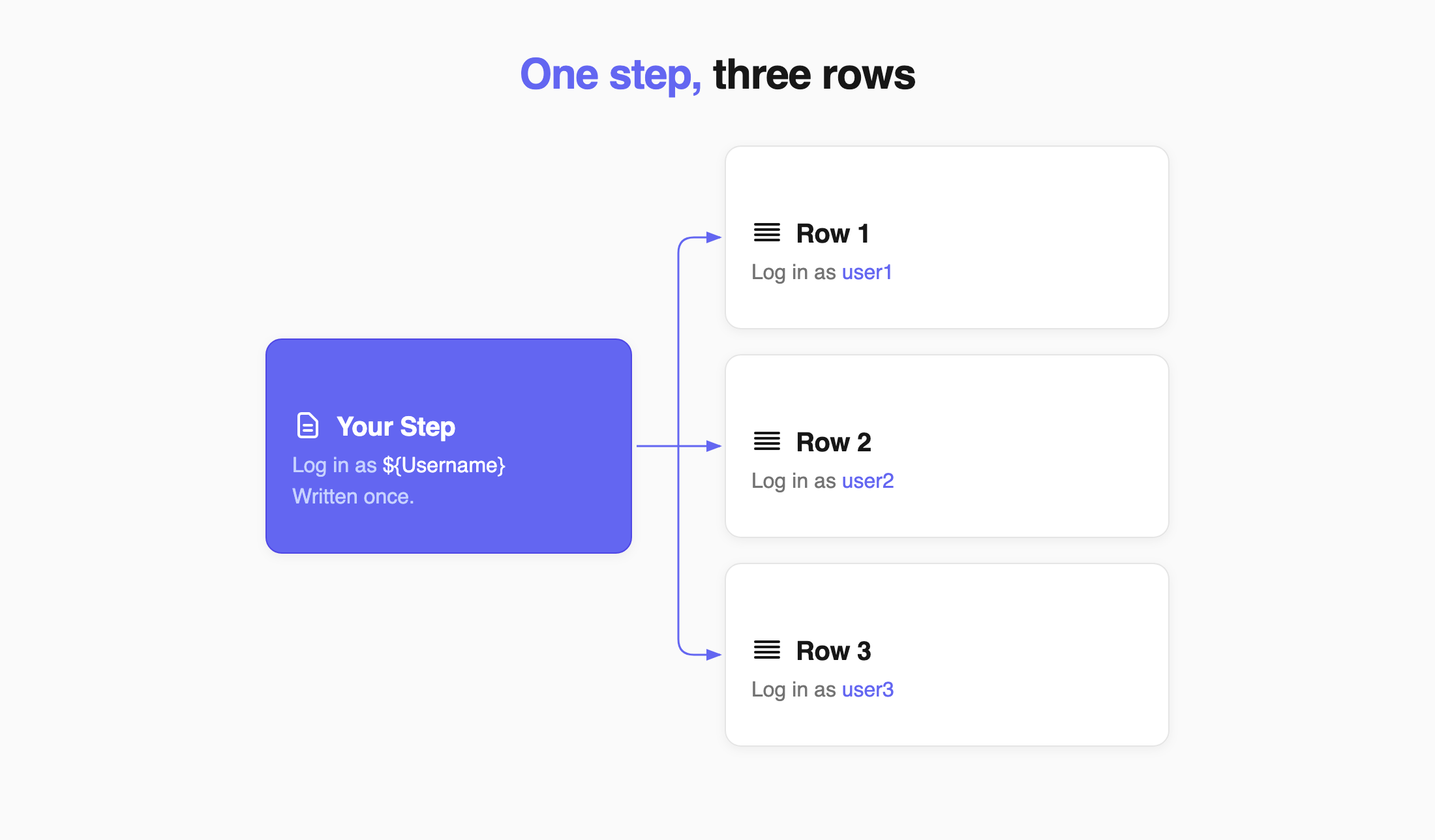
Three pieces work together:
- A parameter table stores the values.
- A parameter header names each value.
- A placeholder in a test step tells Testomat.io where to use the value.
Add Parameters to a Test
Section titled “Add Parameters to a Test”- Open Tests and select the test.
- Click the Extra button.
- Select Add Parameter.
- Enter the name of the parameter.
- Add a Parameter header for each value you need. You can also click Add column.
- Click Save.
- Enter the values for each row.
- Click Save.
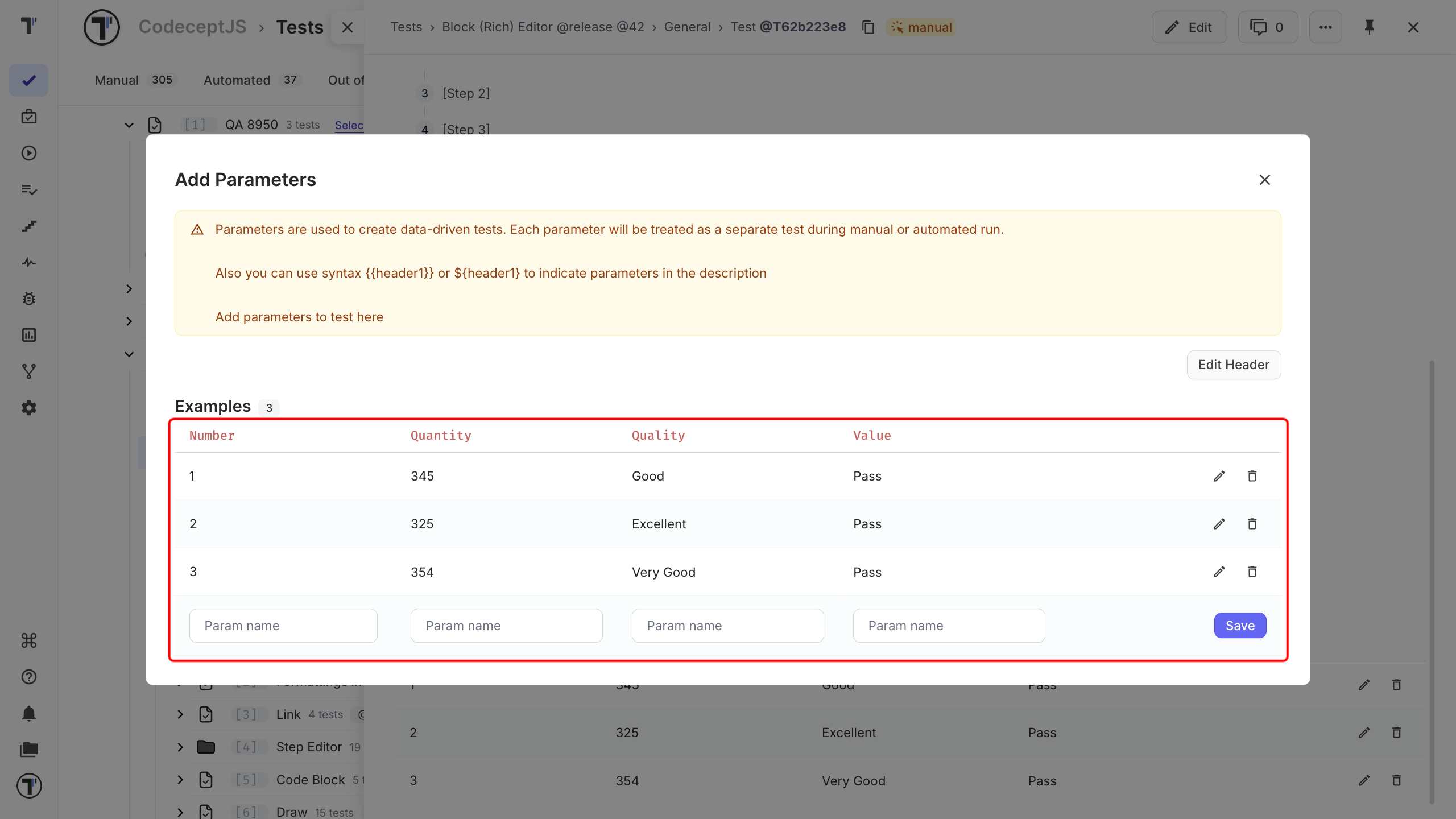
The parameter table appears in the test, with one row per set of test data.
Edit Parameters
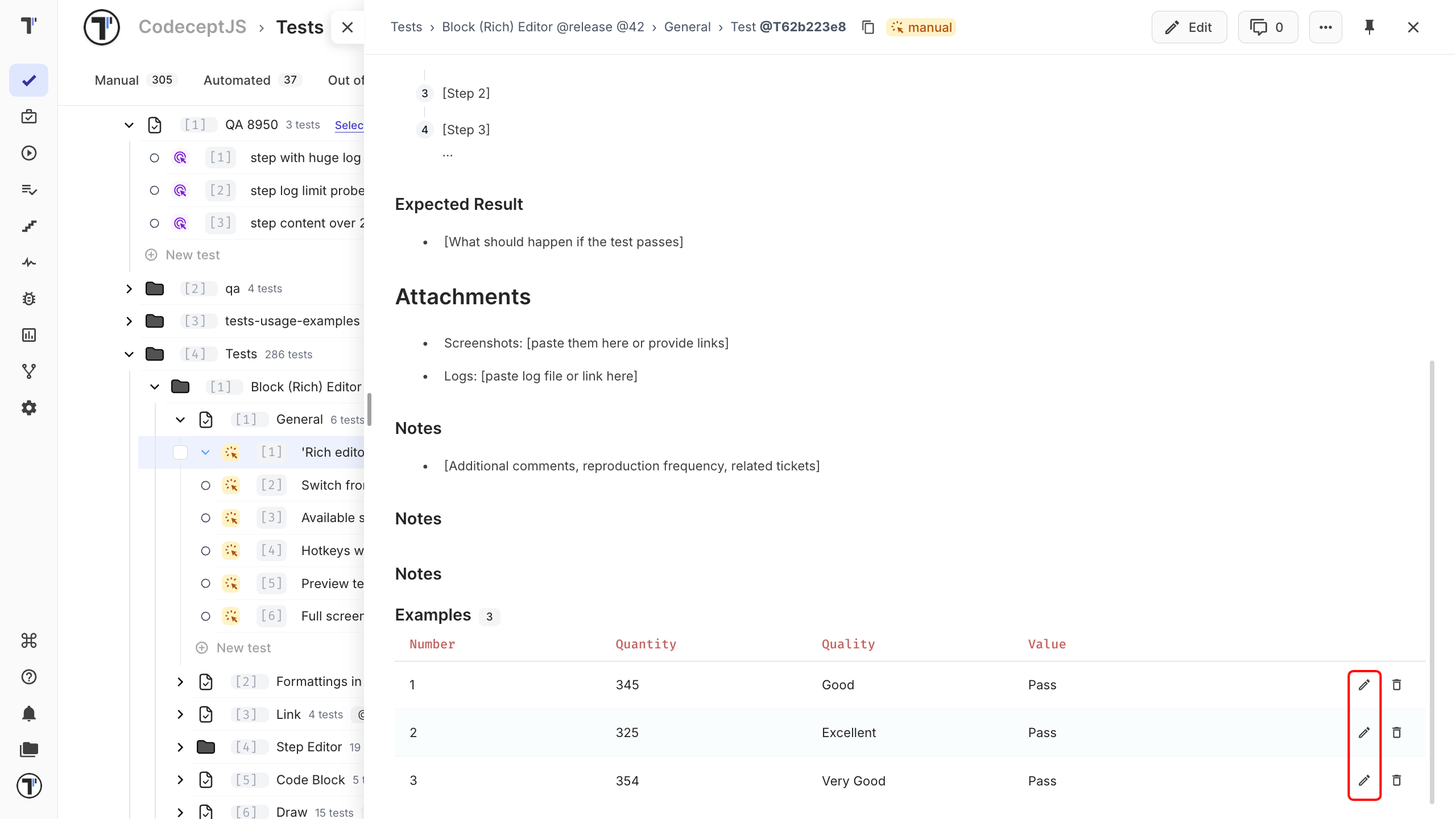
Section titled “Edit Parameters”You can edit parameters from the test description or from the parameter menu.
From the Test Description
Section titled “From the Test Description”- Click Edit next to the parameter.
- Change the parameter name.
- Click Save.
- Click Edit Header.
- Change the header name.
- Click Save.
From the Parameter Menu
Section titled “From the Parameter Menu”- Click the Extra button.
- Select Add Parameter.
- Edit the parameter name or header name.
- Click Save.
Delete a Parameter
Section titled “Delete a Parameter”- Click the Trash icon next to the parameter.
- Click OK to confirm.
You can also delete a parameter from the parameter menu: open Add Parameter and click the Trash icon.
Use Parameters in Test Steps
Section titled “Use Parameters in Test Steps”After adding the parameter table, connect its headers to your test steps with a placeholder.
- Check the exact Parameter header name.
- Open the test and click Edit.
- Add the header name to a placeholder using either
${}or{{}}. - Click Save.
For example:
Enter an invalid Mobile Number ${Mobile No}
Open home page {{URL}}.
When the test runs, Testomat.io replaces each placeholder with the value from the current row.
Both placeholder formats work in steps and descriptions. In test titles, use ${}.
| Where | ${ParameterName} | {{ParameterName}} |
|---|---|---|
| Test title | Works | Not supported |
| Steps and description | Works | Works |
Using ${} everywhere keeps the syntax consistent.