

Suites and Folders
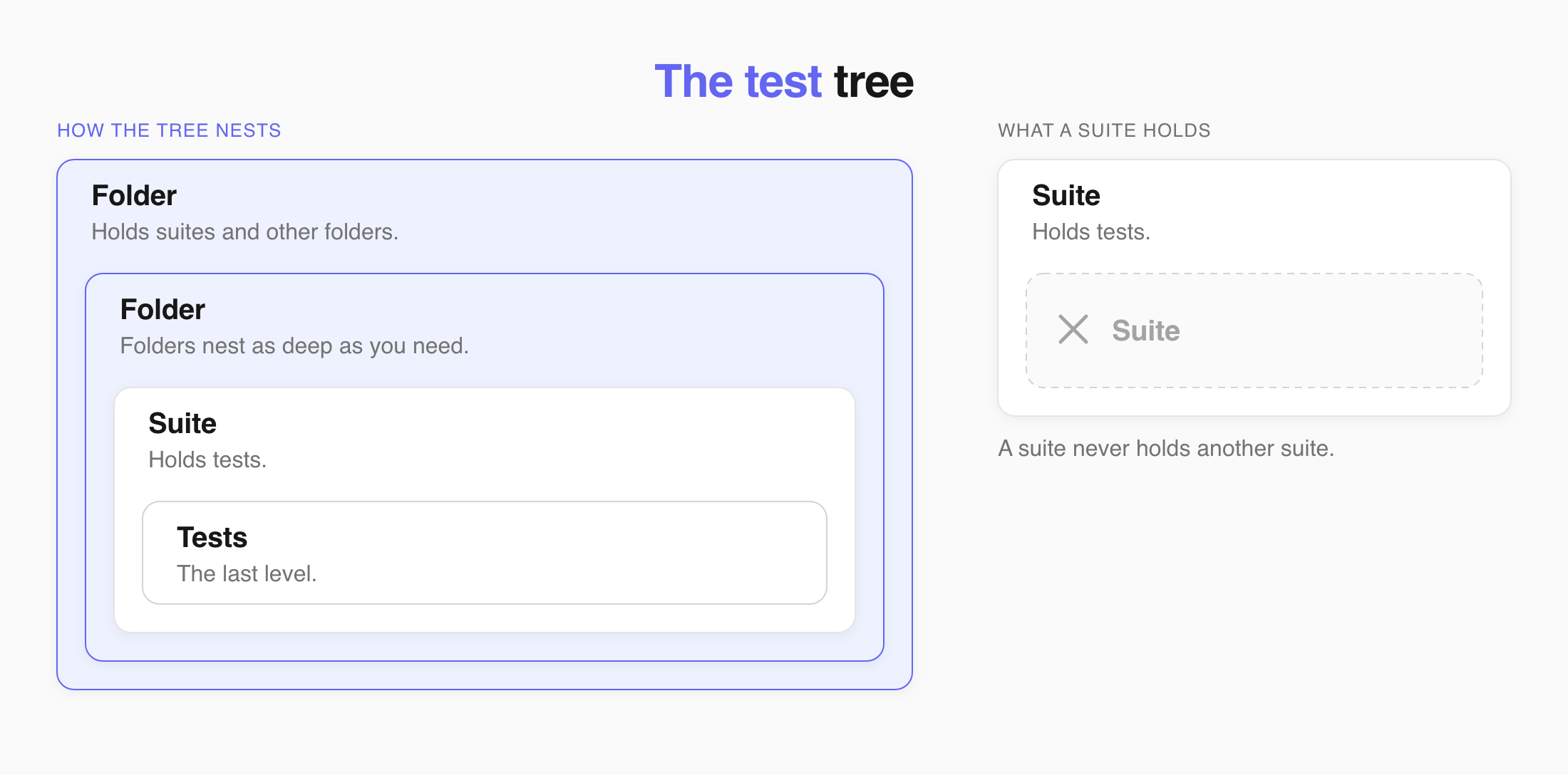
A suite contains tests. A folder groups suites.
Create a Suite or Folder
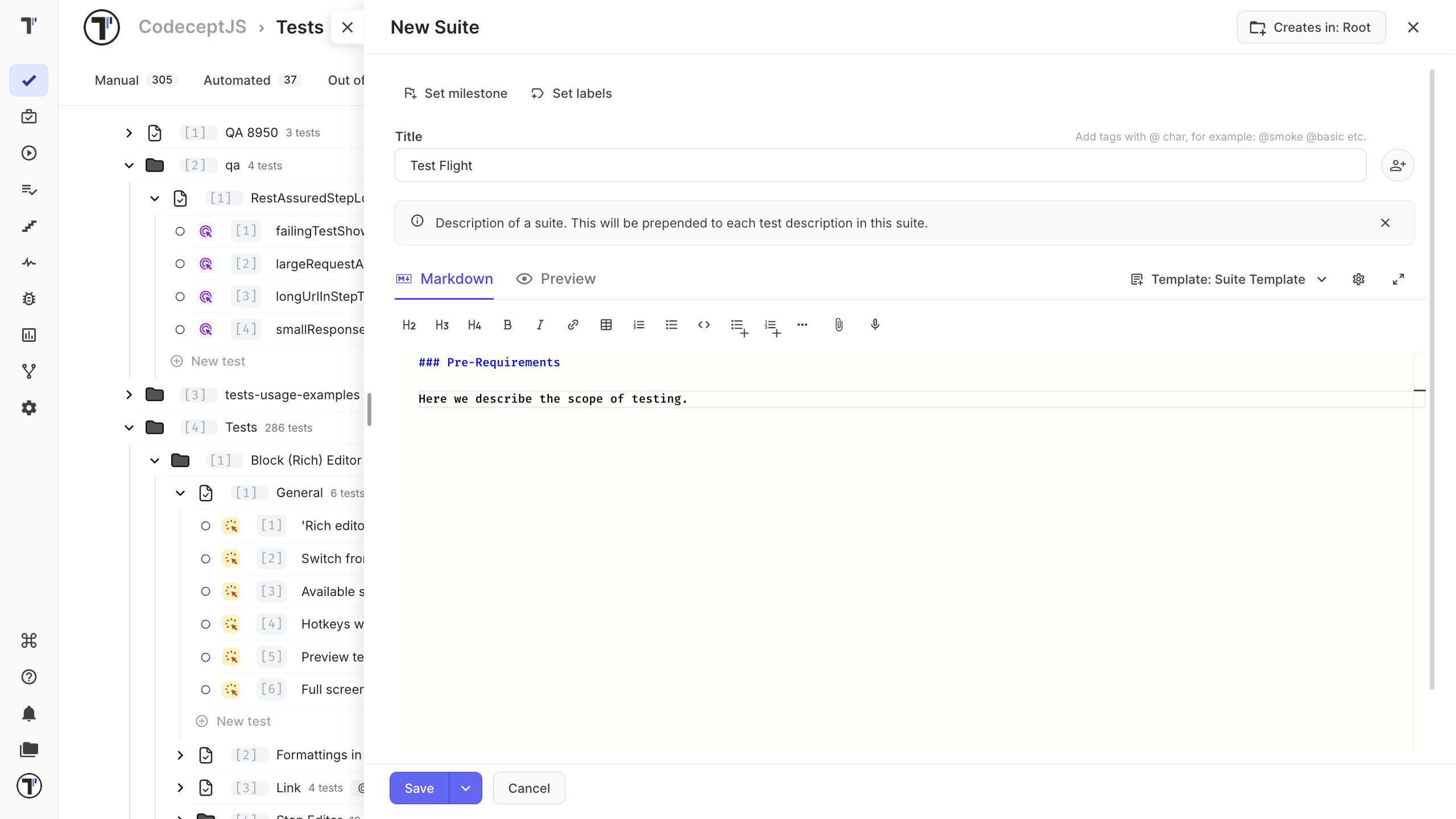
Section titled “Create a Suite or Folder”Choose New suite when you want to add tests. Choose New folder when you want to group suites.
- Go to the Tests page.
- Click + New.
- Select + New suite or + New folder.
- Enter a name.
- Click Save.
The new item appears in the test tree. Open a suite to add tests.
You can also create a suite while you write a new test, without leaving the editor. See Choose or Create a Suite.
Add an Emoji to a Suite
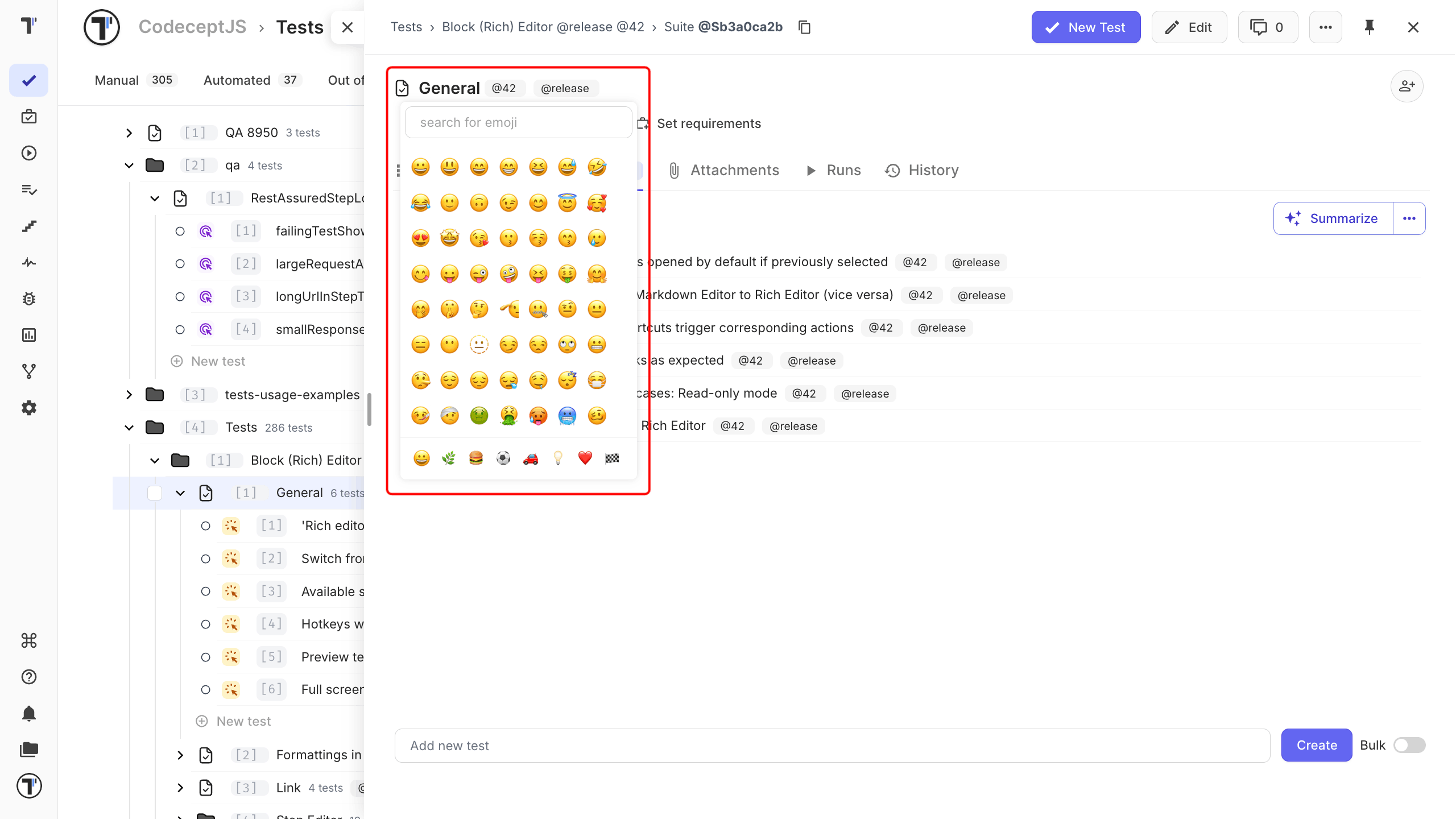
Section titled “Add an Emoji to a Suite”Add an emoji to make a suite easier to spot in the test tree. Yopu can remove and change it at any time.
Navigate with Breadcrumbs
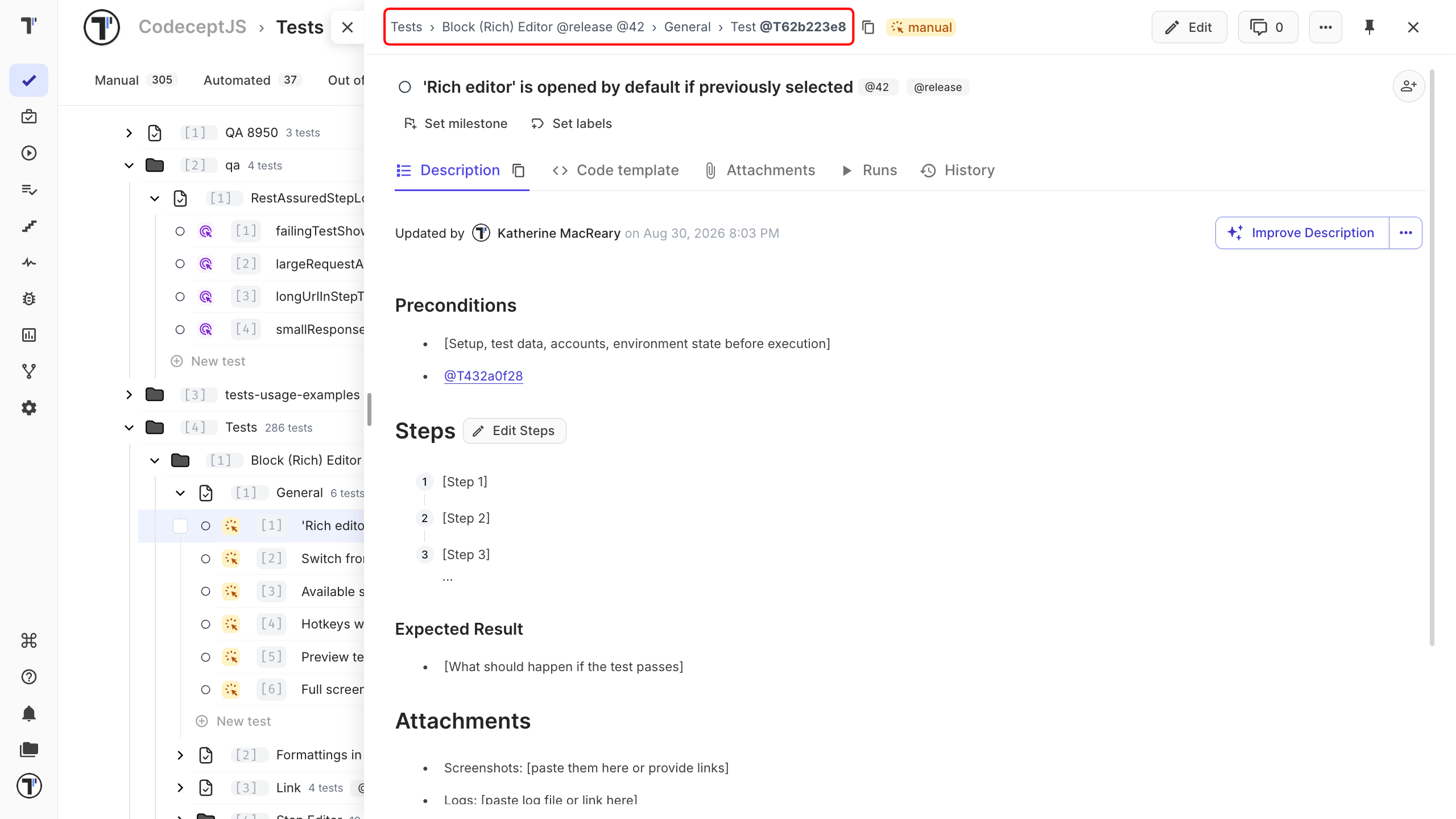
Section titled “Navigate with Breadcrumbs”Breadcrumbs show the test’s location in the tree.
Click a breadcrumb to go back to a parent suite or folder.
Hover over a shortened breadcrumb to see its full name.
Star Suites and Folders
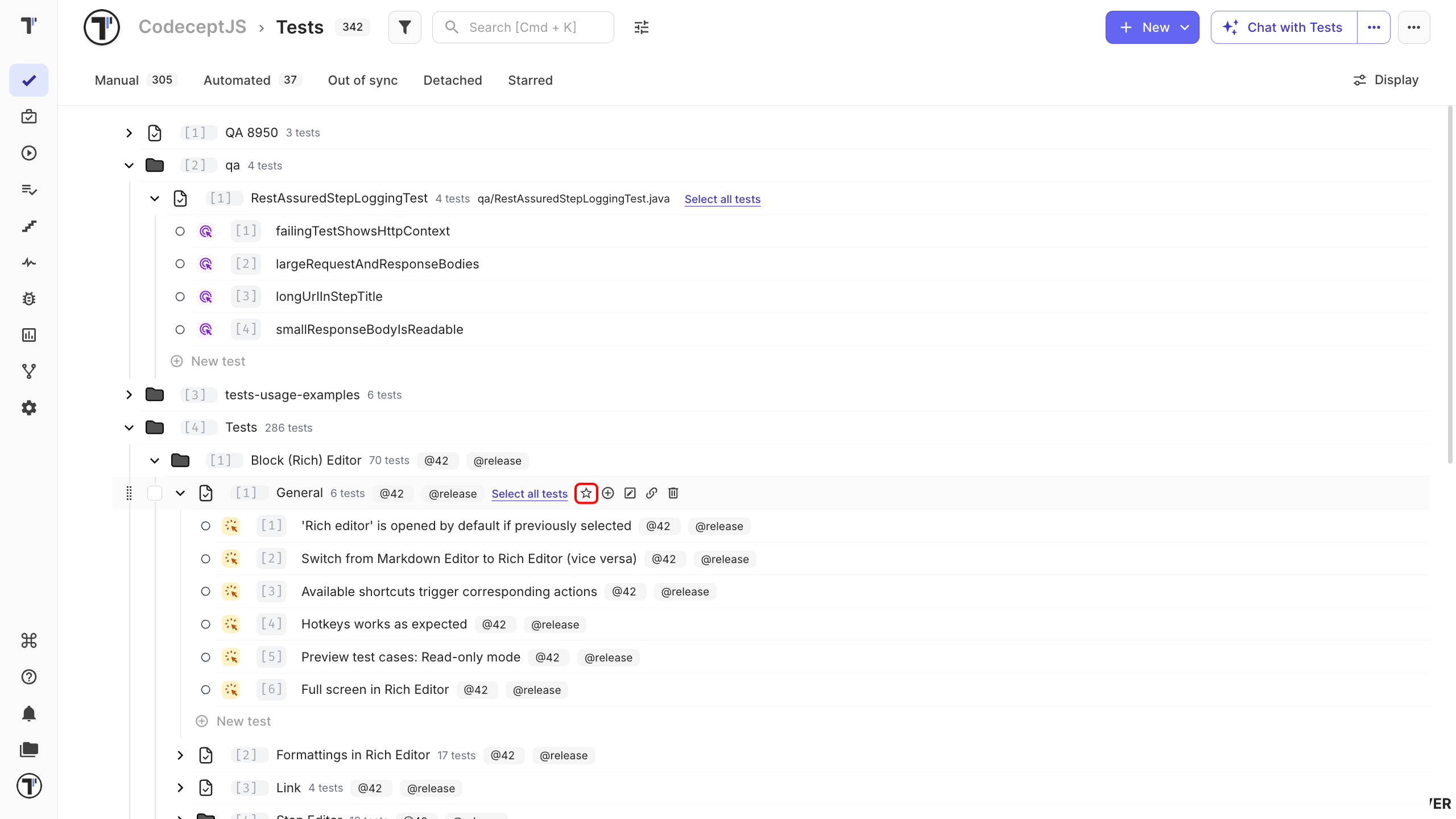
Section titled “Star Suites and Folders”Star items you use often to find them under the Starred filter.
- Go to the Tests page.
- Hover over a suite or folder.
- Click the star icon.
You can also star an item from search results.
Clear Starred Items
Section titled “Clear Starred Items”- Apply the Starred filter.
- Click the Crossed star button.
- Confirm the action.
Convert a Suite to a Folder
Section titled “Convert a Suite to a Folder”Convert a suite when you need to place other suites alongside it.
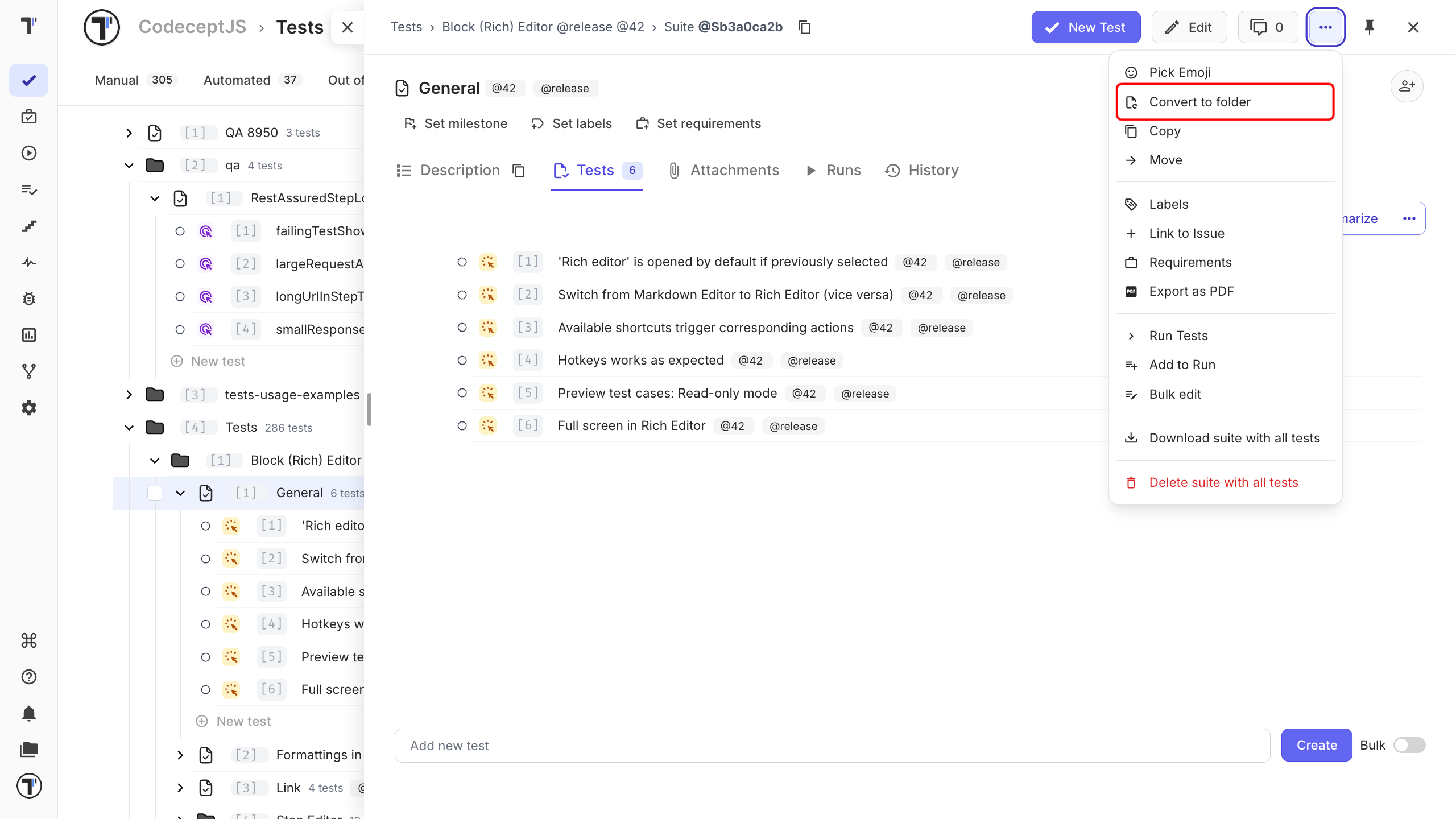
- Go to the Tests page.
- Open the suite.
- Open the (…) menu.
- Select Convert to folder.
- Confirm the action.
The new folder keeps the suite inside it, along with all its tests and history.
Before:
Notifications (Suite)├── Test 1└── Test 2After:
Notifications (Folder)└── Notifications (Suite) ├── Test 1 └── Test 2You can now add other suites to the folder.